Accessibility
Part of the Anaya Care Handbook — the source of truth for how the product must behave. When the product needs to change, change this document first, then make the system match it.
Implementation status — this module is specified but not yet built. Every rule below is 🚧 Spec only until the feature ships and this page is audited against the code. Legend: ✅ In code · ⚠️ Partial · 🚧 Spec only (not yet built).
What this covers
This page governs the user-facing accessibility features that let people of differing abilities use Anaya Care — the settings and behaviours each audience can turn on for themselves, plus the platform-wide guarantees that hold everywhere regardless of any personal setting. Because the product serves older clients, busy care providers in the field, and family representatives of varied technical comfort, accessibility is shaped per audience rather than one-size-fits-all.
The underlying standard the whole platform must satisfy — WCAG 2.1 AA — is owned as a non-functional requirement on Security & Compliance (, ); this page restates it for completeness and adds the per-audience feature set on top. Hardware and assistive-device integrations beyond on-screen settings are a separate, future concern covered by Adaptive Technology Integration.
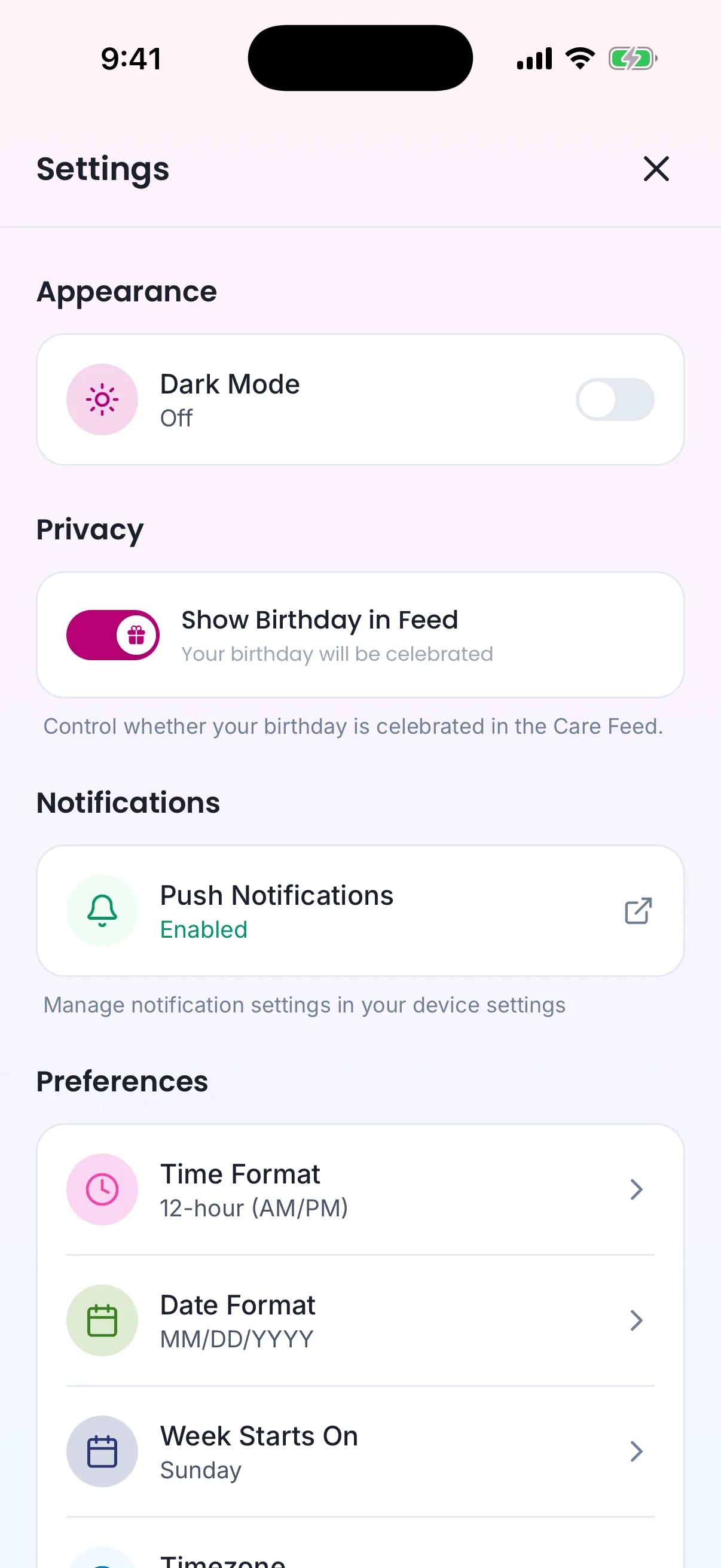
What exists today: the phone's Dark Mode switch is the only setting that changes how the app looks. The dashboard has none.
Key terms
- Accessibility settings — the per-user preferences (such as large text or high contrast) a person can turn on for their own account, which then apply across their view of the platform.
- Large text — an option that increases text size throughout a person's interface without breaking layout or hiding content.
- High contrast — a display mode that strengthens the contrast between text and background to aid low-vision users.
- Screen reader support — interface markup and labelling that lets assistive screen-reader software announce every element correctly.
- Voice navigation — controlling the app by voice rather than touch, available to clients.
- Voice-to-text documentation — dictating care notes and other documentation by voice instead of typing, available to care providers.
- Simple / simplified interface — a reduced-complexity view that surfaces only the essentials, offered to clients and care providers.
- Guided tooltips — short, on-the-spot prompts that walk a representative through a screen the first time they use it.
- Alt text — the descriptive text attached to every image and icon so assistive software can announce what it shows.
- WCAG 2.1 AA — the web accessibility standard the whole platform must meet (owned on Security & Compliance).
How it works
Accessibility by audience
Each audience gets the accessibility features that fit how they use the product. A person turns on the settings they need for their own account; once set, the choice applies across their view of the platform and persists until they change it.
can enable large text, high contrast, screen reader support, a simple interface, and voice navigation — the broadest set, because clients span the widest range of vision, dexterity, and technical comfort.
work hands-busy in the field, so their set is built around speed and one-handed use: voice-to-text documentation, large buttons, screen reader support, and a simplified view.
get large text, high contrast, simple navigation, screen reader support, and guided tooltips that orient them the first time they open a screen.
Platform-wide guarantees
Some accessibility behaviour is not optional and is not tied to any personal setting — it holds for every user, every screen, all the time. Every interface meets WCAG 2.1 AA. Every image and icon carries descriptive alt text. Every interactive element can be reached by both touch and voice. And colour is never the only way information is conveyed — anything signalled by colour (a status, an alert, a required field) is also signalled by text, shape, or an icon, so it still reads for someone who cannot distinguish those colours.
Rules
- AX-1 — Every user-facing interface across the platform must comply with WCAG 2.1 AA (owned as a non-functional requirement on Security & Compliance, ). (🚧 Spec only)
- AX-2 — Every image and every icon must include descriptive alt text so assistive software can announce what it shows (see Security & Compliance, ). (🚧 Spec only)
- AX-3 — Every interactive element must be reachable by both touch and voice. (🚧 Spec only)
- AX-4 — Colour must never be the sole means of conveying information; anything signalled by colour must also be signalled by text, shape, or an icon. (🚧 Spec only)
- AX-5 — Screen-reader compatibility must hold across all user-facing interfaces, for every role. (🚧 Spec only)
- AX-6 — A user's chosen accessibility settings must apply across their view of the platform and persist until they change them. (🚧 Spec only)
- AX-7 — Clients must be able to enable large text, high contrast, screen reader support, a simple interface, and voice navigation. (🚧 Spec only)
- AX-8 — Care providers must be able to enable voice-to-text documentation, large buttons, screen reader support, and a simplified view. (🚧 Spec only)
- AX-9 — Representatives must be able to enable large text, high contrast, simple navigation, screen reader support, and guided tooltips. (🚧 Spec only)
- AX-10 — Large text and high contrast must change presentation only; no content may be hidden, truncated, or made unreachable when either is on. (🚧 Spec only)
Who can do what
| Action | Roles |
|---|---|
| Enable large text, high contrast, screen reader, simple interface, voice navigation | Client |
| Enable voice-to-text documentation, large buttons, screen reader, simplified view | Care provider |
| Enable large text, high contrast, simple navigation, screen reader, guided tooltips | Representative |
| Benefit from platform-wide WCAG 2.1 AA, alt text, touch-and-voice access, non-colour-only cues | All roles |
Decisions needed
- Which audience set, if any, applies to staff roles? The PRD names feature sets only for clients, care providers, and representatives. Options: give SuperAdmin, Owner, Admin, Care manager, and Medical professional the platform-wide guarantees only; extend a per-audience set (for example the care-provider set) to office staff; define a dedicated staff set.
- Are the per-audience feature sets fixed, or can an agency add or remove options? The PRD lists a fixed set per audience. Options: keep the sets fixed platform-wide; let an agency toggle which accessibility options its users may use.
- Is there a system default, or is everything off until the user opts in? The PRD describes user-selectable settings but no default state. Options: everything off until the user turns it on; detect the device's OS-level accessibility settings and pre-apply matching options; let the agency set defaults per audience.
- Should representatives be able to set accessibility options on behalf of a client? Many clients will not configure settings themselves. Options: client-only self-service; allow a representative (or care manager) to set a client's accessibility options for them.
How is this page?
Last updated on