Incident Reports
Part of the Anaya Care Handbook — the source of truth for how the product must behave. When the product needs to change, change this document first, then make the system match it.
What this covers
This page governs : after-the-fact accounts — a fall, a medication error, an injury — that a care provider files against a client from the mobile app; management reviews and resolves them on the web dashboard and can share them with the client's family. The platform's other safety feature, the real-time SOS panic action, has its own page: Emergency Alerts (SOS).
Incident reports capture unexpected one-time events. They are distinct from Change of Condition records, which track ongoing health changes over time.
Key terms
- Incident report — A written account of something that went wrong involving a client (fall, medication error, injury, behavioral incident, skin issue, choking, or medical emergency), filed by a care provider.
- Incident type — The category a report must declare: fall, medication error, injury, behavioral incident, skin integrity issue, choking, or medical emergency.
- Severity — How serious an incident is: low, moderate, high, or critical. It is suggested during filing and drives who is notified and what follow-up fires.
- Mandatory Report — A dedicated option inside the filing flow for suspected abuse, neglect, or exploitation, which surfaces the state-specific reporting contacts and notifies the care manager and Owner/Admin immediately.
- Acknowledgement — A care manager confirming they have seen a submitted incident; if it is not acknowledged in time, the alert escalates to the Owner/Admin.
- Edit window — The 30 minutes after filing during which the reporter may still correct their report.
- Review — A manager's examination of a submitted report, with optional notes.
- Resolution — The final closing of a report, with notes on the outcome.
- Share with family — A one-time, one-way action that makes a report known to the client's family representatives.
- Handover note — An automatically suggested briefing for the next care provider on shift, which can be generated from a serious incident.
How it works
Incident report lifecycle
A care provider files a report from the mobile app against a specific client. The filing screen is one free-text account of what happened (at least ten characters), dictated or typed, and may include photos. The report is created the moment it is submitted and starts in Submitted — nothing waits on the AI. The incident type and the time it happened are then inferred from the account by the intake agent and confirmed with the provider (see AI-assisted filing); until that happens the report reads as Unclassified, and a manager can set the type during review.
Management reviews reports on the web dashboard. A manager can move a report to Under review (recording who reviewed it, when, and any notes) or close it as Resolved (recording who resolved it, when, and the resolution notes). A minor report may be resolved directly from Submitted without a separate review step. Once resolved, a report is final.
The reporter may correct their own report for 30 minutes after filing; after that it is locked. At any point, management can share the report with the client's family representatives — a one-time action that cannot be undone.
When a report is filed, the system may also judge that the next care provider needs to know about it and prepare a handover note for them to acknowledge at the start of their next shift (see Scheduling & Shifts).
AI-assisted filing and severity
The filing flow is guided after submission, not before it. The care provider writes one free-text account of what happened. The moment it is submitted, the report exists and management is notified as usual; then the intake agent reads the account against the client's care plan, memory and recent records and, on the provider's phone, asks up to three short clarifying questions — only for safety-critical facts the account does not already answer (what exactly happened, when, any injury, what the provider did, how the client is now, who was told). Questions are plain sentences with tap-to-answer choices, and the provider may skip any of them. The agent then presents a clean, complete version of the account in the provider's own voice, with the incident type and time it inferred, for the provider to confirm or correct — they can edit any word before saving. The confirmed version replaces the submitted text; the provider's original words are always kept on the record and can be shown alongside. If the provider never answers, the report stands as written; the intake never blocks, delays, or deletes a report.
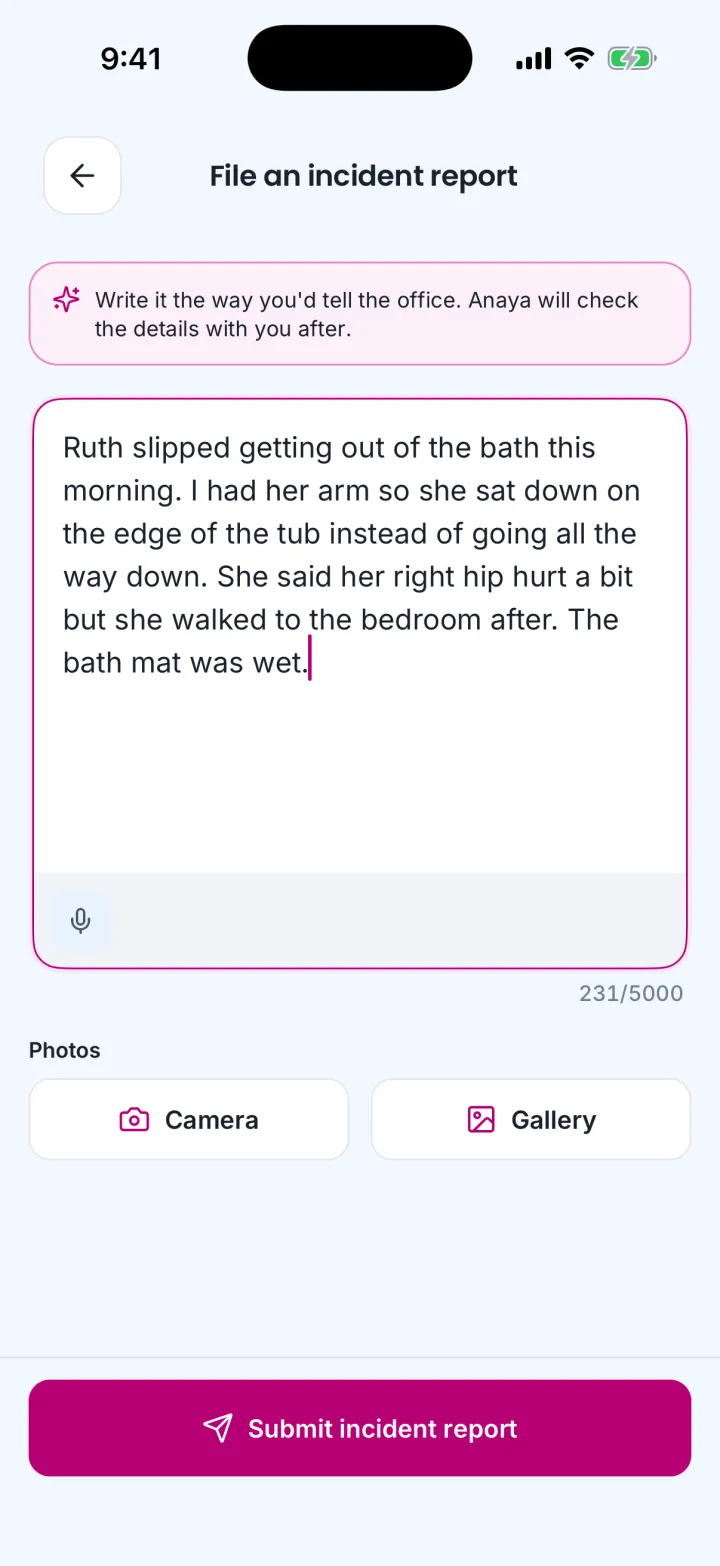
An incident is filed as one account, in the care provider's own words.
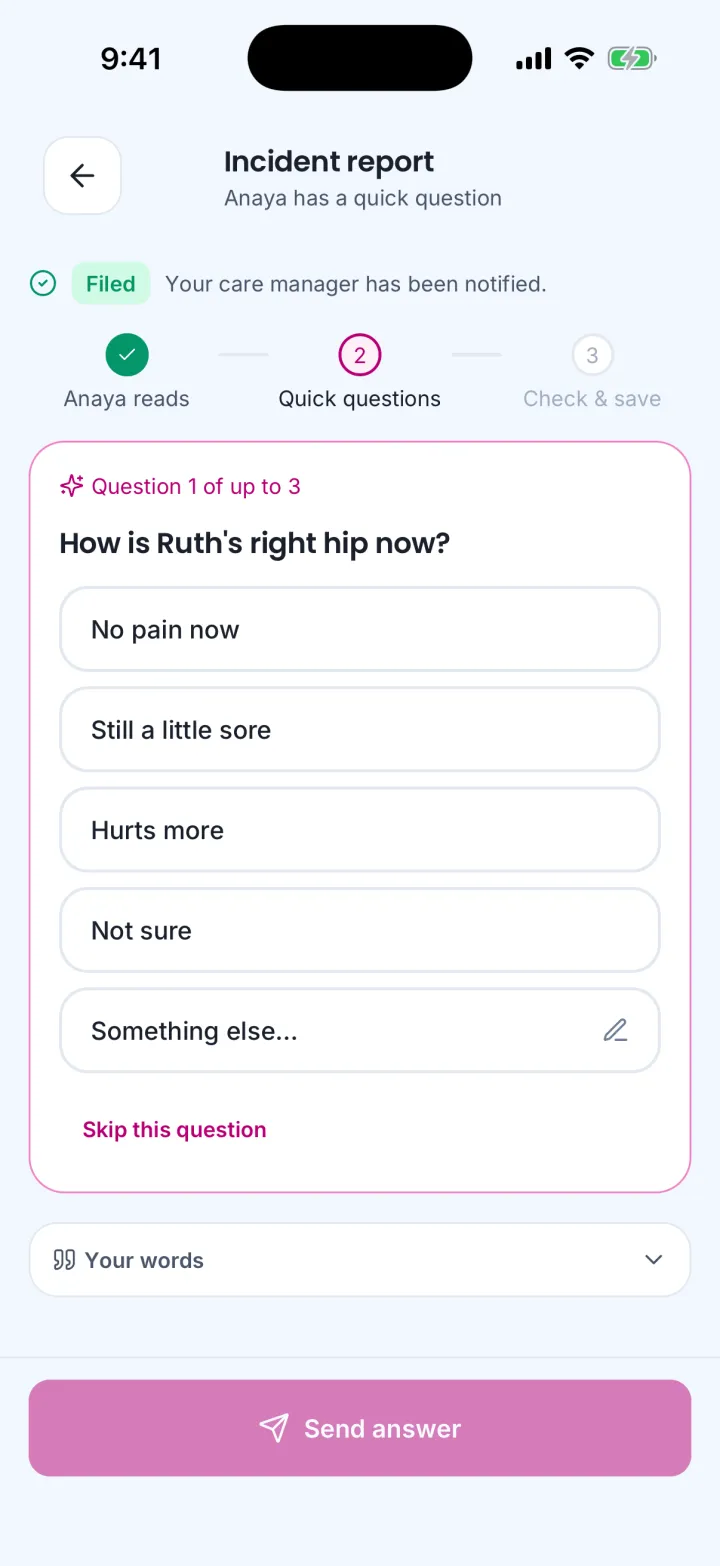
Up to three questions, each one skippable.
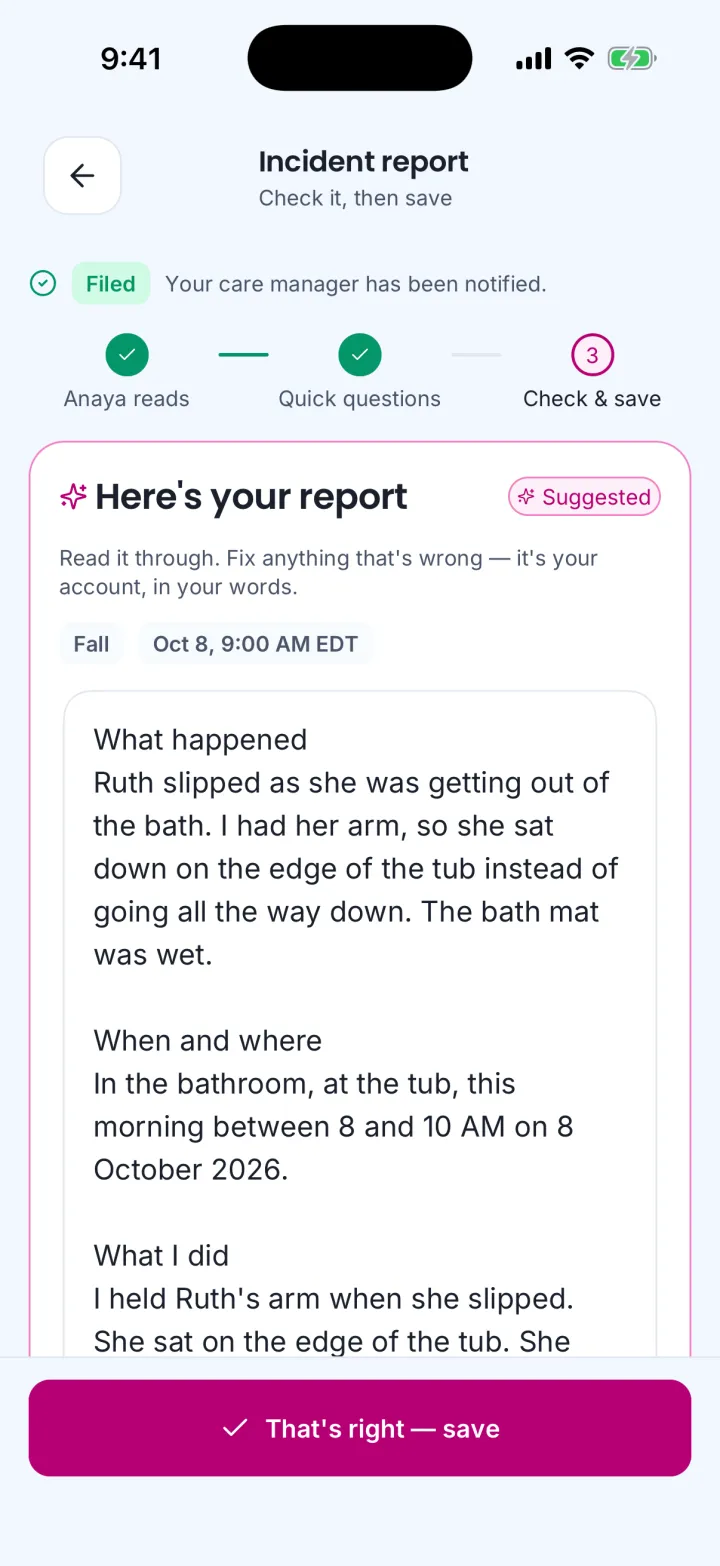
The provider checks the clarified account and can change any word before saving.
For the reviewer, the agent also attaches a two-sentence summary, a suggested significance with its reasoning, the care-plan areas it believes the incident touches, and any pattern it noticed in the client's recent records (for example, a third fall in thirty days). These are hints beside the reviewer's controls, never pre-selected: the reviewer decides ().
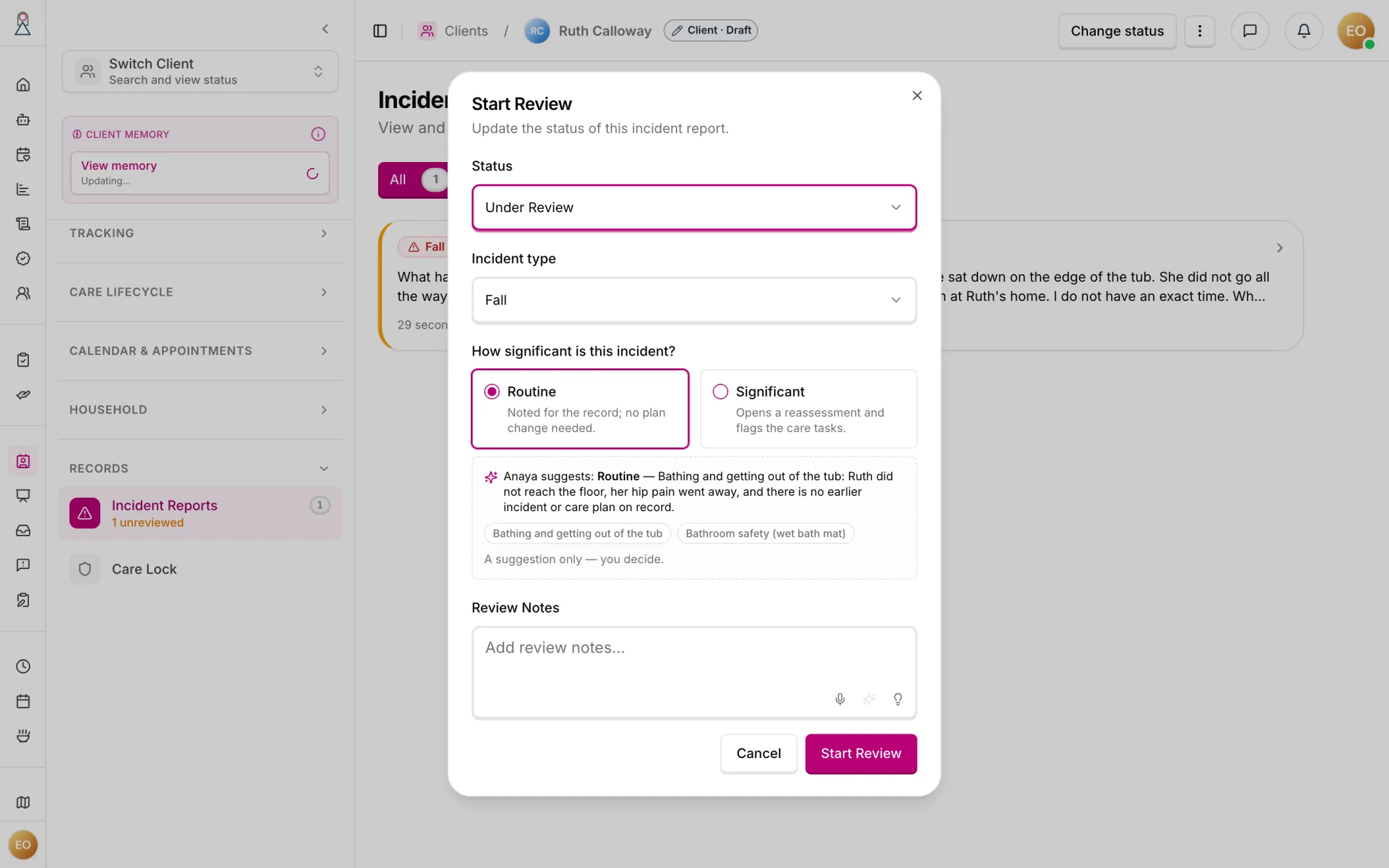
Anaya's suggested significance, with its reason. Routine is the form's starting value, not Anaya's choice; the reviewer decides.
The flow is also meant to suggest a severity — low, moderate, high, or critical — which the care provider can accept or override.
For suspected abuse, neglect, or exploitation, the flow offers a dedicated Mandatory Report option. Choosing it surfaces the state-specific reporting contacts inside the platform and immediately notifies both the responsible care manager and the agency's Owner/Admin.
Severity drives what happens next. A high or critical incident automatically flags the client for a care-plan review. Every incident is retained permanently in the client's profile history and is never deleted.
Acknowledgement and shift close-out
A care manager is expected to acknowledge each submitted incident. If they do not acknowledge it within the configured timeframe, the alert escalates to the agency's Owner/Admin. Separately, when a care provider tries to close a shift while a high-severity incident for that client is still unresolved, the app warns them and requires explicit confirmation that the incident has been addressed before the shift can close (see Scheduling & Shifts).
Incident notifications
- On filing: every management user who can view all incident reports is notified immediately, at high priority. This notification cannot be turned off. The reporter is not notified of their own filing. The responsible care manager also receives an immediate push on submission.
- On filing, by severity: when a report is moderate, high, or critical, the client's active representatives are notified automatically — they do not have to wait for a manager to share the report.
- On review or resolution: the same management group plus the original reporter are notified. Individuals may turn these off.
- On sharing with family: the client's active family representatives are notified, at high priority. This notification cannot be turned off.
Delivery follows the platform's standard notification channels (see Communication). Every time someone opens a report, that access is recorded in the audit trail, because incident reports contain health information.
Rules
- INC-1 — Only a care provider (or another user granted incident-reporting permission) can file an incident report, and only from the mobile app, against a specific client of their agency.
- INC-2 — Every incident report must carry a description of at least ten characters, and may carry photos. The incident type (fall, medication error, injury, behavioral incident, skin integrity issue, choking, or medical emergency) and the date and time it occurred are not required at filing: they are inferred from the description by the intake flow and confirmed by the reporter (), or set by a manager during review. Until then the report reads as unclassified, and the time defaults to the moment it was filed.
- INC-3 — Every incident report belongs to exactly one agency and one client. Users of one agency can never see another agency's reports.
- INC-4 — A new report always starts in Submitted status.
- INC-5 — Only the original reporter can edit a report, and only within 30 minutes of filing. After the edit window closes, the report content is locked for everyone. The one exception is the intake refinement under : the system may replace the description with the version the reporter confirmed on their phone, outside the 30-minute window, provided the report has not yet been reviewed and the original words are retained.
- INC-6 — Only the original reporter can add photo attachments, and only within the same 30-minute edit window. Attachments must be protected like all other client health information — never publicly accessible.
- INC-7 — A report can only move forward: Submitted → Under review → Resolved, or Submitted → Resolved directly. A resolved report can never be reopened or changed.
- INC-8 — Every review and every resolution must record who did it, when, and the notes they entered.
- INC-9 — Sharing a report with the family can happen only once per report, can never be undone, and must notify the client's active family representatives.
- INC-10 — Once a report is shared with the family, the client's family representatives must be able to view it. Reports that have not been shared are never visible to the family.
- INC-11 — Filing a report must immediately notify, at high priority, every management user who can view all incident reports — except the reporter. This notification cannot be disabled by the recipient.
- INC-12 — Review and resolution must notify the same management group plus the original reporter. Recipients may turn these notifications off individually.
- INC-13 — Report visibility must honor each user's permission scope: "view all" sees every report in the agency, "view assigned" sees reports for clients the user is assigned to, and "view own" sees only reports the user filed.
- INC-14 — A care provider who can file reports for a client must also be able to see the reports they filed for that client.
- INC-15 — Every viewing of an incident report must be recorded in the audit trail as health-information access; filing, review, and resolution must each be recorded in the activity log.
Note: Rules INC-16 – INC-22 were retired and live on as – on Emergency Alerts (SOS). IDs are never reused.
- INC-23 — The filing flow must read the care provider's initial free-text description and present structured incident-type options for them to confirm, rather than asking them to pick a type cold. (✅ In code — the intake agent infers the type and confirms it on the review step, asking a choice question first when the account is ambiguous)
- INC-24 — Every report must carry a severity of low, moderate, high, or critical. The flow must suggest a severity that the care provider can accept or override, and the chosen severity must drive who gets notified and what follow-up fires. (🚧 Spec only)
- INC-25 — When preparing a new report, the system must flag patterns based on the client's prior incidents (for example, repeated falls) so the care provider and managers can see the report in context, and it must keep tracking these patterns over time. (⚠️ Partial — the intake agent reads the client's last thirty days of incidents and observations and attaches pattern flags for the reviewer; there is no longitudinal tracking beyond that window)
- INC-26 — Filing a report must immediately send the responsible care manager a push notification on submission. (🚧 Spec only)
- INC-27 — When a report's severity is moderate, high, or critical, the client's active representatives must be notified automatically, without waiting for a manager to share it. (🚧 Spec only)
- INC-28 — A report with high or critical severity must automatically flag the client for a care-plan review. (🚧 Spec only)
- INC-29 — Every incident report must be retained permanently in the client's profile history and must never be deleted. (🚧 Spec only)
- INC-30 — The filing flow must offer a Mandatory Report option for suspected abuse, neglect, or exploitation. Choosing it must surface the state-specific reporting contacts inside the platform and must immediately notify both the responsible care manager and the agency's Owner/Admin. (🚧 Spec only)
- INC-31 — A care manager must acknowledge each incident, and if they do not acknowledge it within the configured timeframe, the system must escalate the alert to the agency's Owner/Admin. (🚧 Spec only)
- INC-32 — When a care provider tries to close a shift while a high-severity incident for that client is still unresolved, the app must warn them and require explicit confirmation that the incident has been addressed before the shift can be closed (see Scheduling & Shifts). (🚧 Spec only)
- INC-33 — Incident reports cover unexpected one-time events and must remain distinct from Change of Condition records, which track ongoing health changes. (🚧 Spec only)
- INC-34 — Reviewing a report, resolving it, and sharing it with the family are management actions, granted separately from filing one. The permission that lets a care provider file and edit a report must never also let them review, resolve, or share a report — their own included. Setting how significant an incident is additionally requires the ability to manage care reviews.
- INC-35 — Filing is one free-text account; the system may then refine it, but only with the reporter, and only into words the reporter has confirmed. After a report is filed, an intake agent may ask the reporter up to three clarifying questions on the device they filed from — each skippable — and must then present the refined account for the reporter to confirm, edit, or send back for one more revision (at most twice). Only the version the reporter confirms may replace the description; the original account must be retained on the report and remain viewable by reviewers. The refinement is applied only while the report is still Submitted; once a manager has moved it, the confirmed version is attached to the report but does not replace the text. The agent may attach a summary, a suggested significance with its reasoning, affected care-plan areas, and pattern flags for the reviewer, but must never set significance itself. The intake must never block, delay, or remove a report: if the agent is unavailable, fails, or the reporter never answers, the report stands exactly as filed.
Who can do what
| Action | Allowed roles |
|---|---|
| File an incident report (mobile) | Care provider (for their clients) |
| File a Mandatory Report (suspected abuse/neglect/exploitation) | Care provider (for their clients) |
| Edit a report / add photos (within 30 minutes) | The original reporter only |
| View all incident reports of the agency | Owner, Admin, Care manager |
| View reports for assigned clients | Medical professional; Care provider (at minimum their own reports) |
| Acknowledge a submitted incident | Care manager (escalates to Owner, Admin if not acknowledged in time) |
| Review or resolve a report | Owner, Admin, Care manager |
| Share a report with the family | Owner, Admin, Care manager |
| View a shared report | The client's family representatives (only after sharing) |
Decisions needed
- Should office staff be able to file incident reports from the web dashboard? A web "incident report form" page exists as an empty placeholder. Options: build web filing for managers; keep filing mobile-only by the care provider who witnessed the event.
- Should anyone be able to correct or remove a report after the 30-minute window? Today nobody can — not even an admin — and there is no delete. Note that now requires permanent retention, so any future correction path must keep the full history rather than overwrite. Options: allow admin corrections with a visible change history; keep reports strictly append-only.
- What exactly should the family see when a report is shared or auto-notified? With notifying representatives automatically on moderate/high/critical severity, the question of what they can then view sharpens. Options: the full report including photos and notes; a summary without internal review notes.
- What is the acknowledgement timeframe before escalation, and is it configurable? requires escalation to the Owner/Admin when a care manager does not acknowledge in time, but the exact window (and whether each agency sets its own) is not yet decided. Options: a fixed platform default; a per-agency configurable timeframe.
- Should an unresolved high-severity incident hard-block closing a shift, or only warn? requires a warning with explicit confirmation. Options: keep the warn-and-confirm behavior; escalate to a hard block until the incident is resolved.
How is this page?
Last updated on