From Intake to Client
The whole path a prospective client takes through the dashboard — initial assessment, care proposal, internal review, the family's decision, and the new client — step by step, with a screenshot of each screen.
Part of the Anaya Care Handbook. This page is a walkthrough: it follows one prospective client from the first intake to a client record and says what each screen does and why. The rules themselves live on Initial Assessments (AS-n) and Care Proposals (CP-n); where this page and a rule disagree, the rule wins.
The path at a glance
There are two records. The is the intake: who the person is, who is around them, what care they want and how they are doing day to day. The is the priced offer made from it, which the agency reviews internally and then sends to the family. Everything typed into the intake carries across to the proposal and on to the client, so nothing is entered twice ().
Template-driven intake — decided 2026-10-01, live since 2026-10-06. Steps 0, 2, 3, 4, 5 and 12 describe the intake and proposal running on templates the agency chooses. The screenshots below were taken before it shipped: they show the fixed Simplified Routine Task Inventory and value-added services in place of the agency's templates and service add-ons.
0. Set up the agency (once)
Before the first intake, someone who may publish assessment templates — the owner or an admin — sets the agency up (ACCESS-40). It asks three things:
- The intake template — the published template every initial assessment runs on: Anaya's General Care Assessment or Simplified Routine Task Inventory, or a template the agency built or adopted in the template library.
- The proposal template — the same for care proposals; Same as intake is one click.
- Service add-ons — the services the agency offers on top of care, each with a description and an optional extra price per hour, or We don't offer add-ons.
Until it is done, the agency's staff are held at the setup gate and no intake or proposal can be created (, CP-40). The choices can be changed later under Settings › Assessments (ABLD-35, ABLD-38).
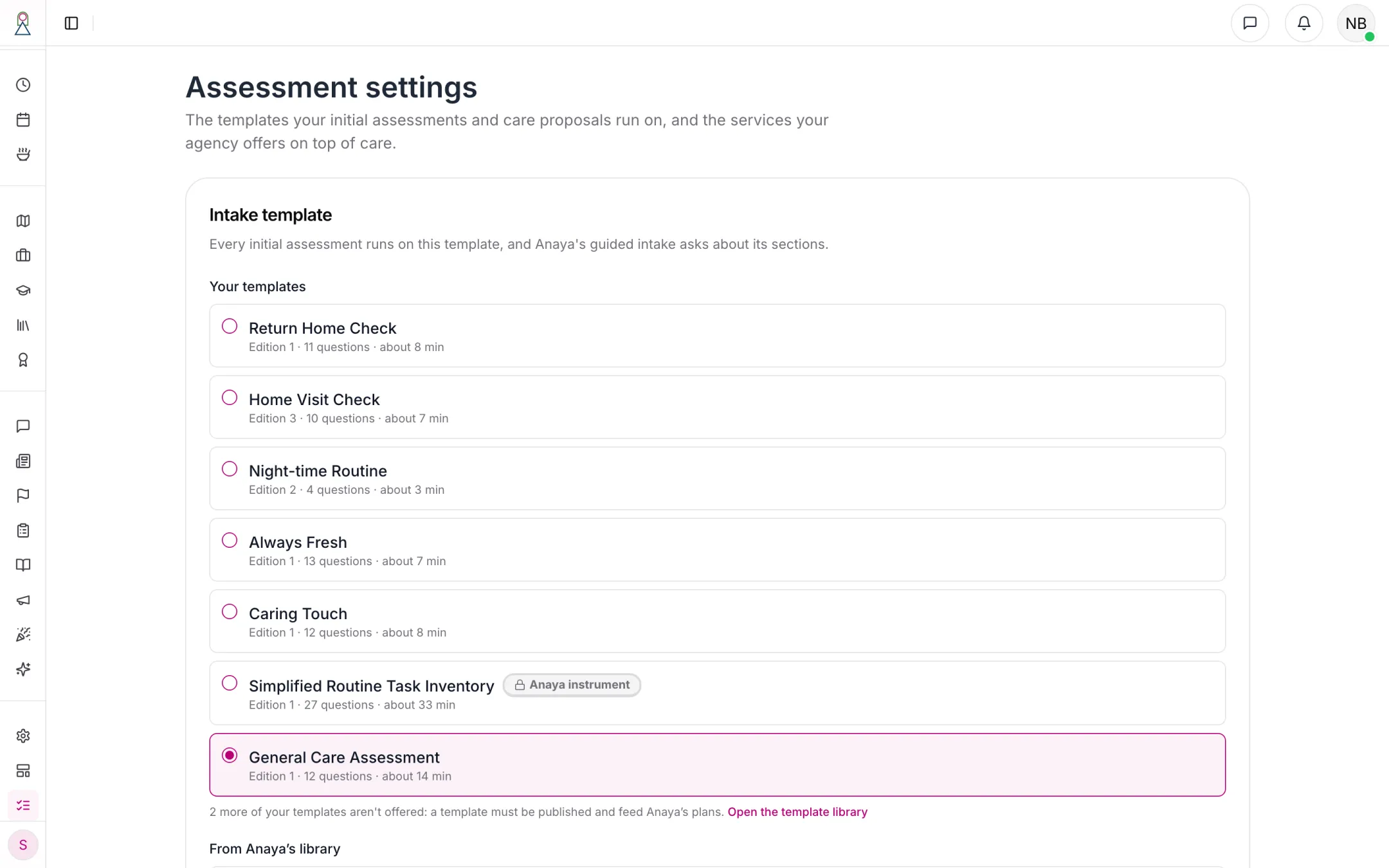
The intake template. Changing it applies to intakes created afterwards; ones already started keep theirs.
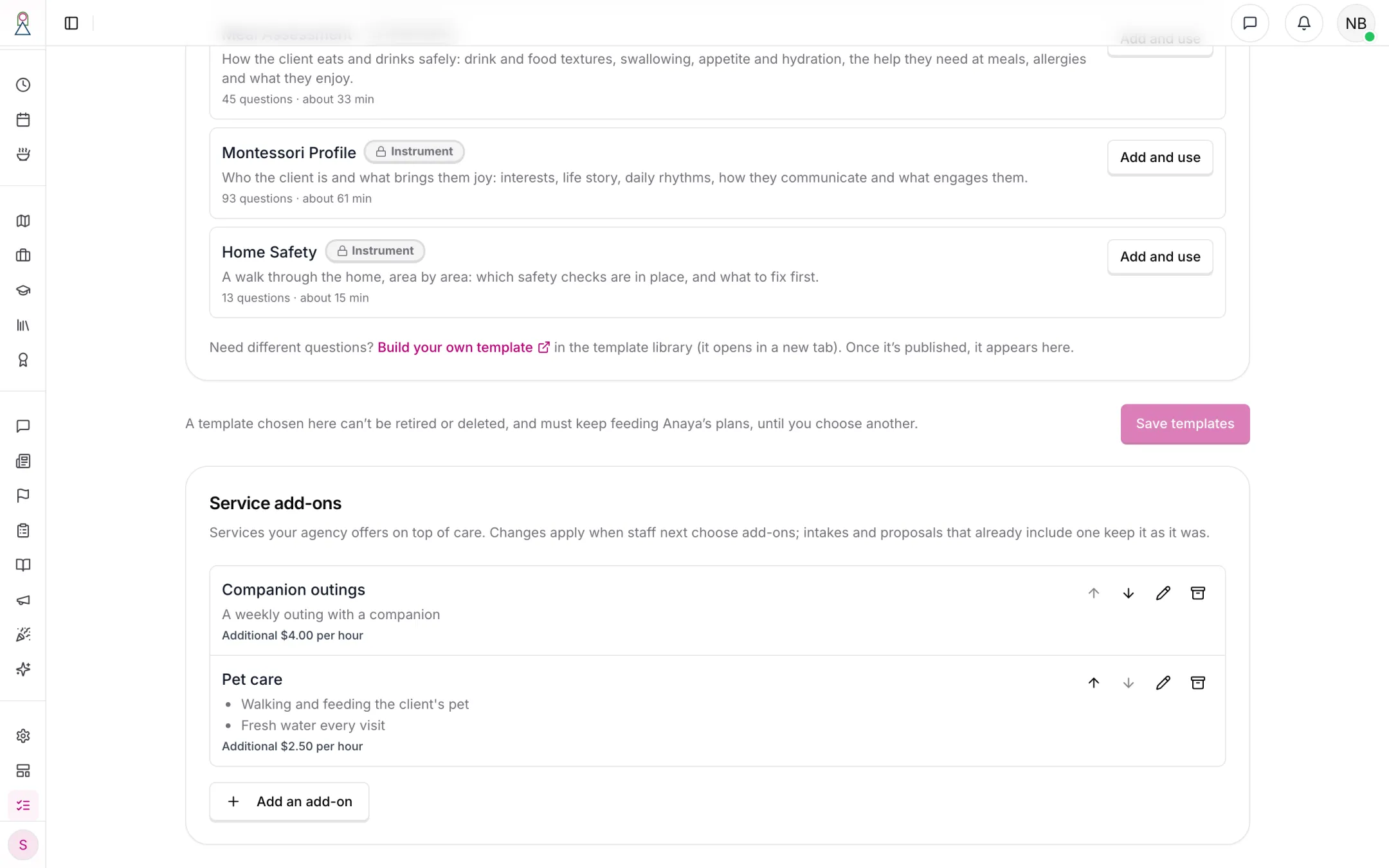
Each add-on has a description, which becomes bullets on the proposal, and an optional extra price per hour.
1. Start the intake
Open and choose New Assessment. A name and a phone number are all it asks for, and both are optional, because an intake often starts with a phone call. The assessment is created in Draft ().
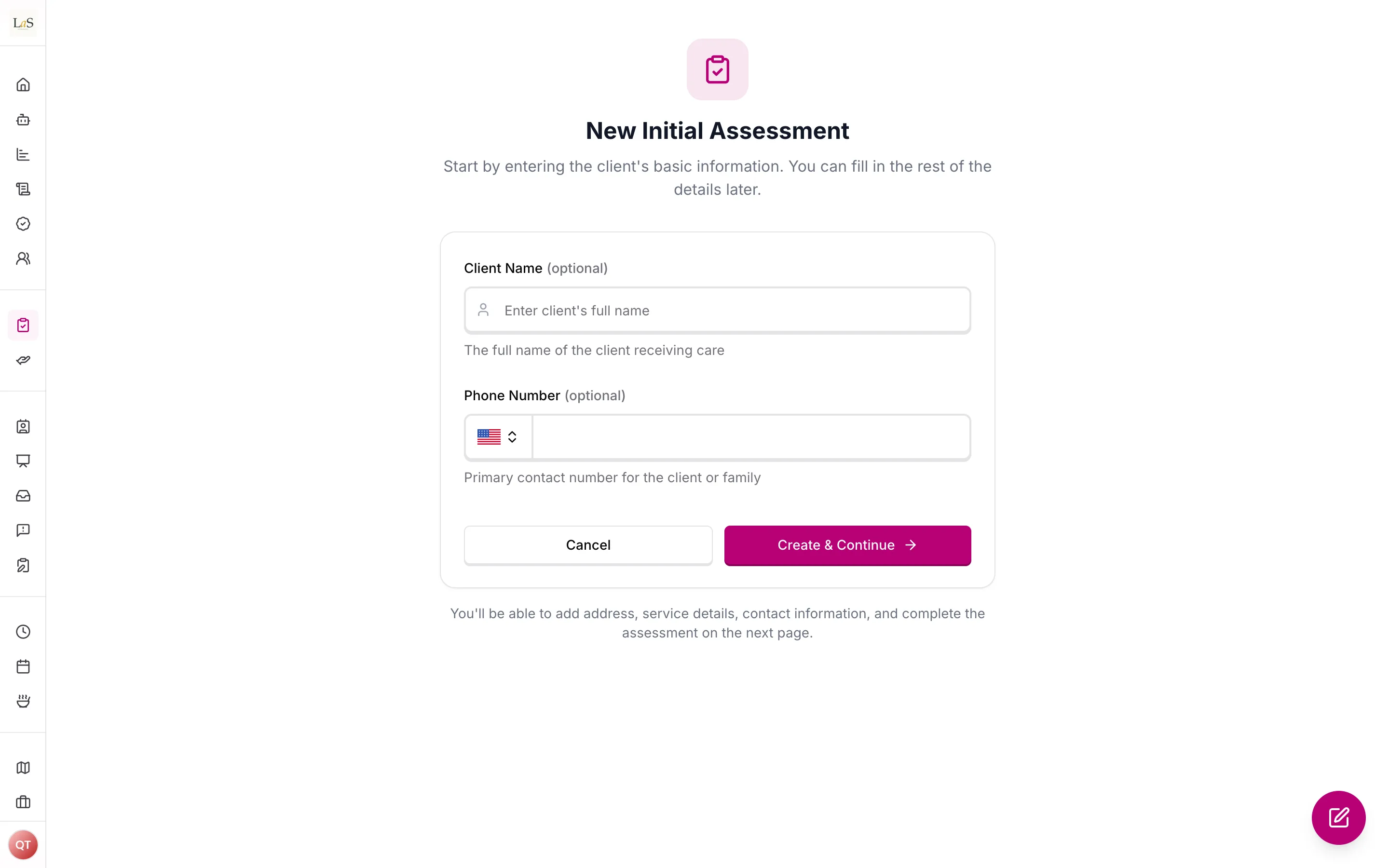
A new initial assessment needs only an optional name and phone number.
2. Fill it in
The intake has four parts: Client Information (the person, their address and photo, and their Care Circle with a responsible party), Service (the type of care, the agency's service add-ons and a weekly schedule), the on the agency's intake template, and the rates. Fill them in by hand, or run the Guided Narrative interview, which asks the care manager about the person, fills in their details, and has Anaya suggest answers for the assessment — each one waits for the care manager to accept, change or dismiss it ().
Everything autosaves as you type, even half-finished or with a malformed email; the checks wait until you mark the assessment complete (). Saving the weekly schedule also chooses which shift lengths the rate table shows, and Calculate Rates prices them from the base rates, adding each chosen add-on's extra hourly price ().
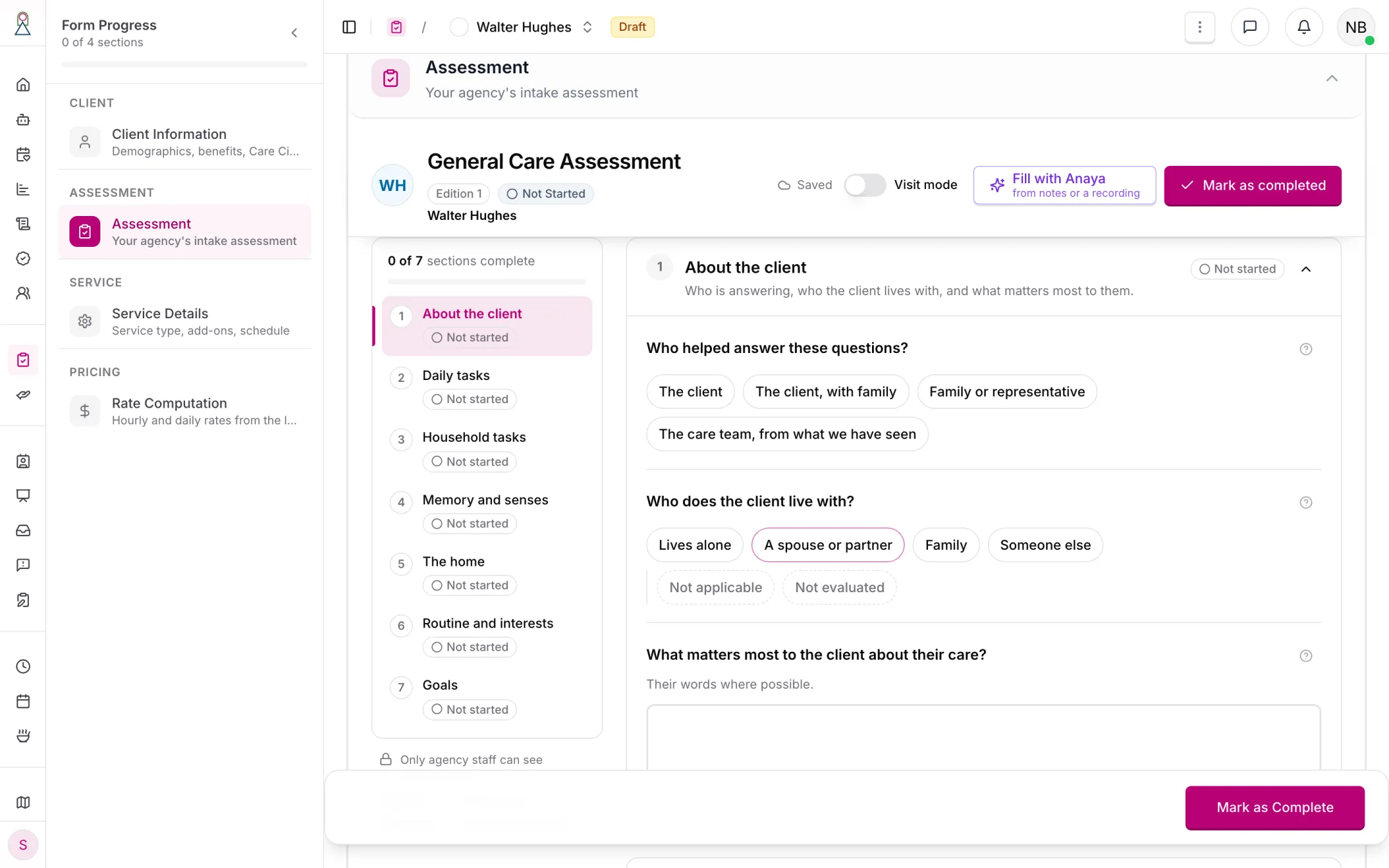
The intake's assessment runs on the agency's intake template, with the same form and autosave as a client's.
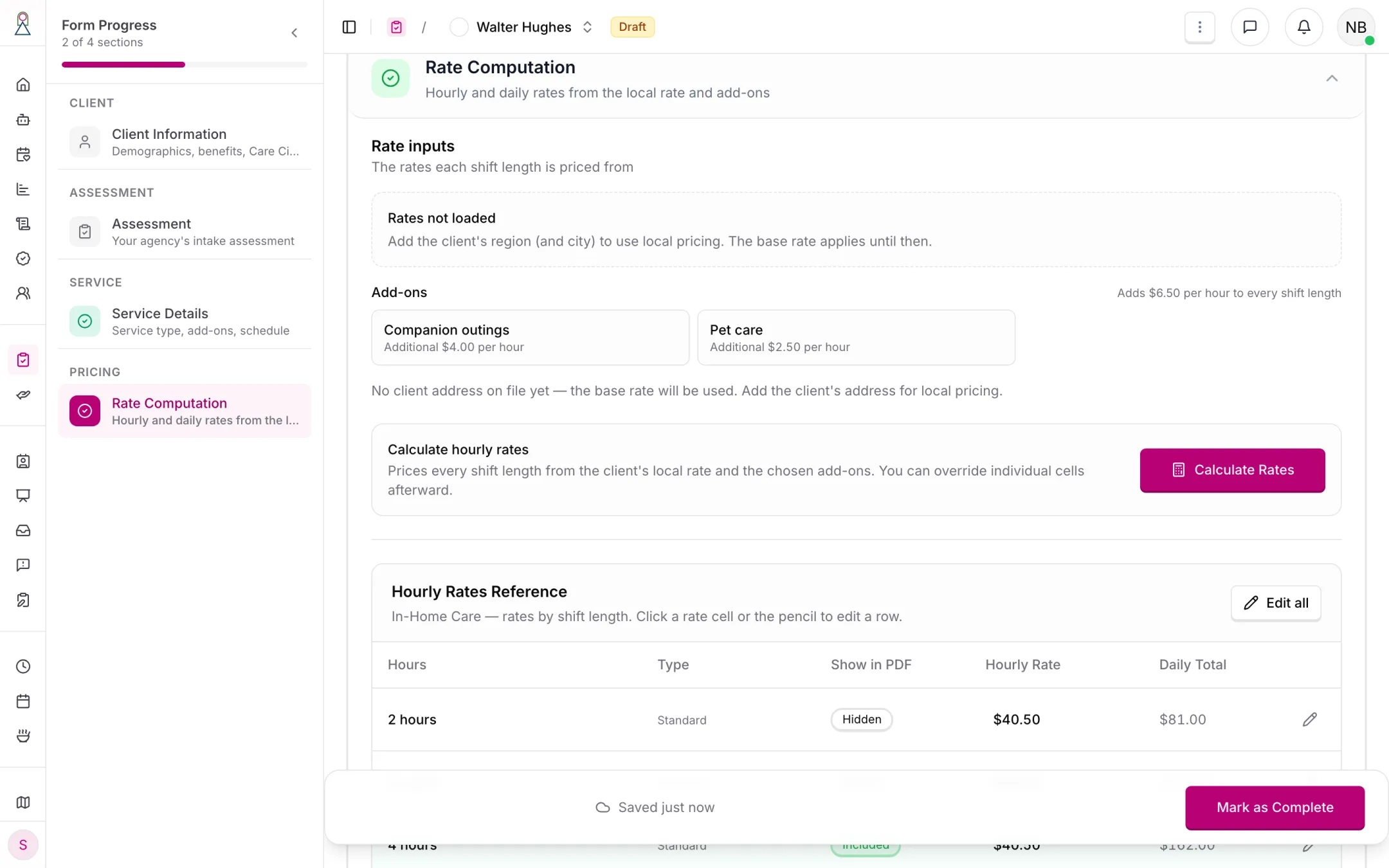
The two add-ons add $6.50 an hour to every shift length.
3. Mark it complete
Mark as Complete checks that the intake has what the proposal will need: the client's first and last name, date of birth and a full address with city and state; the service type; at least one complete Care Circle member; someone to address the proposal to; a responsible party; and every question the intake template needs answered, with no suggestion from Anaya left to review. Anything missing is listed by name ().
A completed assessment reads Ready and offers Convert.
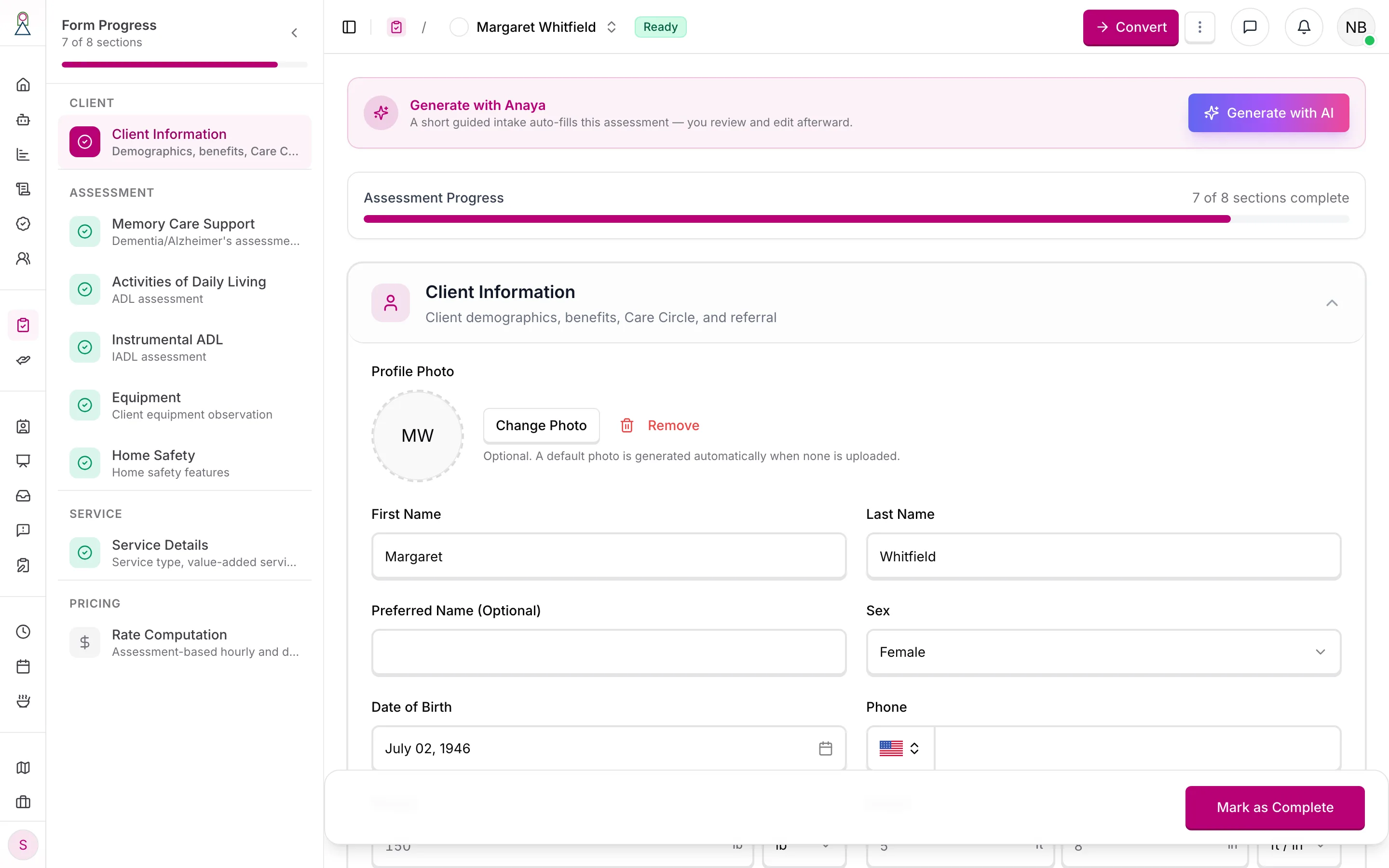
A Ready intake. Convert is the next step; the ⋯ menu holds Reopen as draft and Archive assessment.
Changing a Ready intake
A Ready intake is not locked. Change anything — a field, the narrative, an assessment answer or the rates — and it goes back to Draft, with "Reopened by editing" in its history. Mark it complete again before converting. That way Ready always means the checks passed on what is stored (). Reopen as draft in the ⋯ menu does the same thing on purpose; a save that changes nothing leaves it Ready.
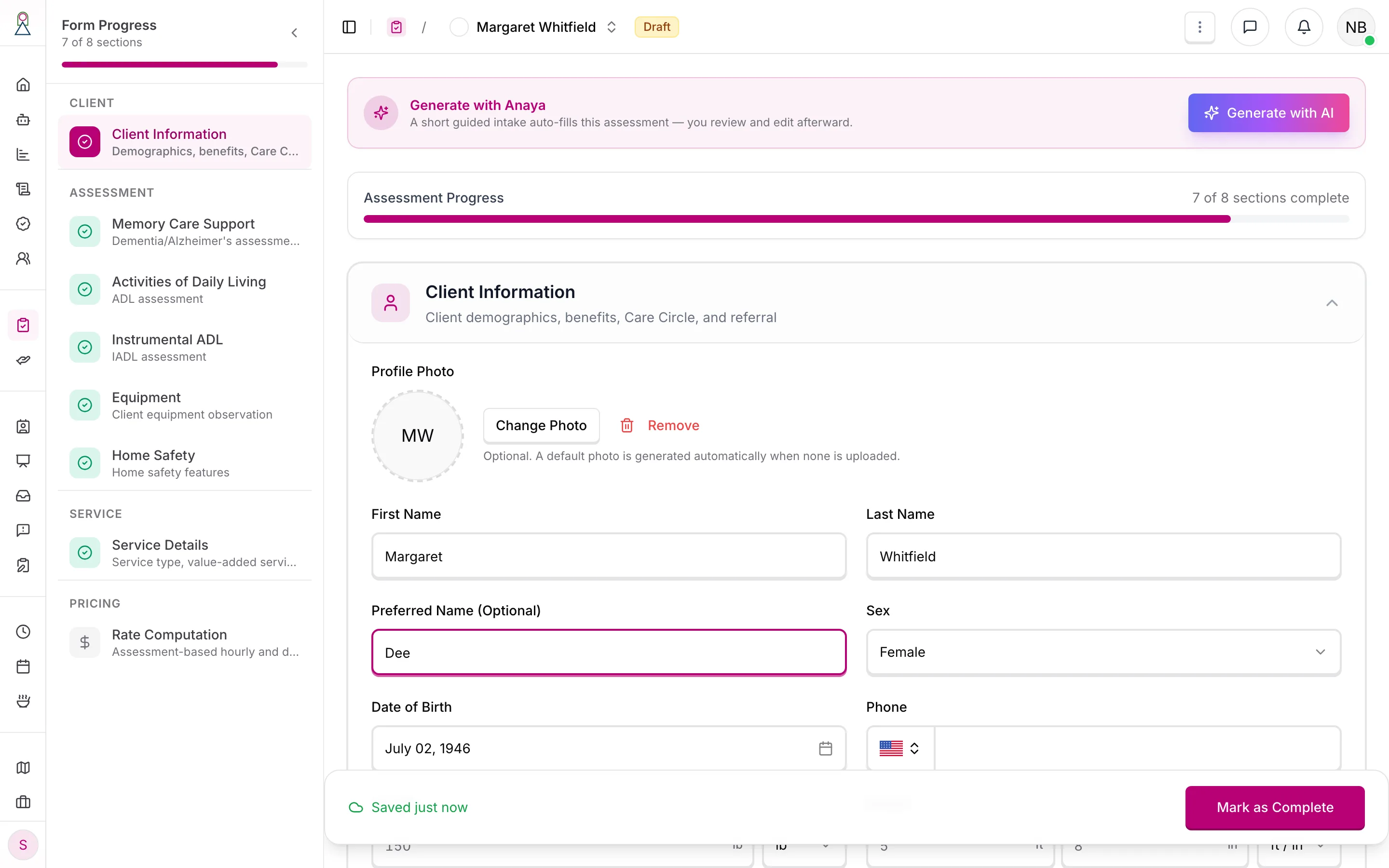
One edit to a Ready intake, and it is a Draft again.
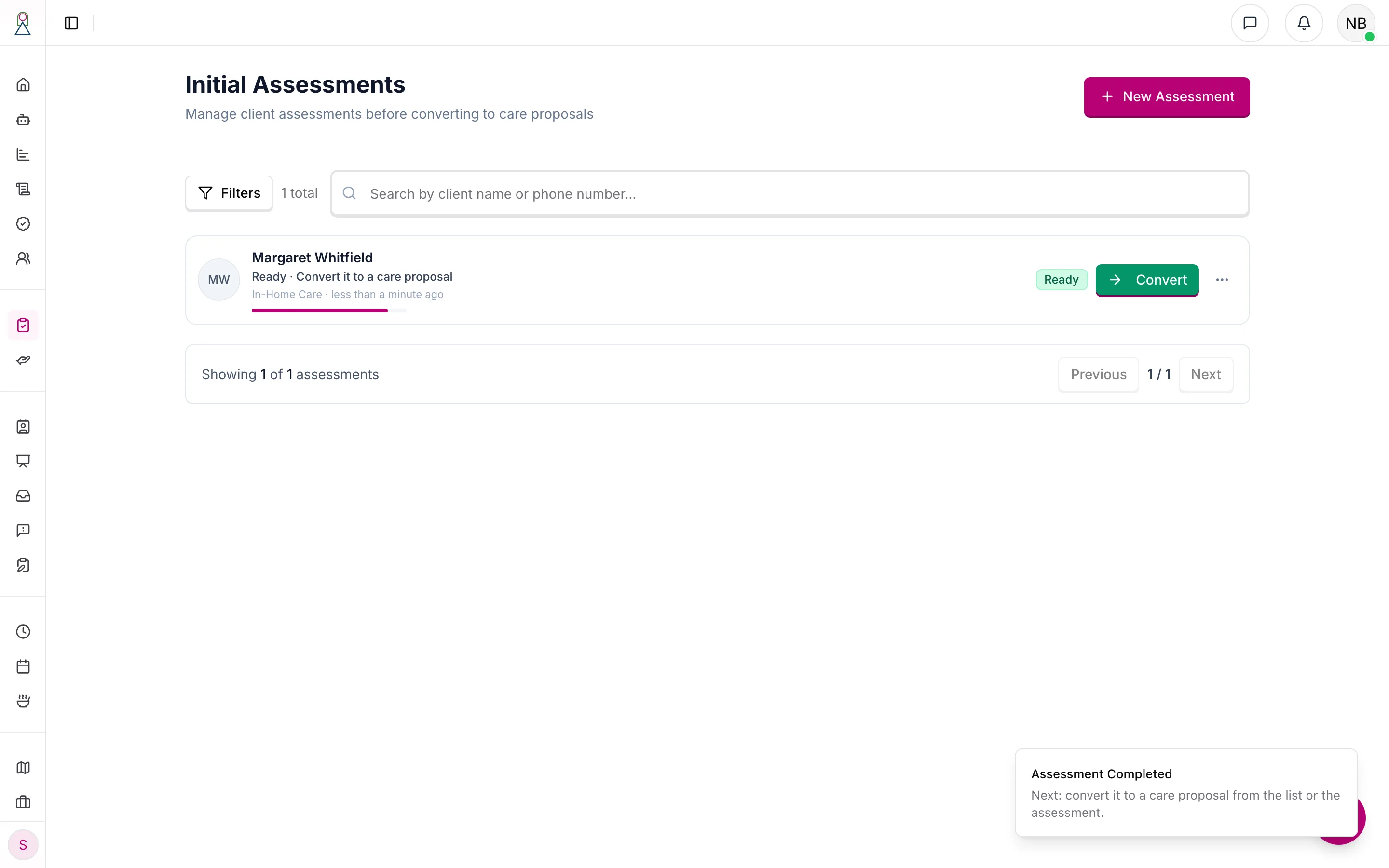
Marked complete again: the list says what to do next, and the toast points to Convert.
Setting an intake aside
Archive assessment in the ⋯ menu puts an intake away without deleting it. An archived intake says so across the top, and Restore to draft brings it back.
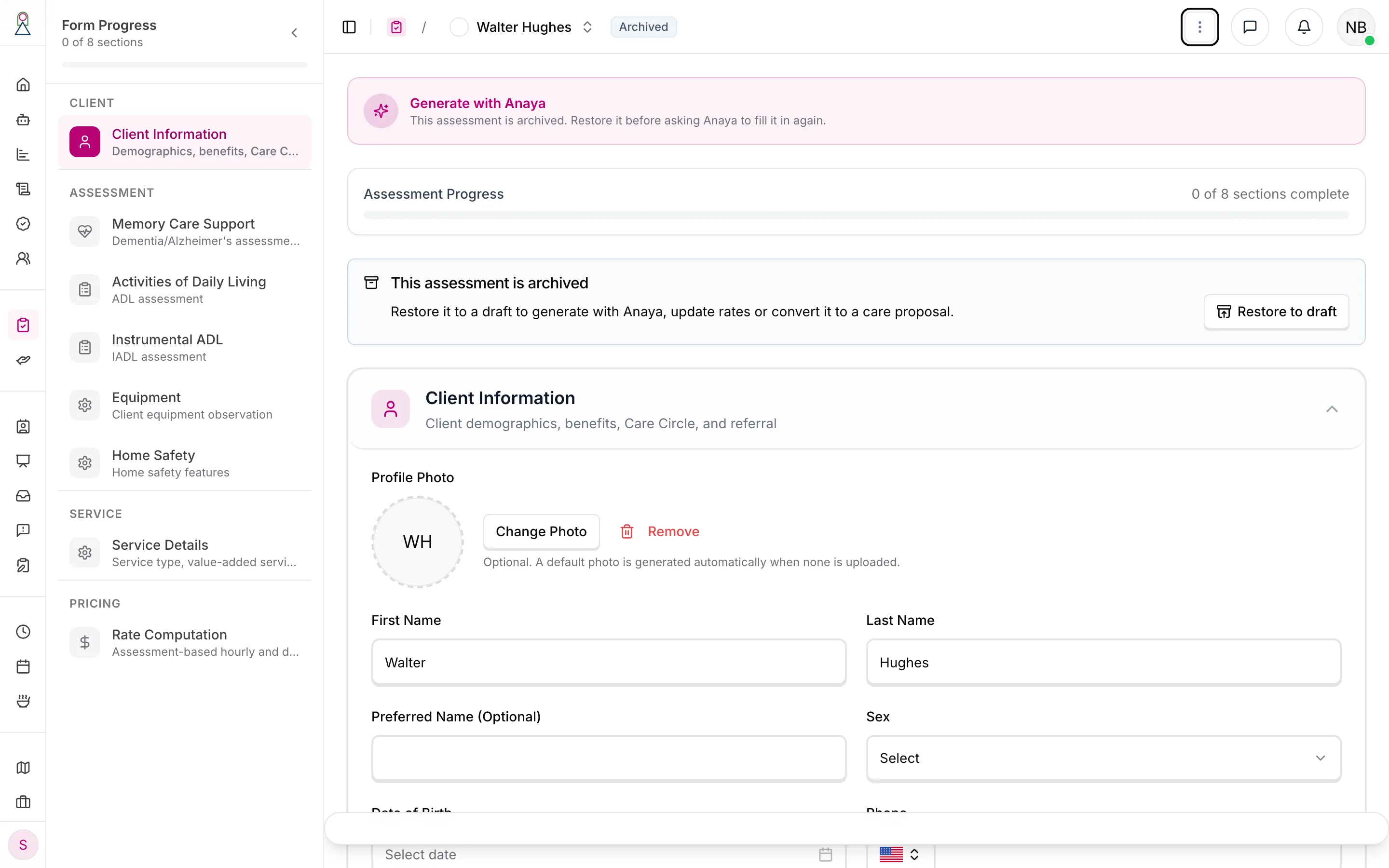
An archived intake cannot be completed or converted until it is restored.
4. Convert it into a care proposal
Convert asks first, because it cannot be undone: the dialog lists what is copied and what is still to do on the proposal. Converting copies the intake — client details, service and add-ons, schedule, narrative, and the rates unchanged — onto a new proposal in Draft, and opens it (). The intake's answers go into the proposal's own assessment (ABLD-36):
- Same template for both — the answers are copied across as they are, as a Draft for you to review and complete.
- Different templates — Anaya reads the intake's answers and suggests answers for the proposal's questions, for you to review. The dialog names any question whose answer is kept out of Anaya, so you can copy it by hand. If Anaya can't start, the proposal offers Fill from intake to try again.
Either way the proposal's assessment is never completed for you. The intake becomes Converted and read-only; it unlocks again only if the proposal is deleted (, ). Conversion re-checks the completeness rules first, so a Ready intake that has somehow lost a required field is refused with the list of what is missing ().
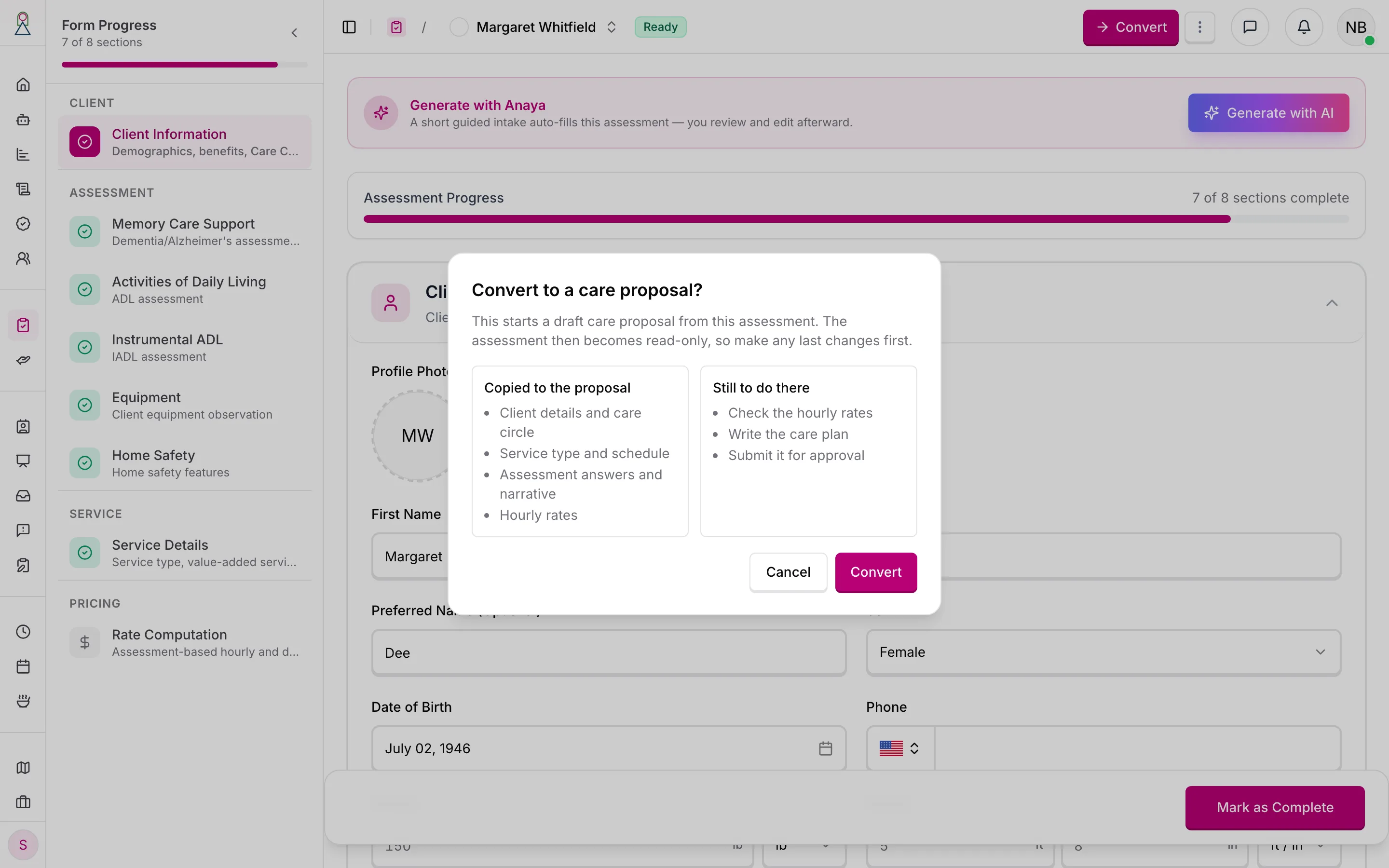
Nothing is sent until you confirm.
5. Finish the proposal
A proposal has five sections: client information, the assessment, the (a cover letter, a care goal and nine care areas), the service, and the rates. Client information, the service and the rates arrive from the intake; the assessment arrives as a Draft or with Anaya's suggestions, and counts as done only once you complete it. The service's Add-ons can be changed here too. The care plan is usually drafted by Anaya from the intake and the agency's knowledge base, and then edited by hand or by asking for changes in plain words ( – ). The progress card counts the sections that are done; the proposal can be submitted once all five are.
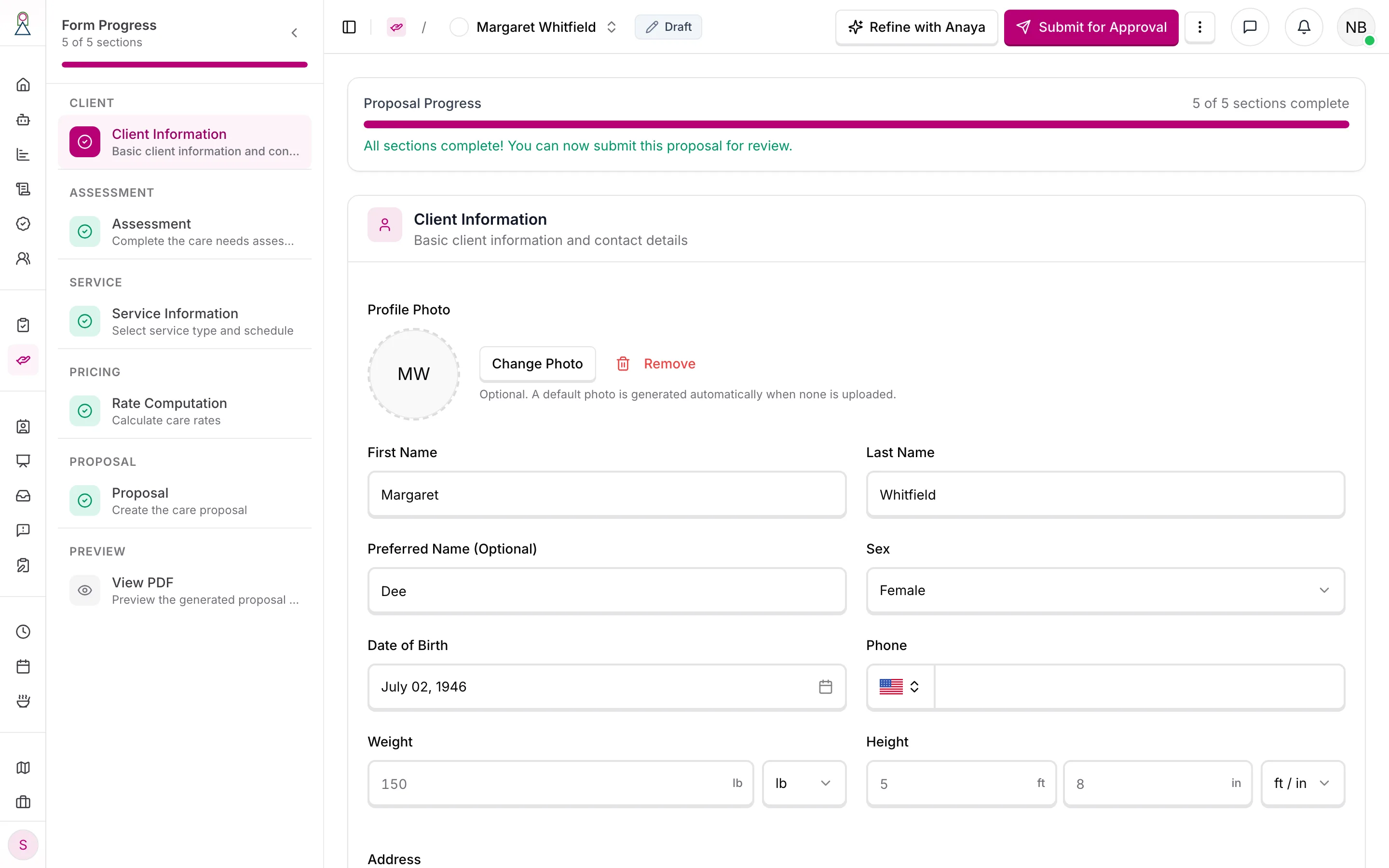
Five of five sections complete: the proposal is ready for review.
6. Submit it for review
Submit for Approval asks who should review it: one to twenty people from the agency who are allowed to review proposals (). The proposal moves to Pending Approval. Until a reviewer decides, the author can withdraw it back to Draft ().
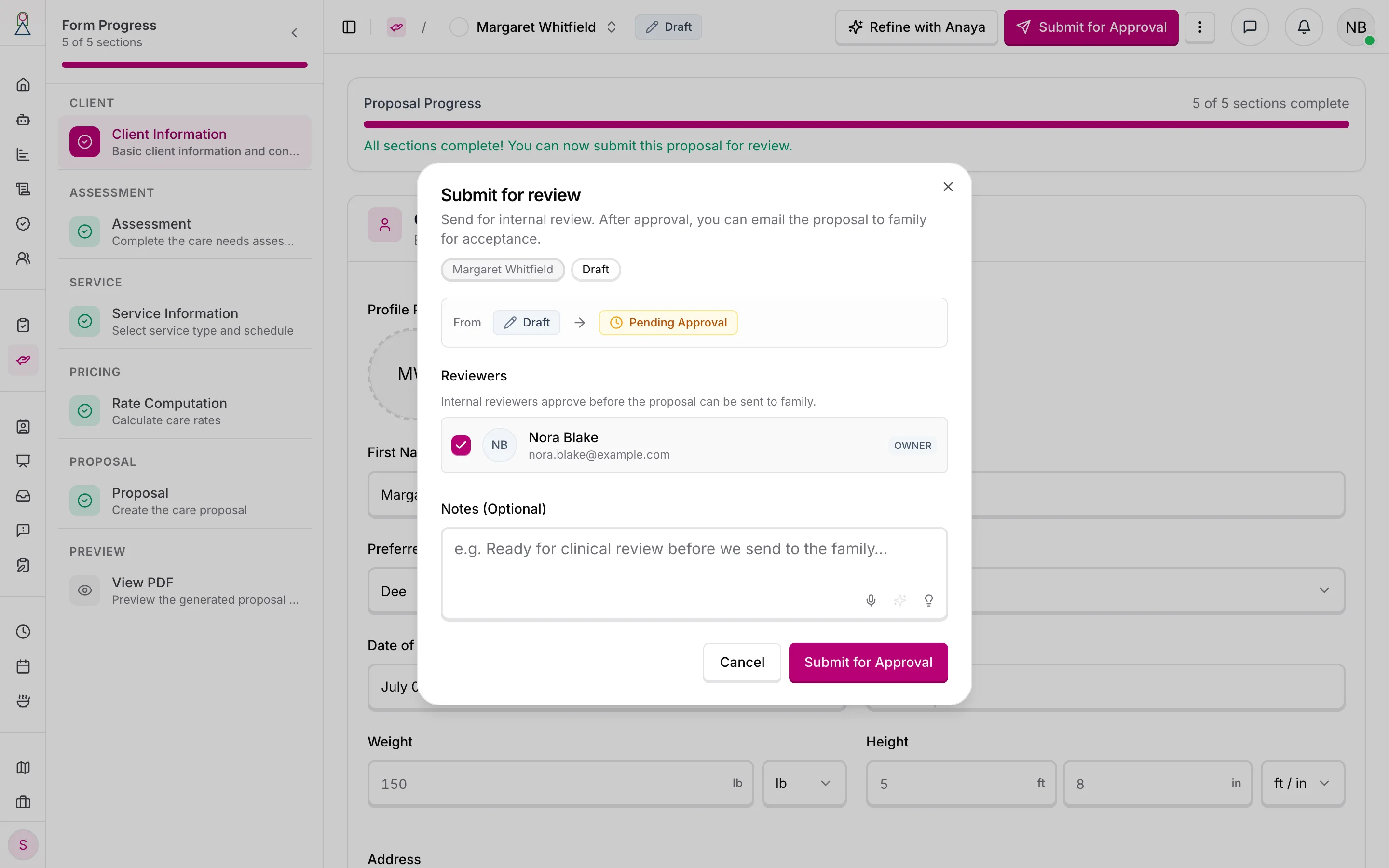
Each reviewer is notified and the proposal waits for their verdict.
7. Review it
The reviewer opens the proposal's review page and starts the round. They go through the review outline section by section, marking each OK or , with a comment saying what needs to change. A reviewer who may approve proposals can also correct a section themselves, with a note (). The outline counts progress over the proposal's reviewable sections.
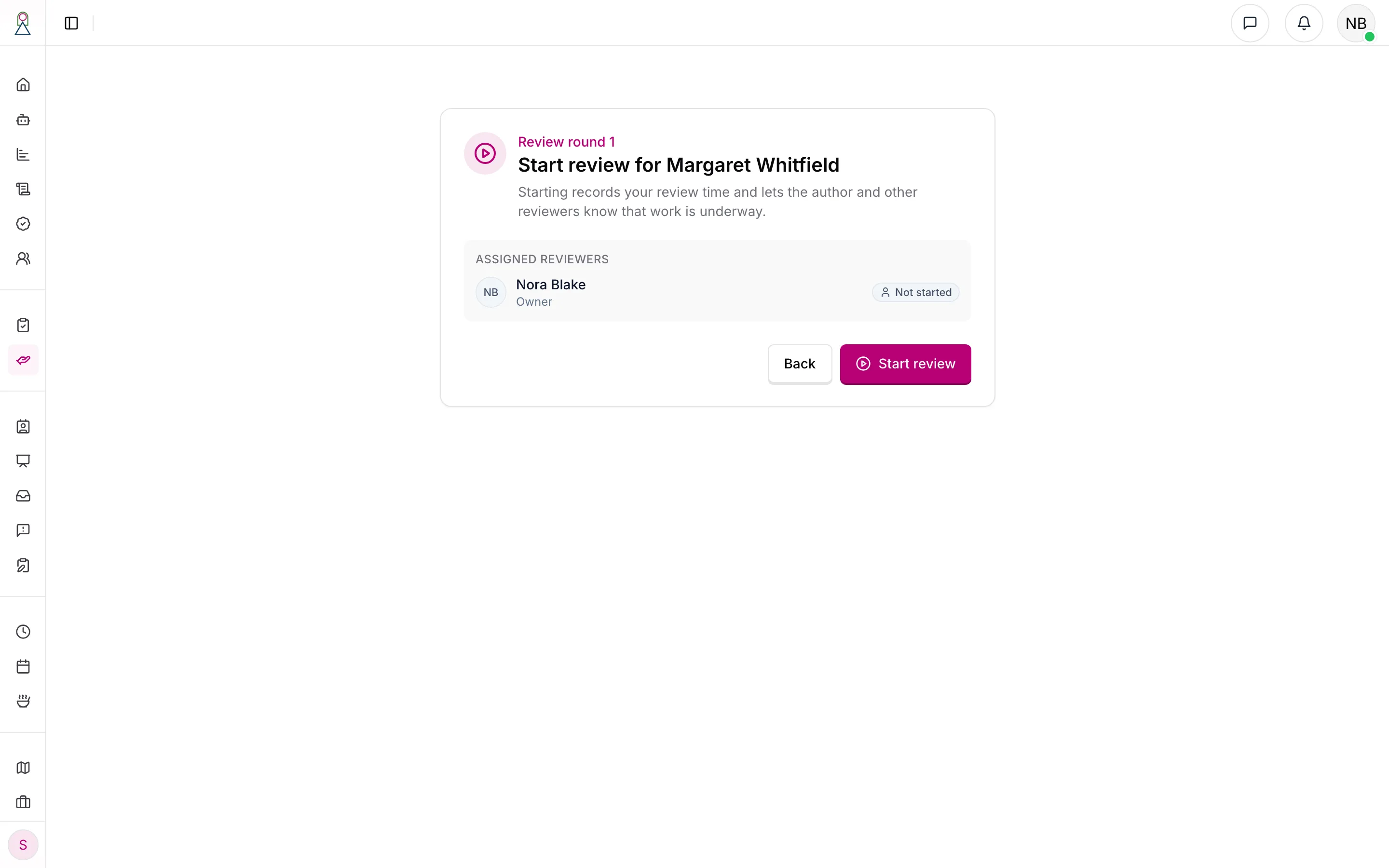
Starting a review stamps it with the version the reviewer is looking at, so later changes can be compared against it ().
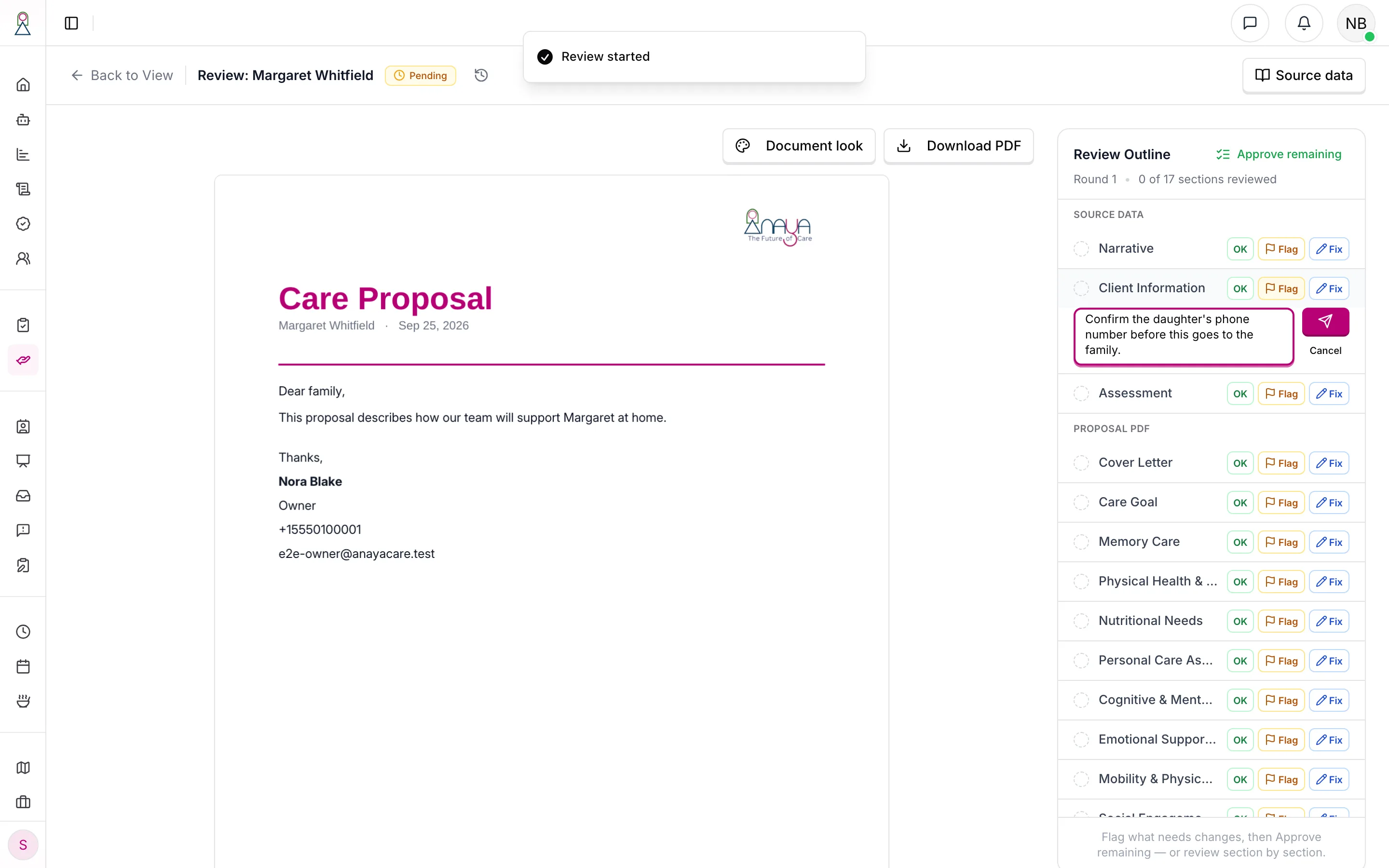
A flag names the section and says what has to change.
Once every section has a verdict, the reviewer submits the round. With any flag open, the proposal goes to Revisions Needed; with none, it is Approved (, ).
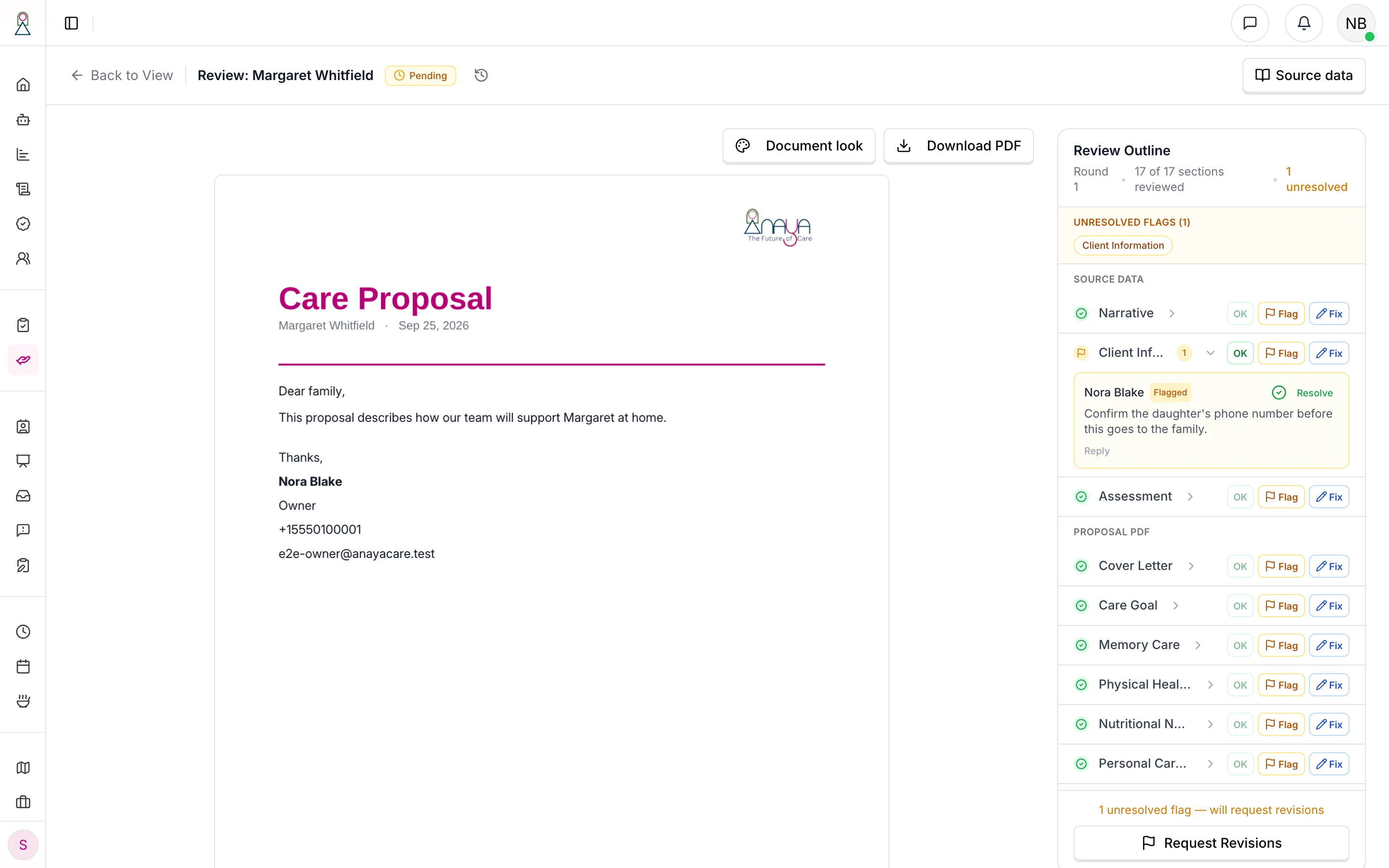
"17 of 17 sections reviewed" — and one flag, so the verdict is Request Revisions.
8. Address the flags
The author sees each flag on the proposal, fixes the section, and marks the flag addressed with a note saying what they changed (). When every flag is addressed, Re-request review sends it back to the same reviewers, with an optional summary ().
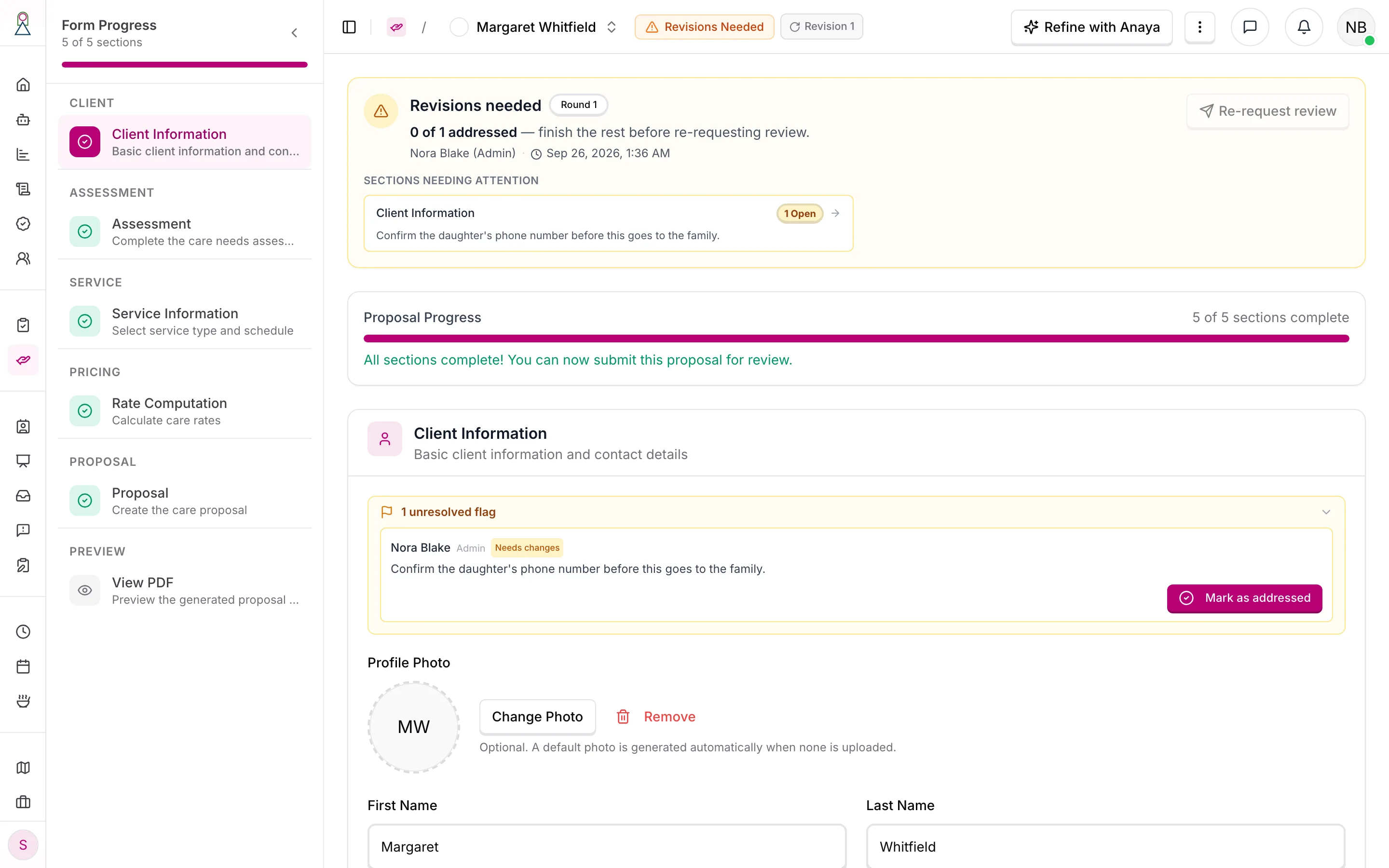
Revisions Needed: what was flagged, by whom, and how many are addressed.
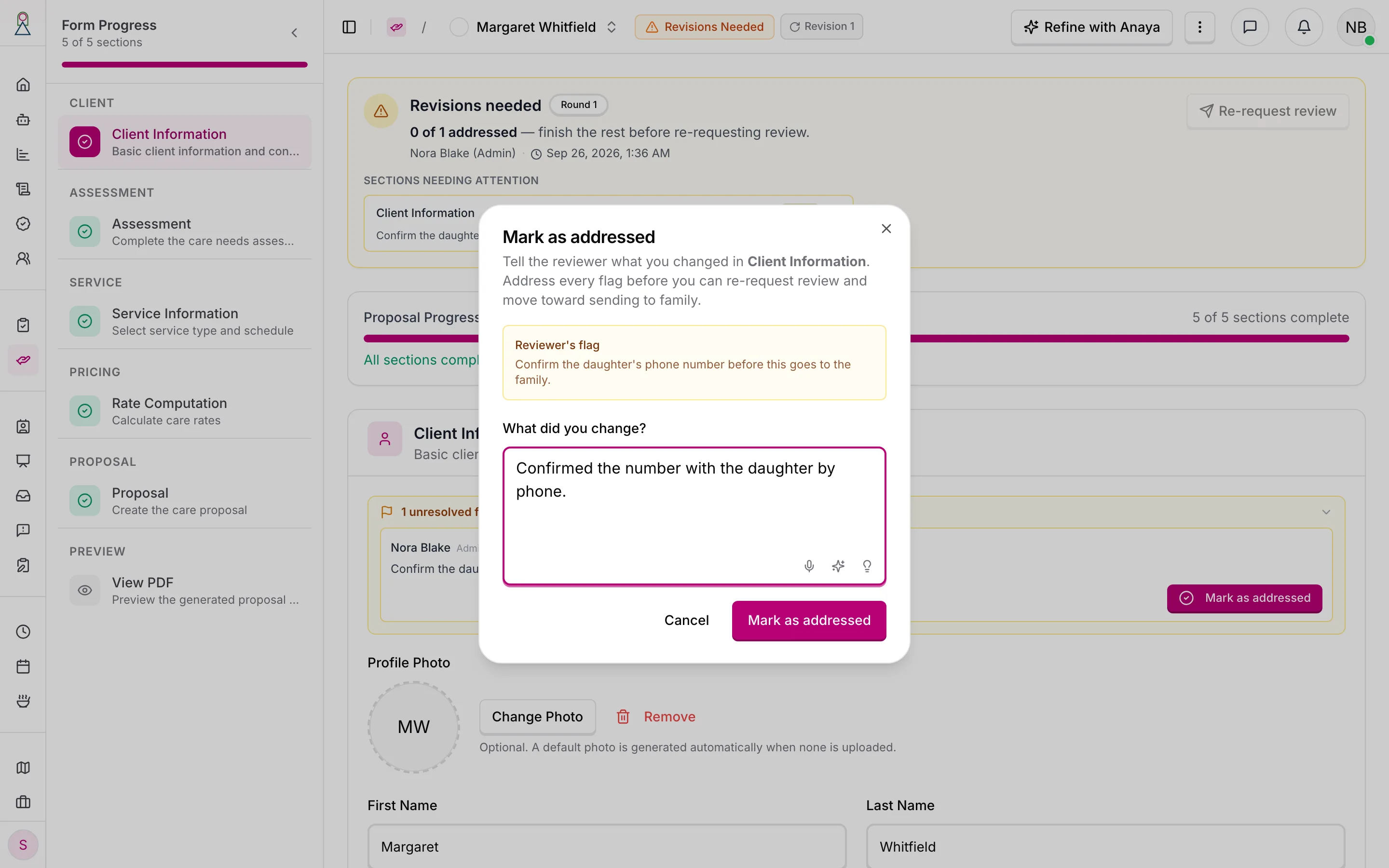
Addressing a flag always needs a note.
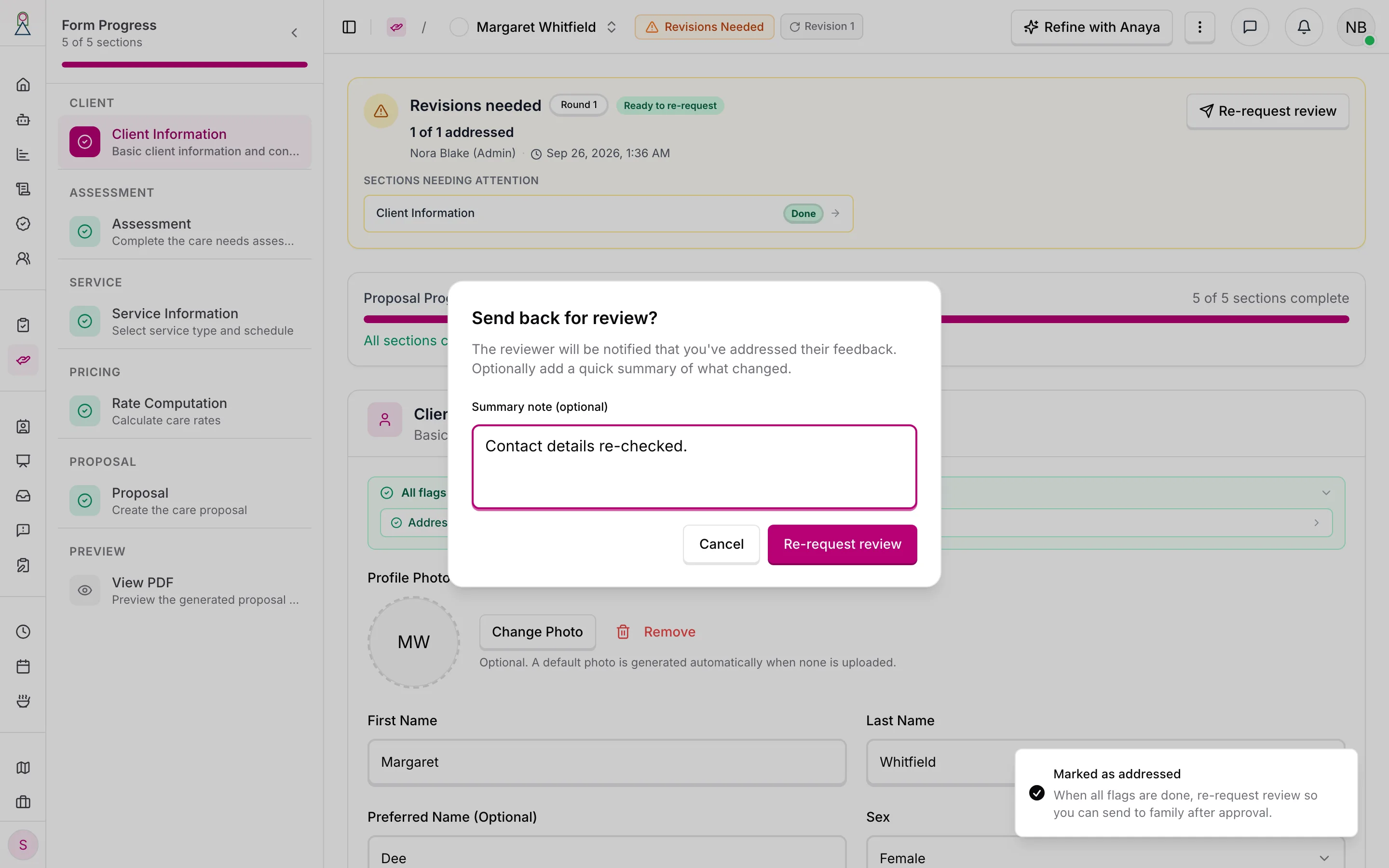
Re-requesting opens a new review round with the same reviewers.
9. Review it again
On the next round the reviewer sees Updates since last review: each flag the author addressed, with their note, and "Changed" badges on the sections that differ from what the reviewer saw before. Here every section is OK, so the reviewer approves the proposal. An approval that follows a request for changes reads Re-approved on the badge.
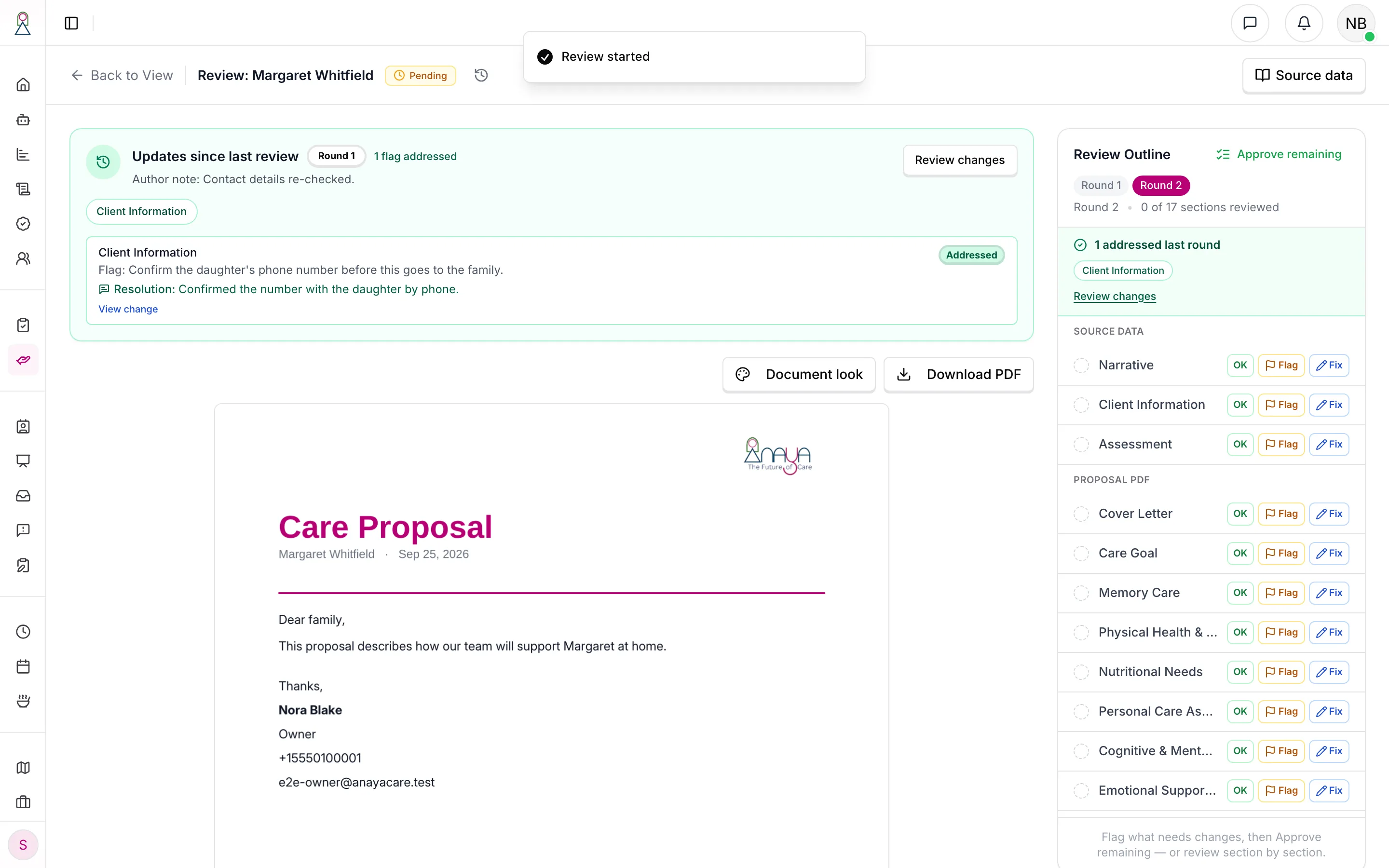
The reviewer starts from what changed, not from the top.
10. Send it to the family
At Approved, the proposal's main button is Send to family. Sending emails the proposal to the Care Circle members it is addressed to, each with a personal link, and gives each of them a family (Representative) login if they do not have one (, ). The proposal moves to Sent to Representative. If some addresses fail, you are told which, and can resend.
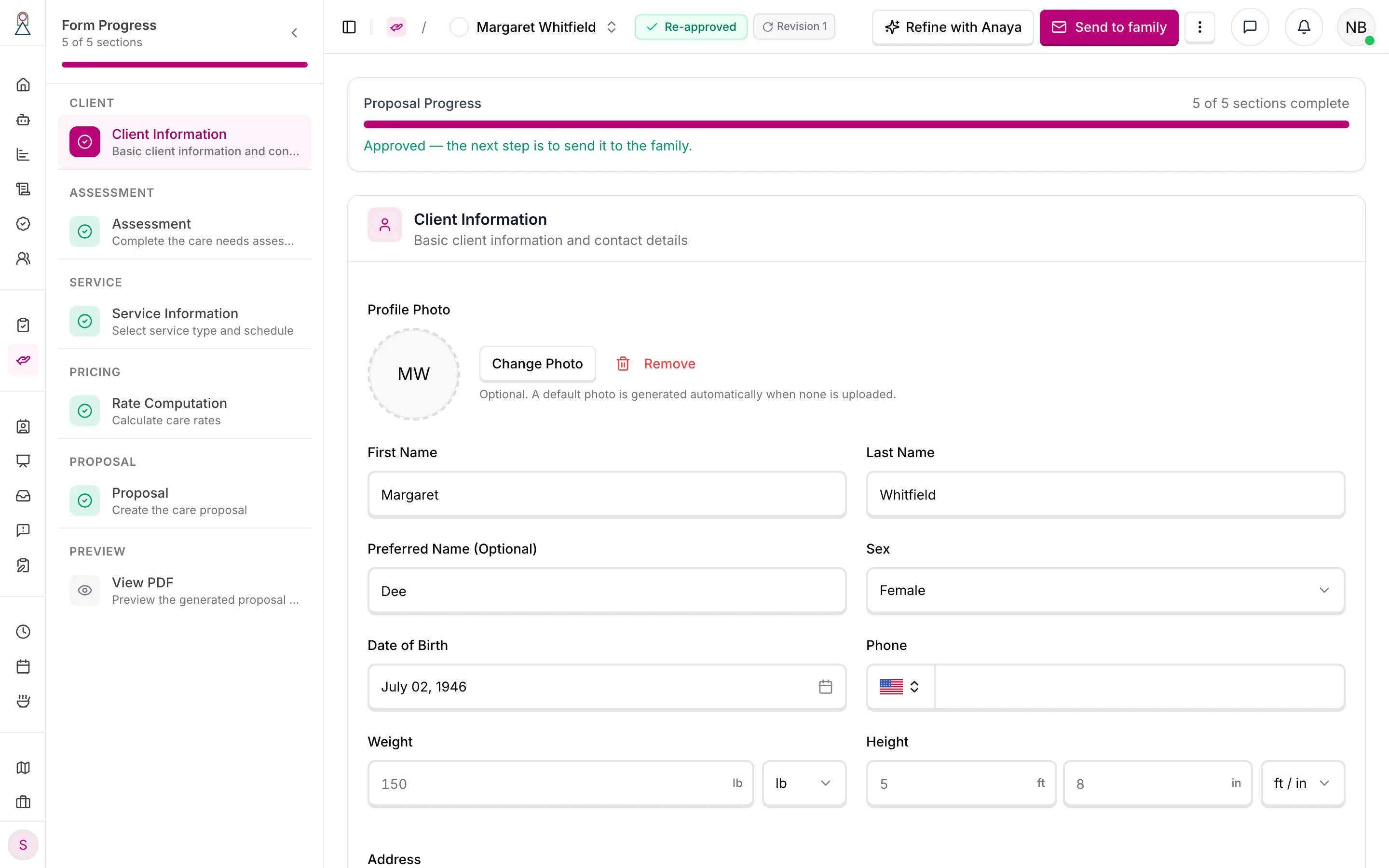
The header always leads with the next step, and the progress card says what it is.
11. The family decides
The family member opens the proposal from their link and does one of three things ():
- Accept — they sign it electronically. The signed PDF and the signed Word document are kept with the proposal, and the responsible party gets a welcome email (). The proposal is Representative Accepted.
- Request changes — it goes back to Revisions Needed for the agency to revise, review and send again.
- Decline — a firm no. The proposal is Declined for good; to try again later, duplicate it ().
The family sees only their own part of the review, never the agency's internal comments ().
12. Create the client
From an accepted proposal, Create Client Record makes the client: a new record in Draft with the proposal's client details, Care Circle and responsible party, a copy of the proposal's assessment (completed when the proposal's was), and portal access for every Care Circle member with an email. The proposal moves to , its last status (). From here the work moves to Clients, Care Plans & Tasks and Scheduling & Shifts; the client becomes Active when its first care plan is published.
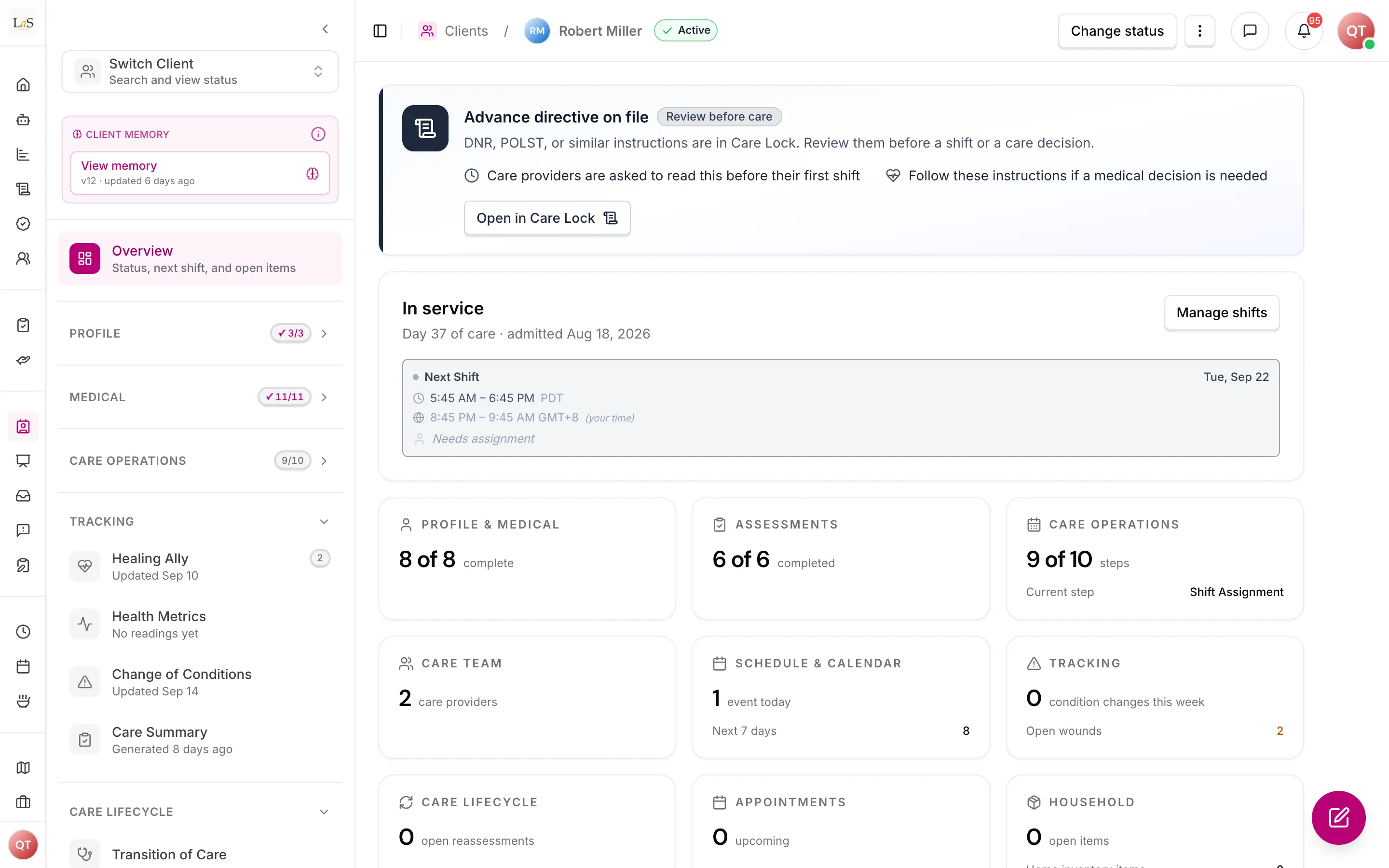
The client record the proposal became.
Reading the history
Every status change on both records is kept, with who made it and when (, ). The proposal's status badge opens its history, one card per version: Original proposal, then Revision 1, Revision 2… — each time changes were requested — with the reviewers who looked at it.
Two counts appear on proposal screens and they are different things. A is one pass by the reviewers; "Round" on screen always means this. A is one time changes were requested, by the reviewers or by the family. After a family asks for changes the two numbers no longer match, which is why they have different names.
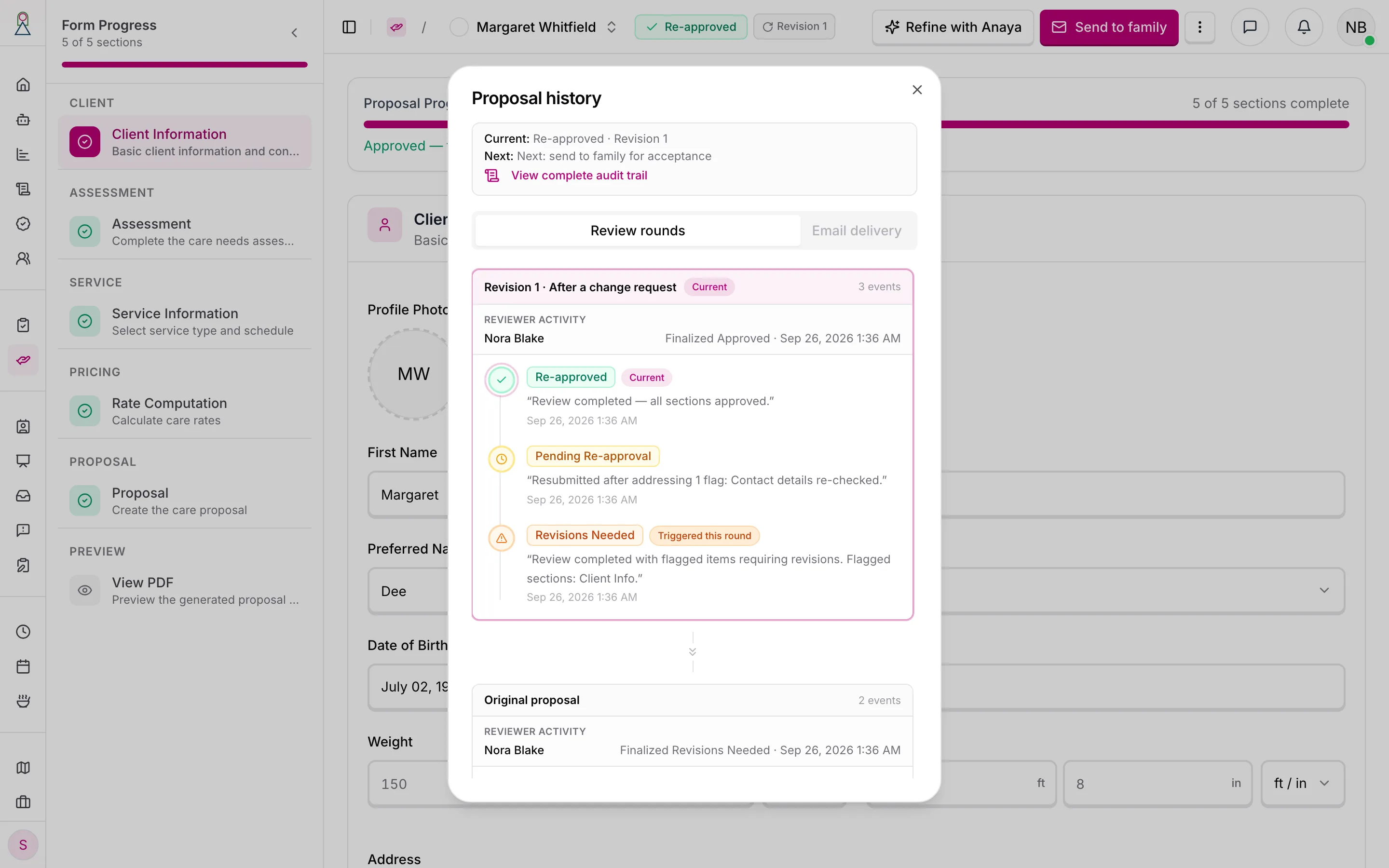
The history groups the proposal's life by revision.
Stopping along the way
- An intake that will not go ahead — archive it (and restore it later if needed), or delete it. Deleting can also delete the proposal made from it, if you may delete proposals ().
- A proposal that will not go ahead — cancel it. A care manager can cancel their proposal until it is approved; after that, cancelling needs an approver (). Cancelled is final.
Who does each step
| Step | Who |
|---|---|
| Set up the agency (once) | Staff with the publish-templates permission (owner and admin by default) |
| Start, fill in, complete, reopen, archive and restore an intake | Agency staff with the initial-assessment permissions (owner, admin, care manager) |
| Convert an intake | Staff with the convert permission |
| Write and submit a proposal, address flags, re-request review | The author or an editor (Care Proposals Manage) |
| Review sections | The assigned reviewers (Care Proposals Review) |
| Correct a section during review | An assigned reviewer who may also approve () |
| Send to family | Staff with Care Proposals Send |
| Accept, request changes or decline | The family member the proposal is addressed to |
| Create the client | Staff with Clients Manage |
How is this page?
Last updated on