Trainings
Part of the Anaya Care Handbook — the source of truth for how the product must behave. When the product needs to change, change this document first, then make the system match it.
Implementation status — audited against
apps/backend/src/trainings, the durable training agent (apps/backend/src/ai/agents/training), the dashboard's training pages (apps/web/components/trainings) and the phone's Training Center (apps/mobile/src/app/(trainings)) on 2026-09-27. ✅ In code · ⚠️ Partial (built, but doesn't fully match the rule) · 🚧 Spec only (not yet built)."How it works" below describes the flow the product is moving to, decided on 2026-09-27: a two-step draft with Anaya, media made after the text, a working copy for published trainings, assignments with reminders, and a learner experience that starts from what is due. Rules – carry it and are spec only until built. Where today's product differs from an older rule, that rule's status note and Known gaps say so.
What this covers
This page governs the trainings learning system: courses made of sections (notes, slides or a video, and a quiz), the platform catalog that agencies can adopt trainings from, assignments with due dates and reminders, and the certificates issued on completion. Trainings can be written by hand or drafted by Anaya from the agency's knowledge base.
The module has three jobs, for three kinds of people:
- Making a training — agency staff who manage trainings, and the platform team for the catalog and the platform's own courses.
- Assigning a training — agency staff who assign trainings, and follow who has done what.
- Taking a training — learners, mostly care providers on the phone, sometimes on the dashboard.
Trainings are also offered as a standalone training and certification subscription. An agency can subscribe as an add-on to assign Anaya-provided courses to its care providers and manage certifications, while an individual care provider in the ARMI Marketplace can subscribe on their own to pursue extra certifications. The ARMI Values in Practice gateway course required for ARMI validation is delivered here, and any state-required training is handled exclusively through this page — never through the knowledge base.
Key terms
- Training — a course made of sections, each of which can hold notes, slides or a video, and a quiz.
- Section — one part of a training, taken in order: its notes, its media if any, and its quiz if any.
- Assessment (training) — a quiz inside a training section, scored by the system; may be required to pass. The product calls it a quiz.
- Brief — what the author tells Anaya before she drafts: who the training is for, what learners must be able to do afterwards, the tone, how long it should be, and which knowledge-base documents to draw on.
- Outline — Anaya's first answer to a brief: a title, a description and the list of sections with a one-line summary each, which the author confirms or adjusts before any section is written.
- Coverage note — Anaya's flag on a section or a learning objective that the selected documents did not cover, so the author knows what to check or write by hand.
- Media — what a section holds besides its notes: slides, optionally narrated into a video, an uploaded video, or a YouTube video. Each is made or added after the notes and has its own state.
- Estimated duration — how long a training takes, worked out from its notes, media and quizzes and shown wherever the training is listed.
- Working copy — the editable draft of a training that is already published; learners keep seeing the published version until the working copy is published in its place.
- Training catalog — a library of platform-built trainings that agencies can copy into their own account.
- Avail — copying a catalog training into an agency as its own independent, ready-to-use version.
- Training assignment — a training given to a specific learner, optionally with a due date.
- Required training — a training an agency marks as required for a role, so everyone in that role is assigned it, including people who join later.
- Attempt reset — a manager giving a learner who has used every attempt on a quiz a fresh set.
- Certificate — the proof of completion issued when a learner finishes a training, publicly verifiable by its number.
- Verification page — the public page, reached from a certificate's number or QR code, that confirms the certificate is genuine.
- Training subscription — a standalone add-on that an agency or an individual ARMI Marketplace care provider takes out to access Anaya-provided courses and certifications.
- Certification management — tracking a certificate's validity over time, including its expiry date and renewal.
- Platform library — the platform team's own knowledge base, owned by no agency and never visible to one, that catalog and platform trainings are drafted from.
- Validity period — how long a training's certificate stays current, set on the training by its author; a certificate with none never expires.
- Renewal training — a shorter training an author can name for renewing an expiring or lapsed certificate instead of retaking the whole course.
- ARMI Values in Practice — the gateway course delivered here that a care provider must complete to be validated in the ARMI Marketplace.
- State-required training — training mandated by a care provider's work-location regulations; handled exclusively through this page, never the knowledge base.
How it works
Two kinds of training
A training is either a platform training (owned by Anaya) or a business training (owned by one agency). Agency trainings must pass platform review before they are published; the platform team's own trainings publish directly. Learners only ever see published trainings.
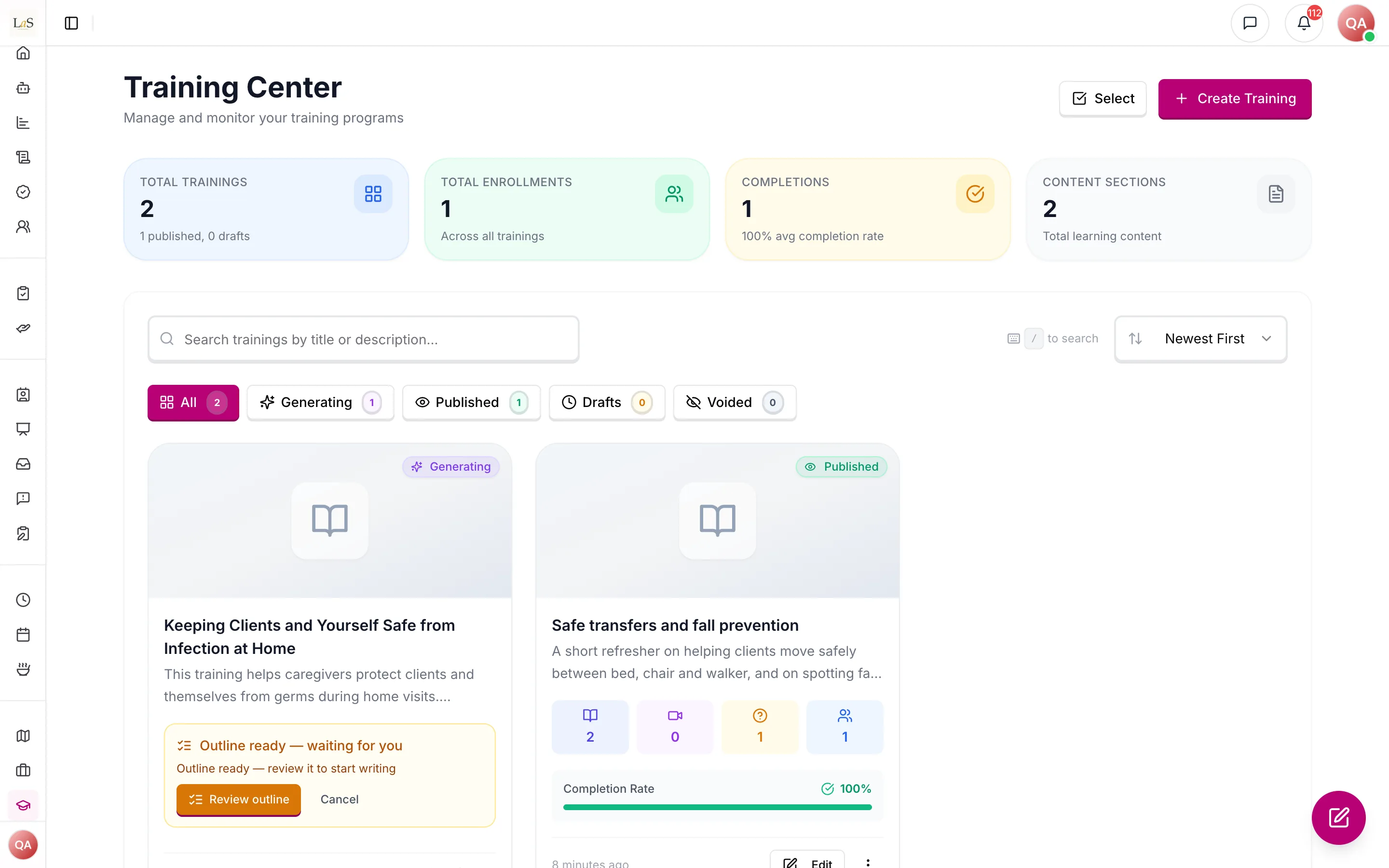
The agency's trainings. The hand-written one is published; Anaya's draft is waiting for its outline to be reviewed.
Making a training
There are three ways to start, and all three land in the same editor: write it yourself, have Anaya draft it, or add one from the catalog.
The editor
The editor shows the training's outline — its sections, in order, each with a small mark for its notes, its media and its quiz — beside the section being worked on. A section has three parts:
- Notes — the text a learner reads, written in the rich-text editor.
- Media — one choice per section: none; slides, generated from the notes or written by hand, which can then be narrated into a video with captions; an uploaded video; or a YouTube video. Slides and videos live in the same place, because a section has one media item, not two.
- Quiz — questions with a passing score, an attempt limit, and whether it is required. Anaya can write the quiz from the notes; the author sets how many questions, the pass mark and the attempts once for the whole training, and can change them per section.
Everything autosaves, and the editor says when it last saved. The author can leave at any time and come back to the same place. Preview as a learner opens the training exactly as a learner would see it, without starting any progress.
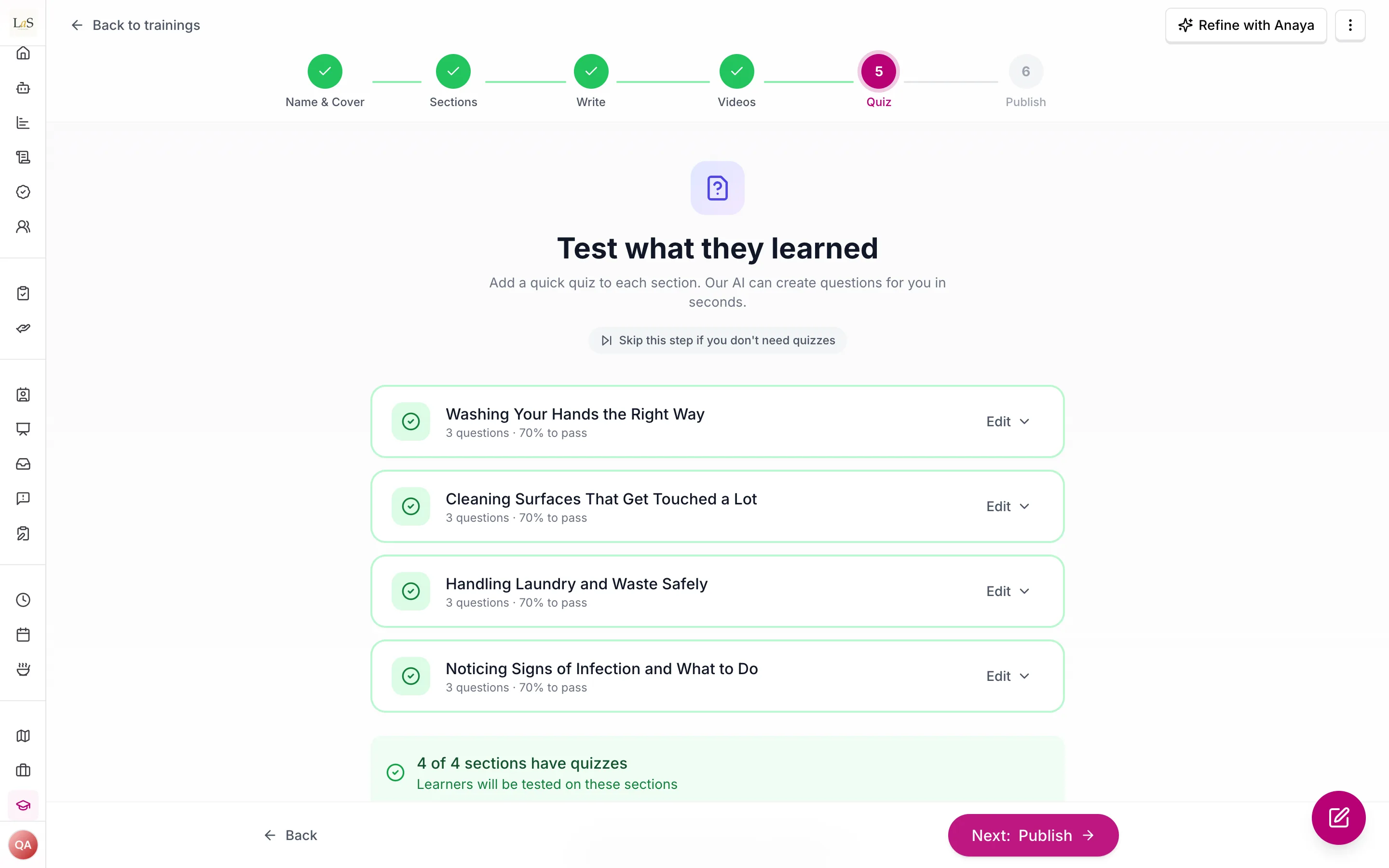
The editor's Quiz step. Each section's quiz is its own job; a failed one shows a Retry.
A publish checklist stays in view. Must-haves: a title, at least one section, notes in every section, and every quiz with at least one complete question. Should-haves: a description, a cover, a quiz, some media, and a look at the estimated duration. Every training gets an worked out from its content — reading time for the notes, the length of its narration or videos, and a little per question — shown on every card, list and section; the author can replace it with a number of their own ().
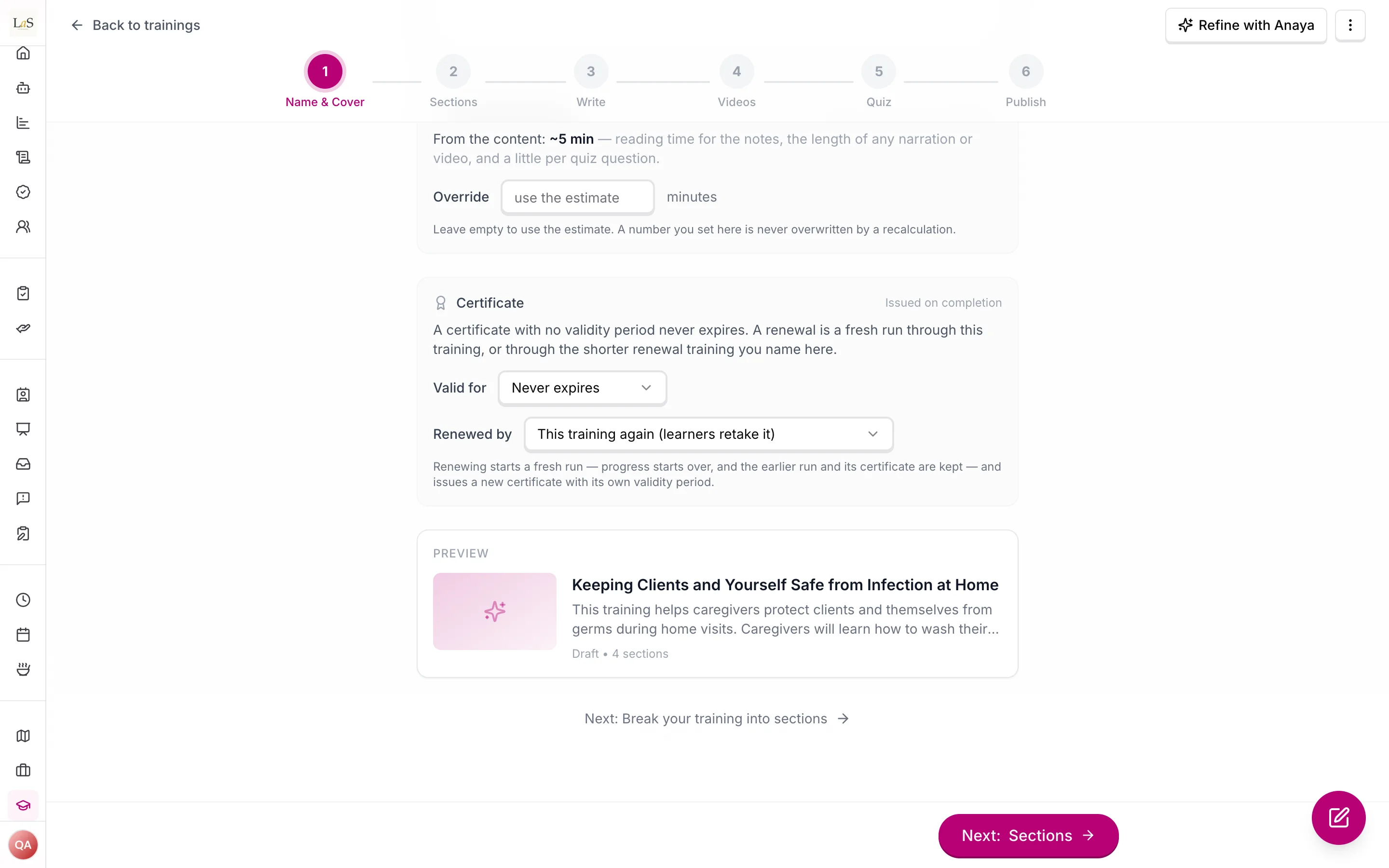
The estimated duration, the author's override, and the certificate settings (, , ).
The main button says what it will do: Publish for the platform team, Submit for review for an agency, Publish changes for a working copy. It saves first, then checks the must-haves and names anything missing ().
Drafting with Anaya
The brief. The author says who the training is for (care providers, nurses, family members or medical staff), what a learner must be able to do afterwards — one to five objectives, written as "After this training, a care provider can…" — whether the voice is warm or professional, and how long it should be: Short, Standard or In depth (about three, five or eight sections), with the numbers adjustable. Whoever it is for, the training is written in plain words (); the audience changes the examples and which exact terms are named, not the reading level (). They pick the knowledge-base documents Anaya may draw on () — or none, in which case she drafts from general caregiving knowledge and says so on every section () — and what to make after the text: a cover photo, slides, narrated videos, quizzes, with the quiz defaults for the whole training. The platform team drafts catalog trainings the same way, from the ().
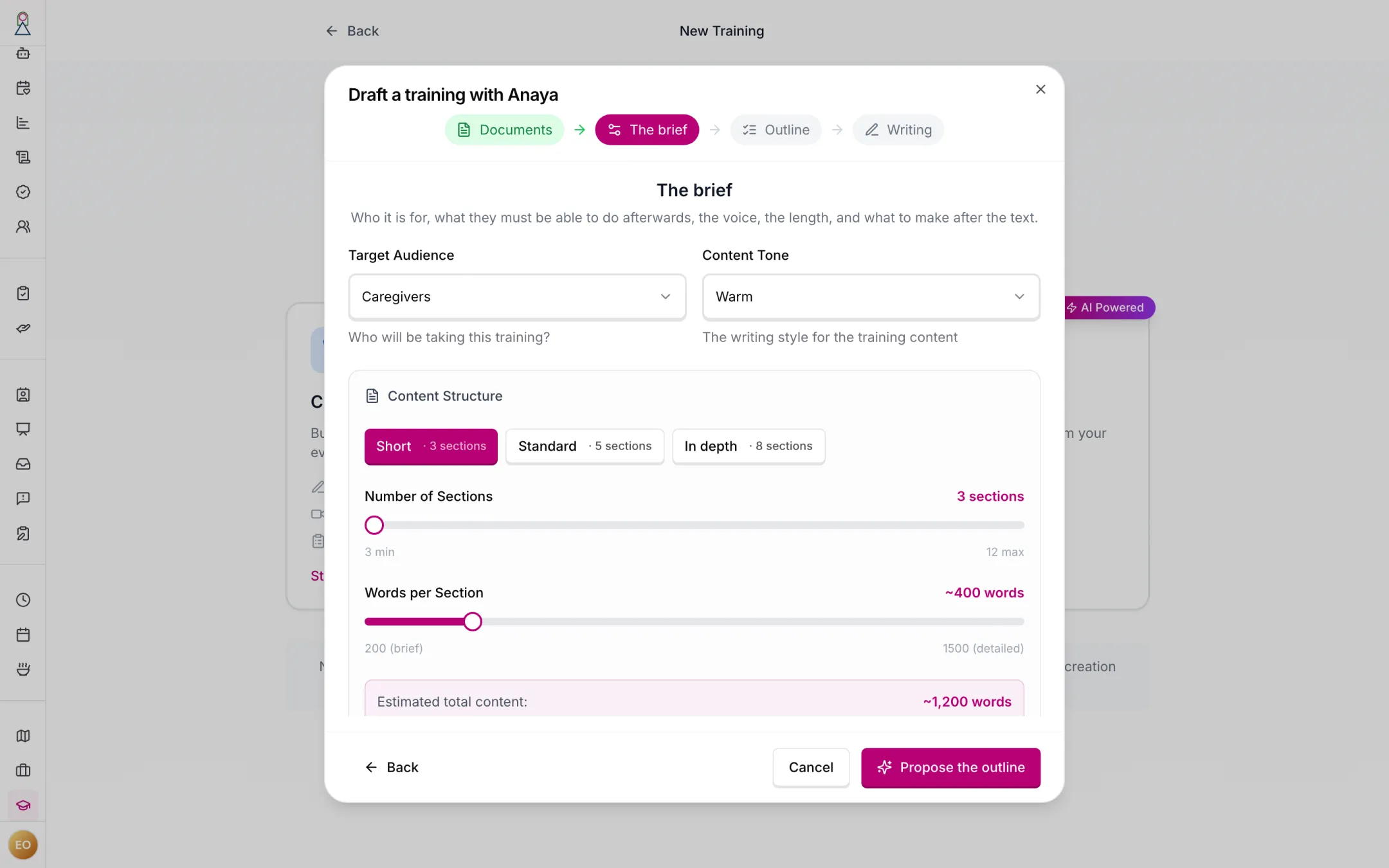
A short training: three sections of about 400 words.
The outline. Anaya reads the documents and proposes a title, a description, and the sections, each with a one-line summary and the document it draws on. Where the documents do not cover an objective, the outline says so with a rather than promising a section she cannot ground (). The author renames, reorders, adds or removes sections, asks for a different outline in plain words, or accepts it. Nothing is written into sections until the outline is accepted (). This takes about a minute, and it is where a wrong shape is caught — before ten minutes of writing, not after.
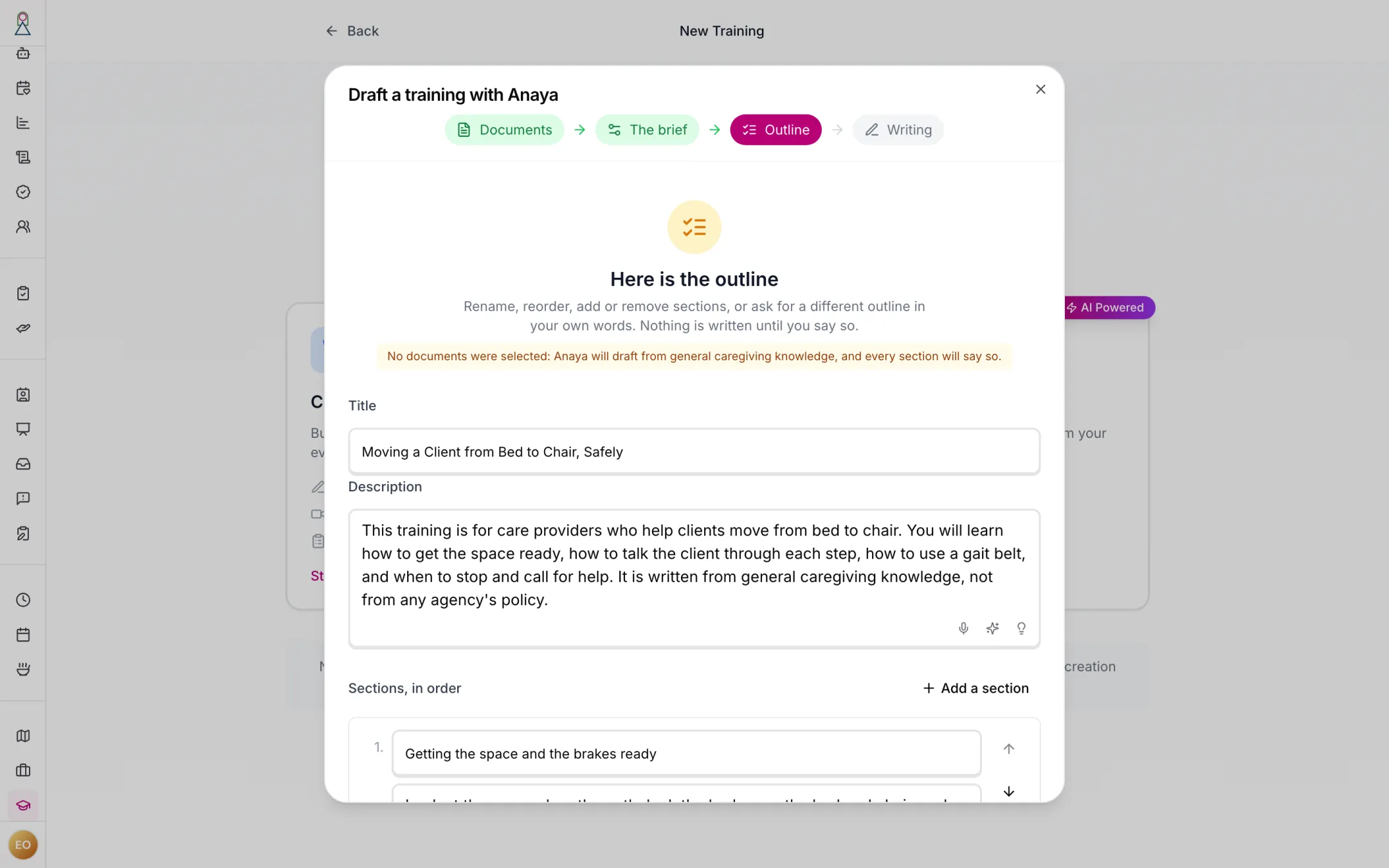
The outline, before anything is written. This one came from a brief with no documents, so every section says it was written from general knowledge ().
Writing. Accepting the outline starts a durable run like every other generation on AI Features: its progress shows in the generation dock and on the training's card, the author can leave the page, is notified when the draft is ready or the run fails, and can cancel at any time (). If the brief is genuinely unclear, Anaya asks one clarifying question, in the dock, as any generation does (). Agency rules from Agency Memory and the agency's policy documents apply (). The training reads Generating only while the sections are being written.
The draft. As soon as the sections are saved, the training becomes a Draft and opens in the editor (). Each coverage note sits on its section, in the editor and on the publish checklist, until the author rewrites the section, dismisses the note, or asks Anaya to write that part from general knowledge — which she does, marking the section as written that way ().
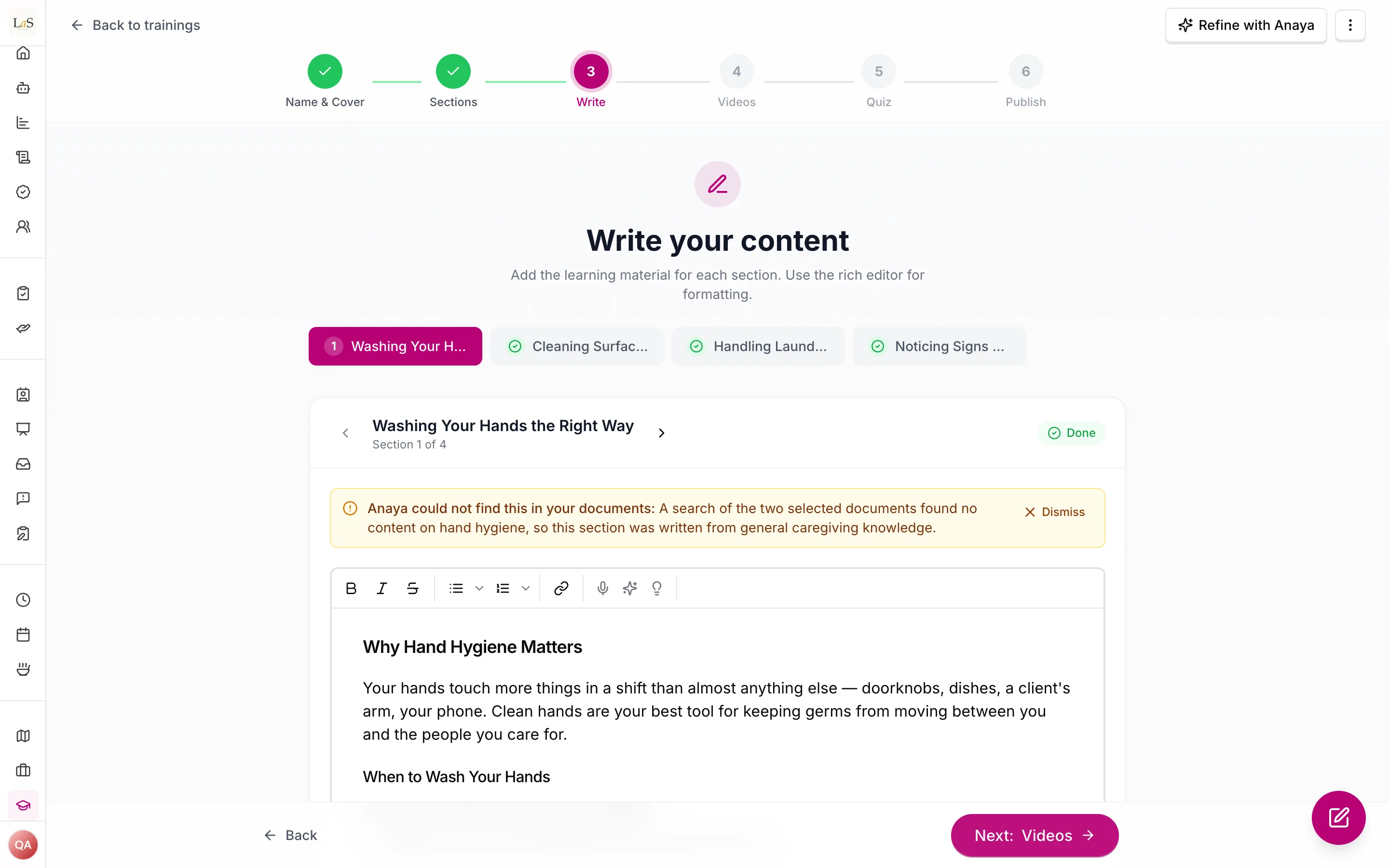
A coverage note on a section whose topic the documents did not cover. It stays until the section is rewritten or the note dismissed ().
Media, afterwards. The cover photo, each section's slides, each narration and video, and each quiz are made as separate jobs, per section, in the background. The card and the editor say what is still being made — "Draft ready — slides for 3 of 5 sections still on the way" — and each job shows queued, working, ready or failed with a Retry. A failed job never fails the training, never sends it back to Generating and never blocks publishing; the checklist just says what is missing (). Media made this way follows the same agency rules as the text.
Cancelling and failing. Cancelling keeps what was saved: a draft with the sections written so far stays a draft, and queued media jobs are dropped. Cancelling before any section was written removes the placeholder, so no half-made card is left behind. A run that fails says so on the card and in the dock, with a Retry that starts again from the same brief and the same outline ().
Refining by asking. Any section, or the whole draft, can be changed by asking in plain words on the training's own screen — "make this shorter", "add a scenario where the client refuses help", "put the safety points first" — under the same rules as every other refinement on AI Features ( – ): the request changes only what it reaches, and every request and its outcome stays with the training ().
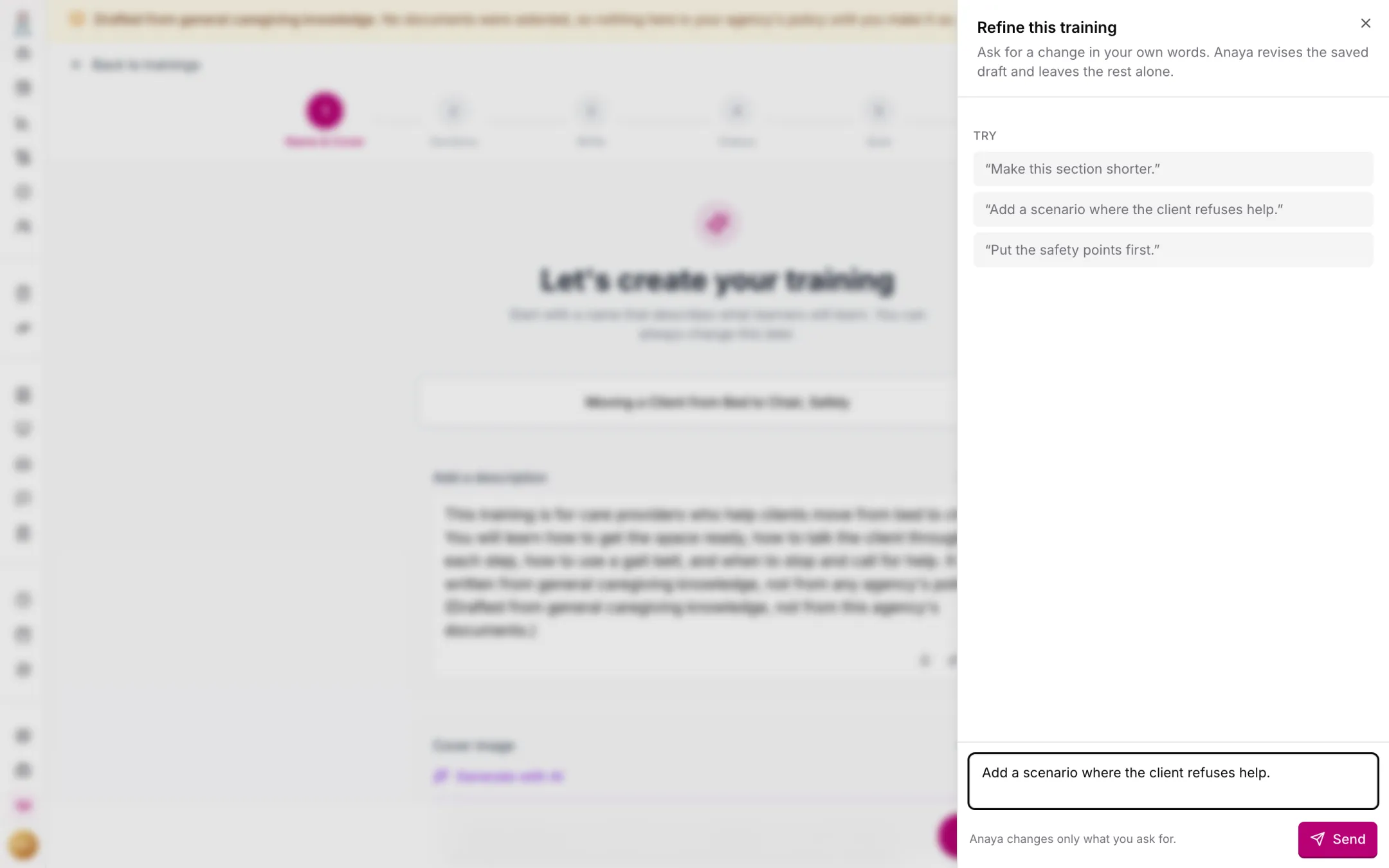
Refine with Anaya, from the editor. The request changes only what it reaches ().
Editing a published training
A published training is edited as a . Learners keep seeing the published version until the working copy is published in its place — for an agency training, after it passes review again (). A learner part-way through keeps their progress on every section that still exists, certificates already issued are unchanged, and a working copy can be discarded to leave the published version exactly as it was (). Unpublishing is still available for a training that should stop being offered altogether.
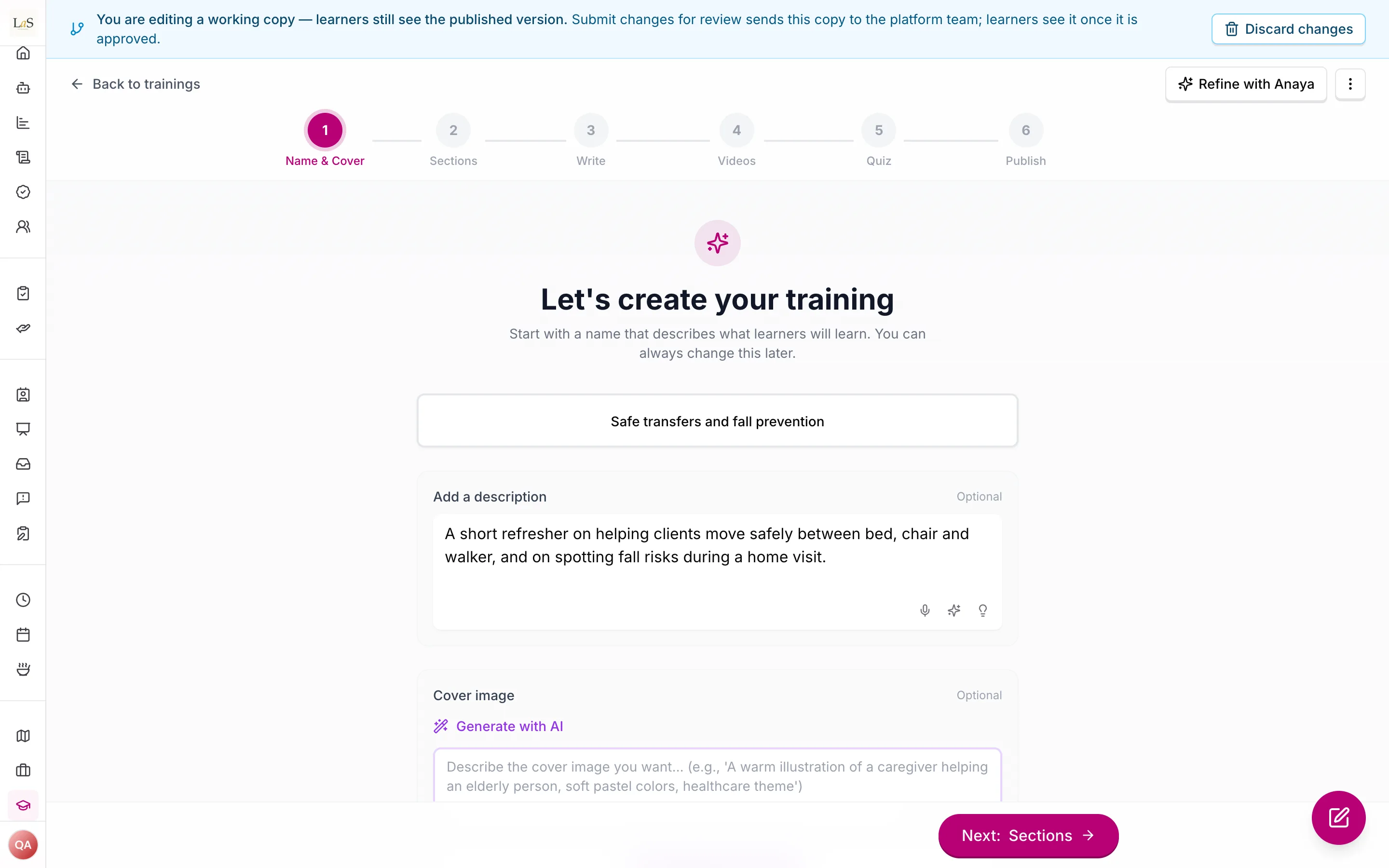
Opening a published training for editing opens its working copy; learners keep the published version until the copy is published ().
Review
An agency's submission goes to the platform team. The reviewer sees the whole training as a learner would — every section, its media, and every quiz with the answers and explanations shown — without starting any progress of their own, and approves or sends it back from the training itself. Sending back needs a written reason. The agency is notified either way, and the reason stays at the top of the editor until the training is resubmitted ().
Retiring a training
A training can be voided from Draft, Rejected or Published — not while Generating (cancel it instead) and not while under review (withdraw it first). Voiding asks for confirmation and is reversible: a voided training can be restored to Draft. Learners who have started keep access as in , and completed progress and certificates are untouched ().
The catalog
The catalog is a library of platform trainings reserved for agencies to adopt. Each one can be previewed as a learner would see it before it is added, and the catalog marks the ones the agency has already added. Adding one gives the agency its own independent, immediately published copy — a snapshot that never receives later updates to the original (). The copy records which catalog training it came from; when the platform team publishes a new version of the original, the copy says so, and the agency can add the new version as another copy while the old one stays as it is ().
Assigning trainings
Staff who may assign trainings do so from the training — Assign — or from a team member's profile, to one or more people, to a role, or to everyone in a role, with an optional due date and a note. The learner is notified. The assigner can move the due date, change the note, or remove an assignment that is not yet completed (). Only published trainings can be assigned, a learner holds one active assignment per training, and an assignment reflects progress the learner already has (, ).
An agency can also mark a published training required for a role — the onboarding course every new care provider takes, say. Everyone in that role is assigned it, and anyone who later joins in that role is assigned it on joining, due a set number of days later — 30 unless the agency chooses otherwise ().
Assignments move Assigned → In Progress → Completed as the learner works. A learner with a due date is reminded three days before it and on the day; the day it becomes overdue, the learner and the assigner are told once; and when the learner completes it, the assigner is told. Overdue is derived from the due date — only the system marks it — and moving the due date later clears it ().
For any training, staff can see who is assigned, in progress, completed and overdue, with each learner's quiz results and attempts; for any member, every training assigned, started or completed and every certificate (). The training's analytics also show, per quiz, pass rates, average attempts and which questions learners get wrong most.
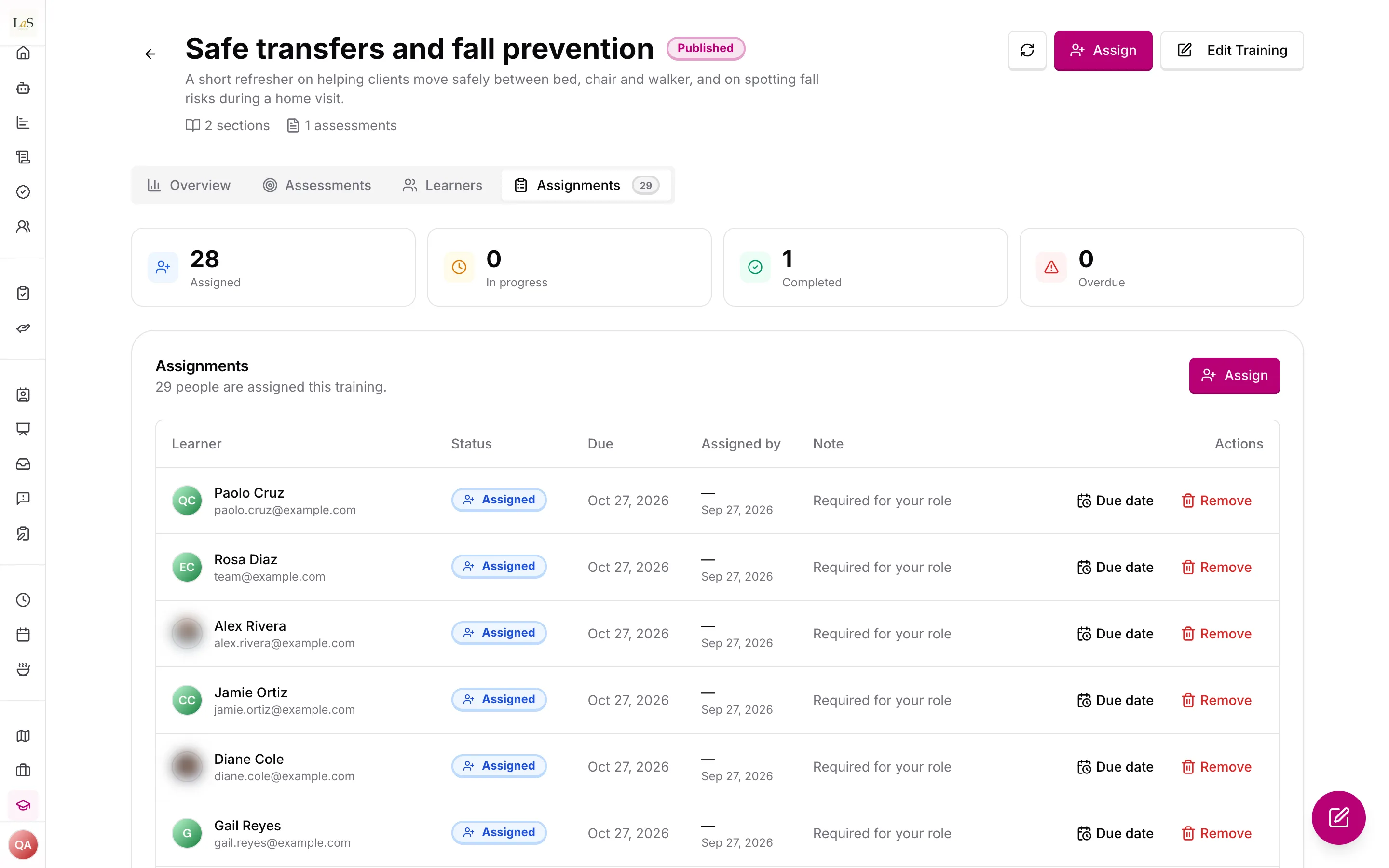
Who is assigned, with the training marked required for care providers (, ).
Taking a training
The Training Center. On the phone and the dashboard alike, a learner's Training Center starts with what is assigned to them — overdue at the top, then by due date — followed by trainings in progress, trainings available to start, and completed trainings with their certificates. Every card shows the estimated duration, the learner's progress, and the due date when there is one (). Search covers all of them.
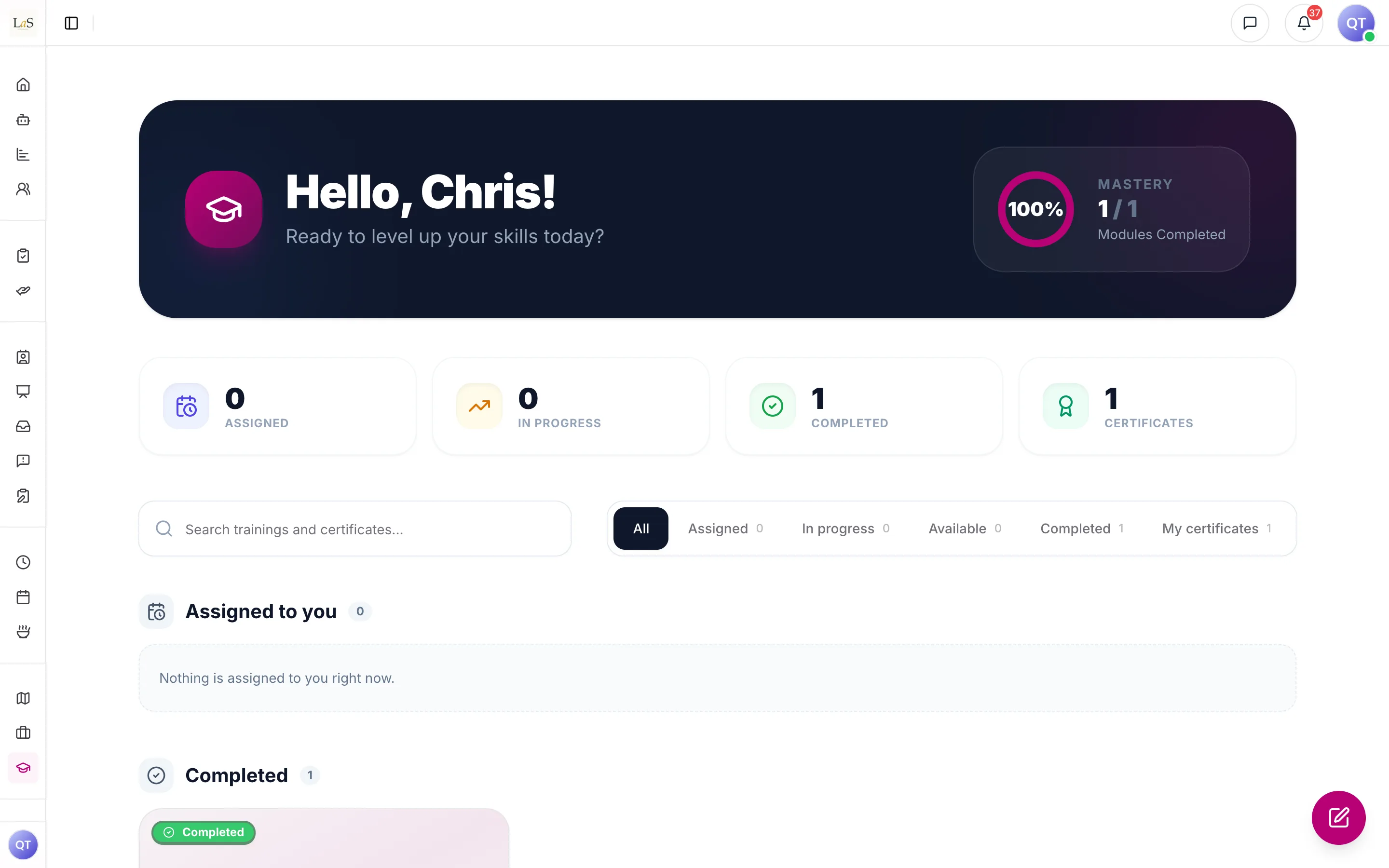
The Training Center on the dashboard, starting from what is assigned and due ().
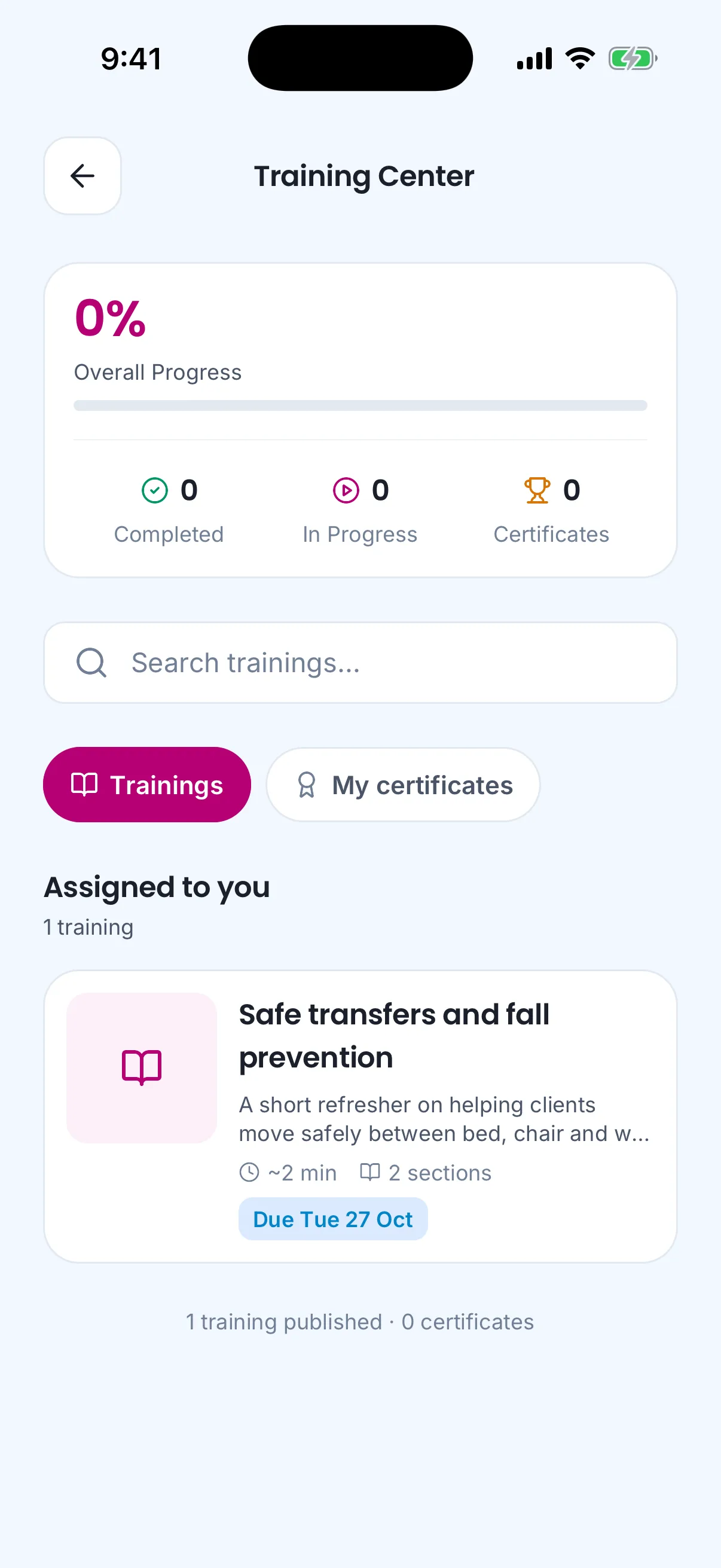
The same Training Center on the phone, from its next build: what is assigned and due comes first ().
The training page shows the outline with each section's estimated time and status, the learner's overall progress, and Start or Continue, which opens the first section not yet completed. Sections are taken in order: the next one unlocks when the current one is complete, and a completed section can always be reopened.
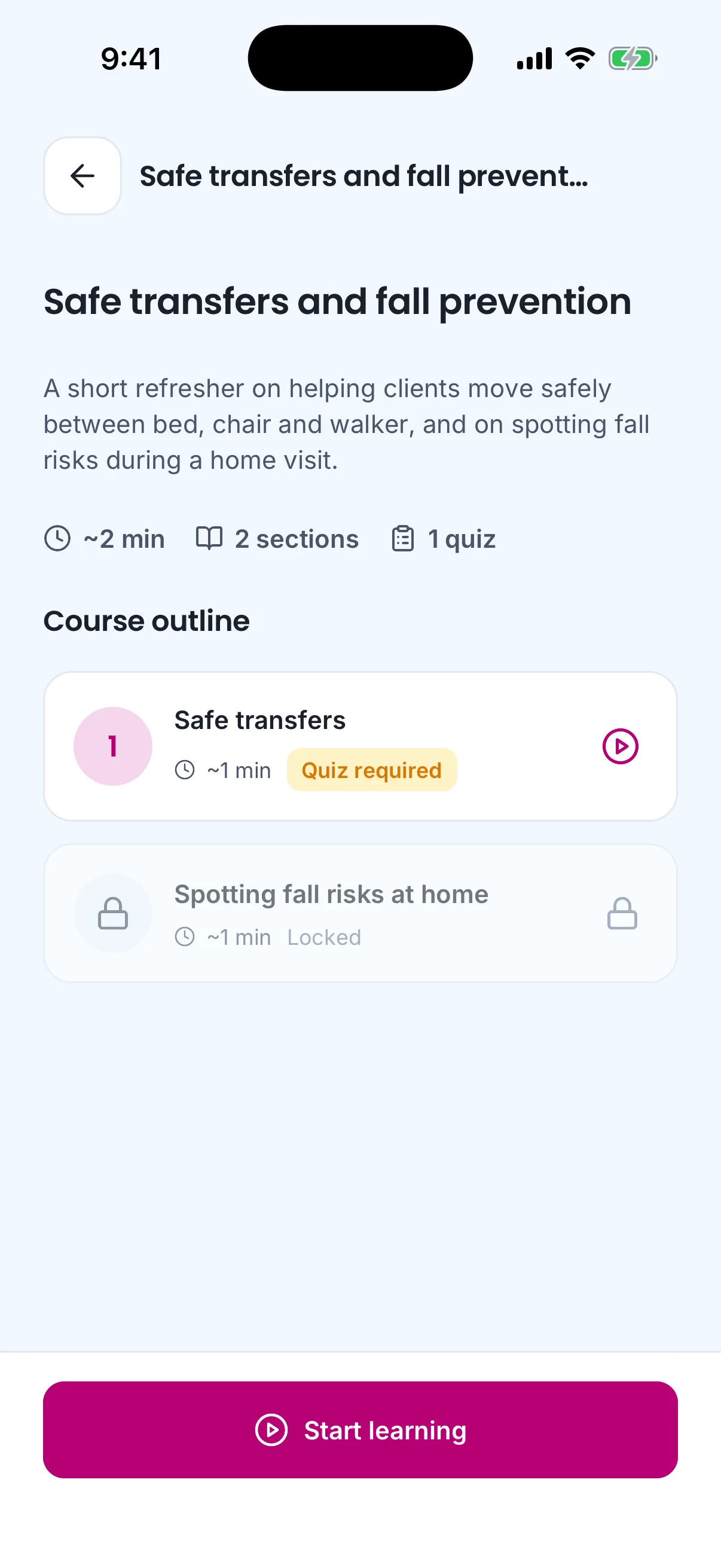
The training page on the phone. Each section shows its estimated time; the next one unlocks as the previous is completed.
A section opens with its media first, if it has any, and its notes shown — not folded away. Slides play inside the app with their narration and captions; an uploaded or YouTube video plays inside the app too. Mark as complete becomes available once the learner has reached the end of everything the section holds — the end of the notes, and the last slide or the end of the video when it has media. Skipping ahead in a video is allowed; the training records how much of it was actually played, and the analytics show it, so an agency that needs a training watched in full can see who skipped (). Completing a section moves on to the next, and reopening a training returns the learner to where they left off ().
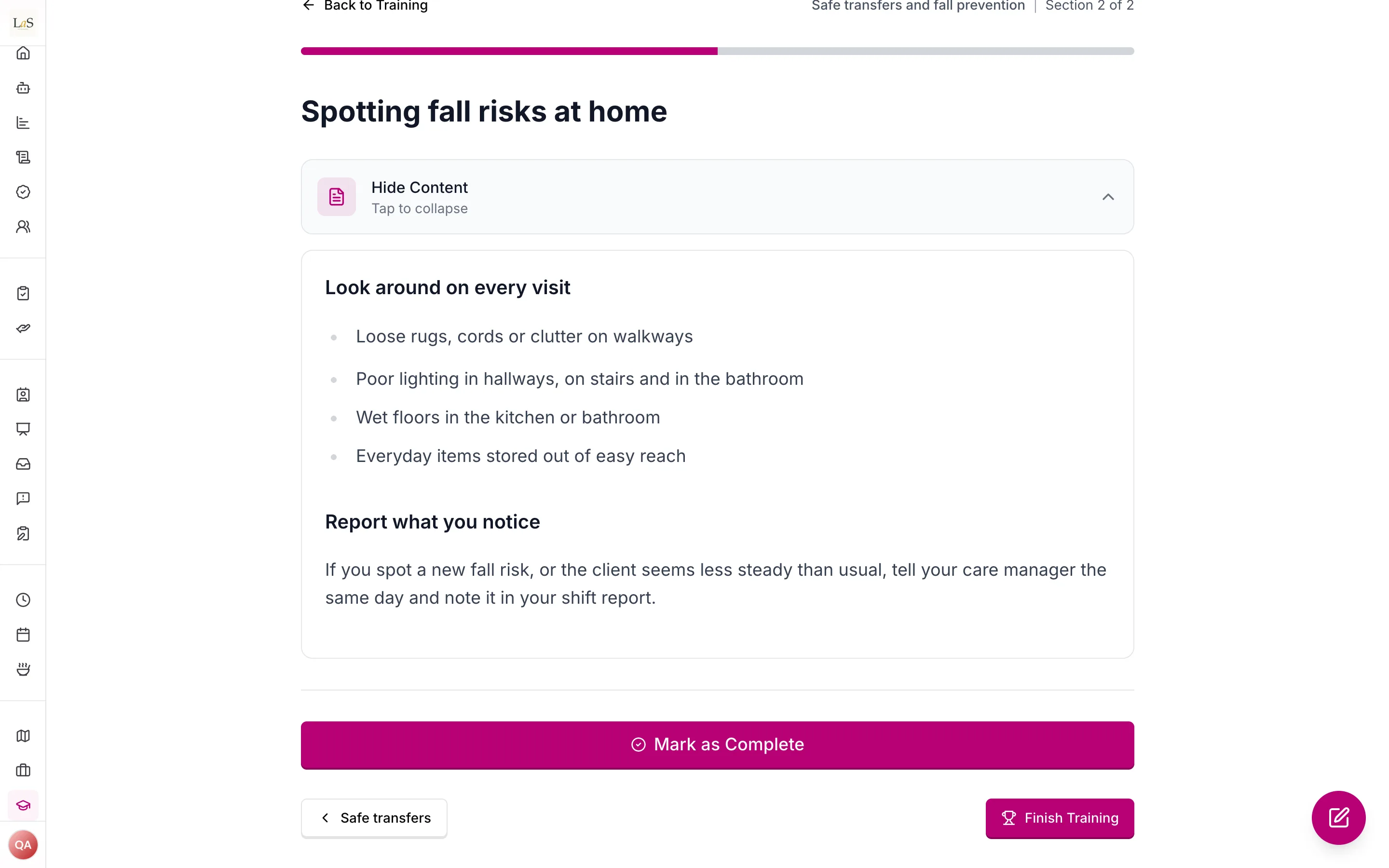
A section on the dashboard. Mark as Complete opens once the notes were read to the end and the media reached its end (, ).
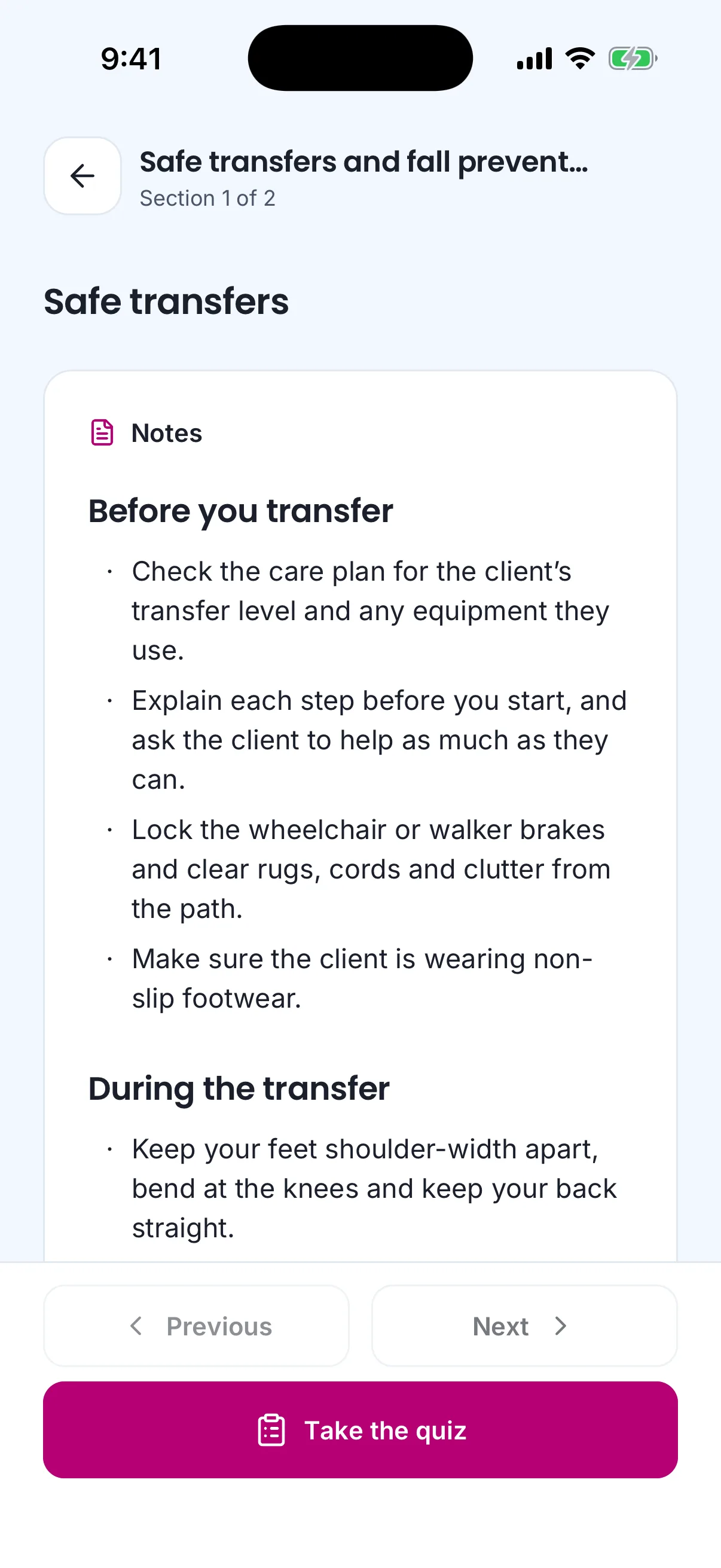
A section on the phone: notes open, the quiz one tap away ().
The quiz is one question at a time, submitted when every question is answered. It is scored on the server, and the correct answers and explanations reach the learner's device only after the attempt is submitted (). The result shows the score, whether it passed, and each question with the learner's answer, the right answer and the explanation. A section with a required quiz completes when the quiz is passed; a passed quiz stays passed, and a later attempt can only raise the best score. The learner always sees how many attempts remain. A learner who has used every attempt on a required quiz can ask for another from that screen; the request goes to staff who assign trainings, and a manager can reset the attempts from the learner's progress ().
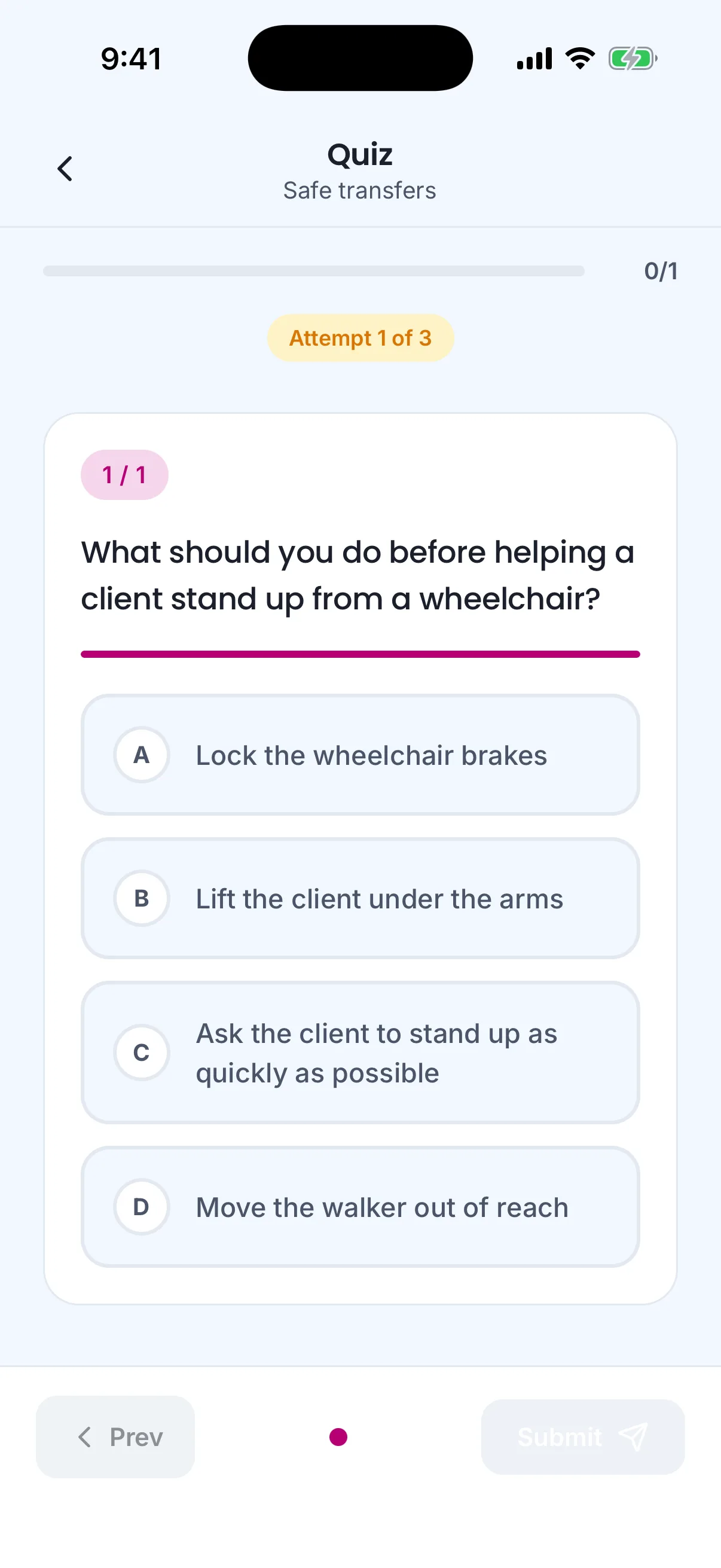
One question at a time, with the attempts shown ().
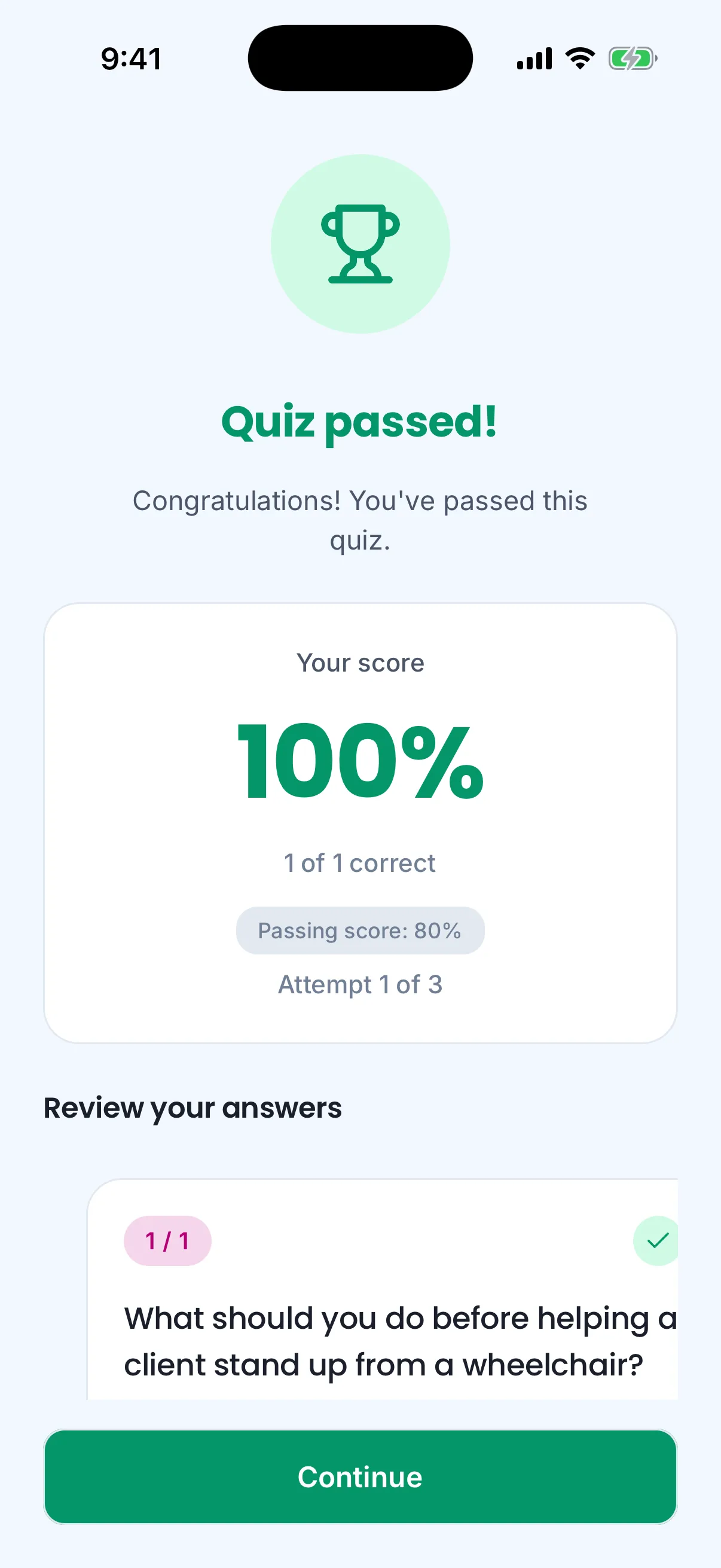
The result comes back graded by the server, with the answers to review ().
Finishing the last section shows a completion screen: the training's name, the quiz results, and the certificate — ready, or "being prepared" until it arrives on the same screen. The learner can view, download and share it from there and from My certificates ().
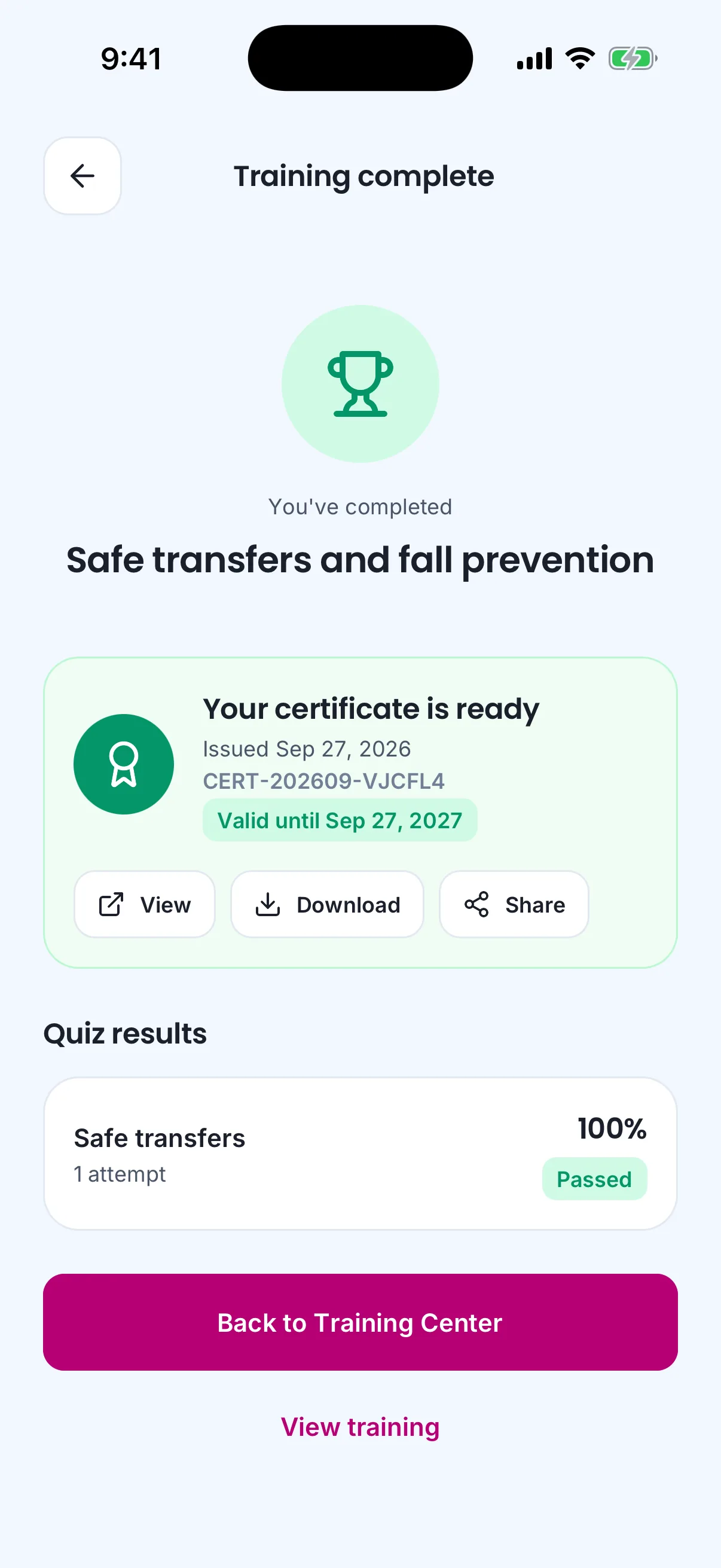
Finishing the last section: the certificate arrives on the same screen, with its validity (, ).
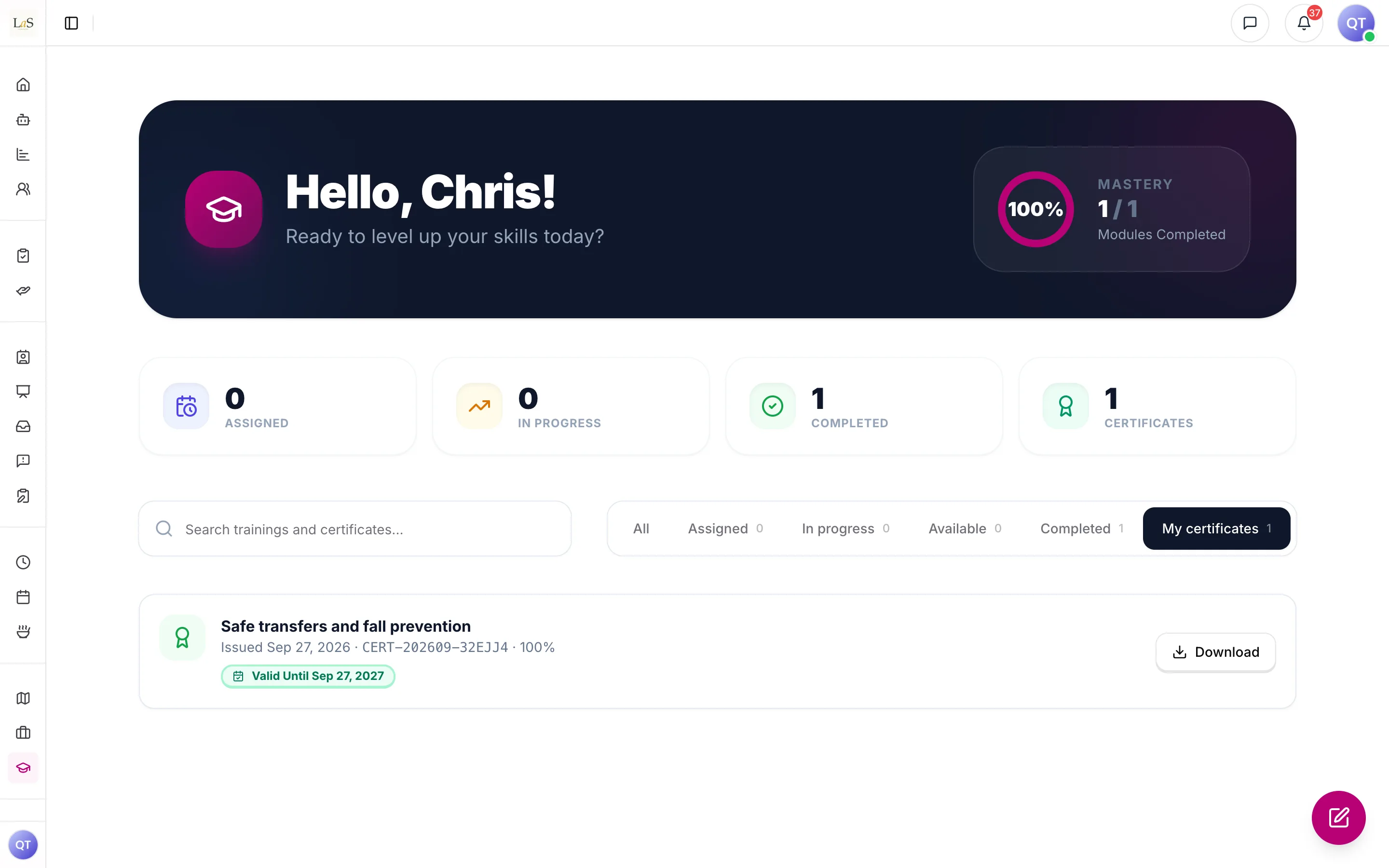
My certificates, with the expiry a validity period gives a certificate (, ).
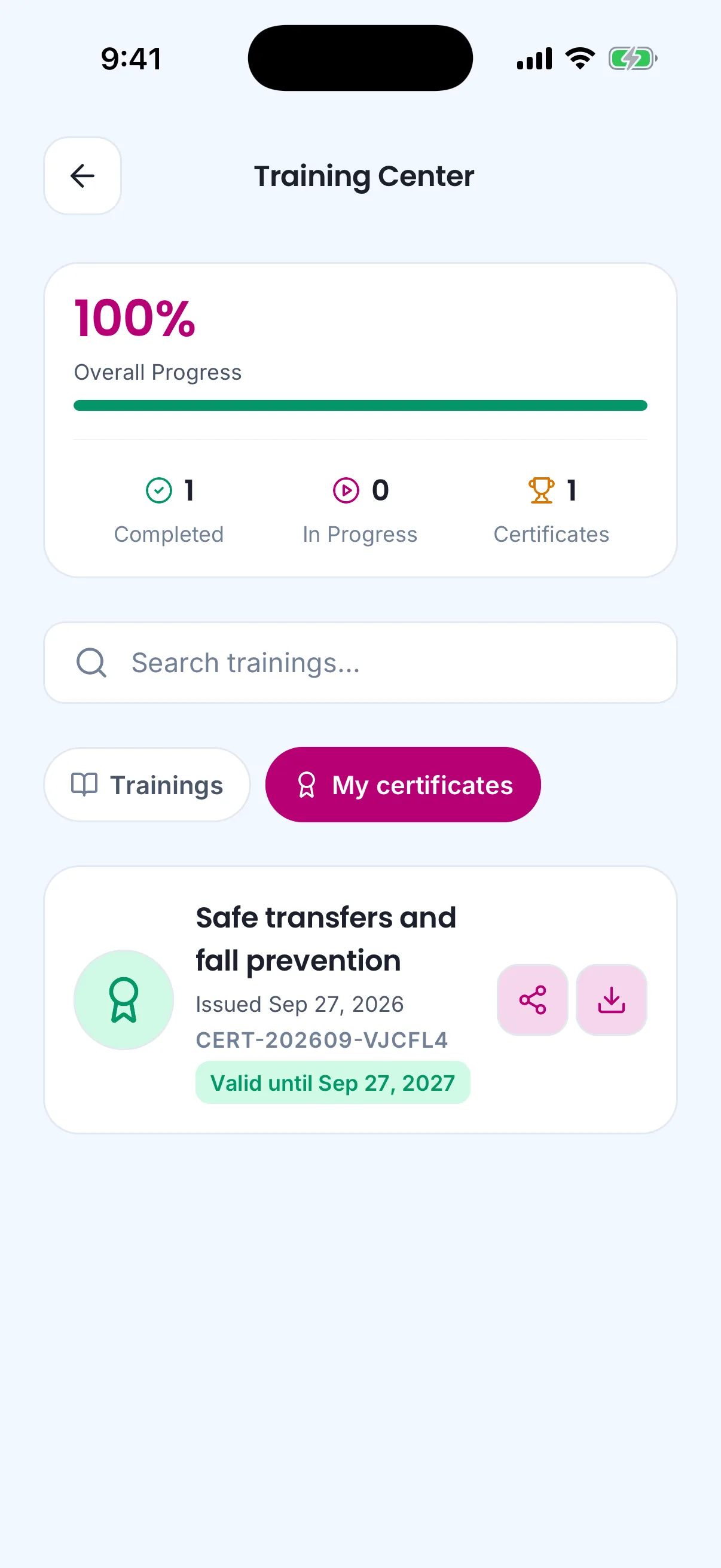
My certificates on the phone (, ).
Certificates
Completing every section of a training completes the training and automatically issues a certificate (): one current certificate per learner per training, with a unique number (). Each certificate carries a public , printed as a link and a QR code, that shows the recipient, the training, the agency, the completion date and the quiz results to anyone, without signing in (). Agency staff who manage trainings can list every certificate issued to their members, and a certificate whose document failed to render can be rendered again ().
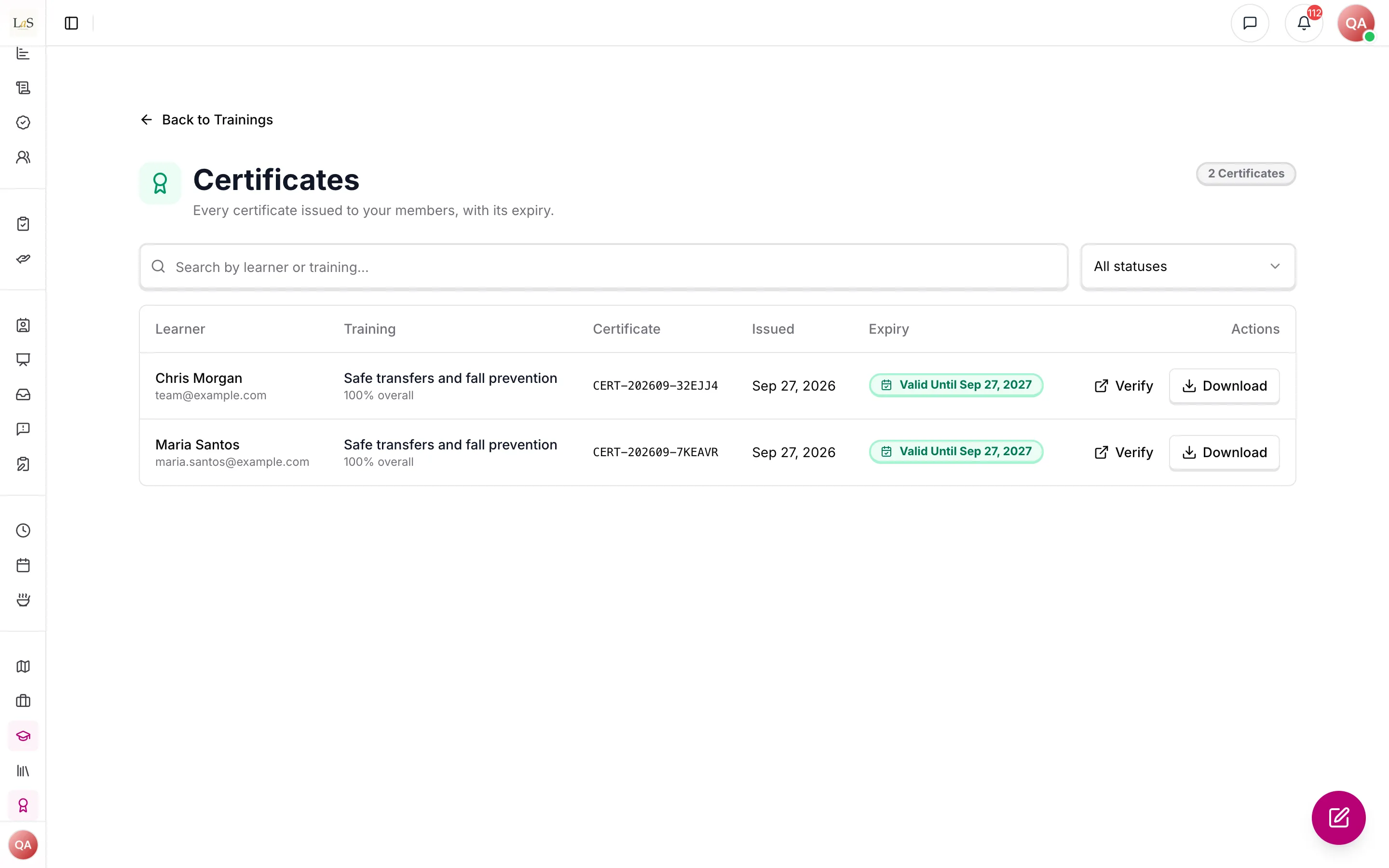
Every certificate issued to the agency's members ().
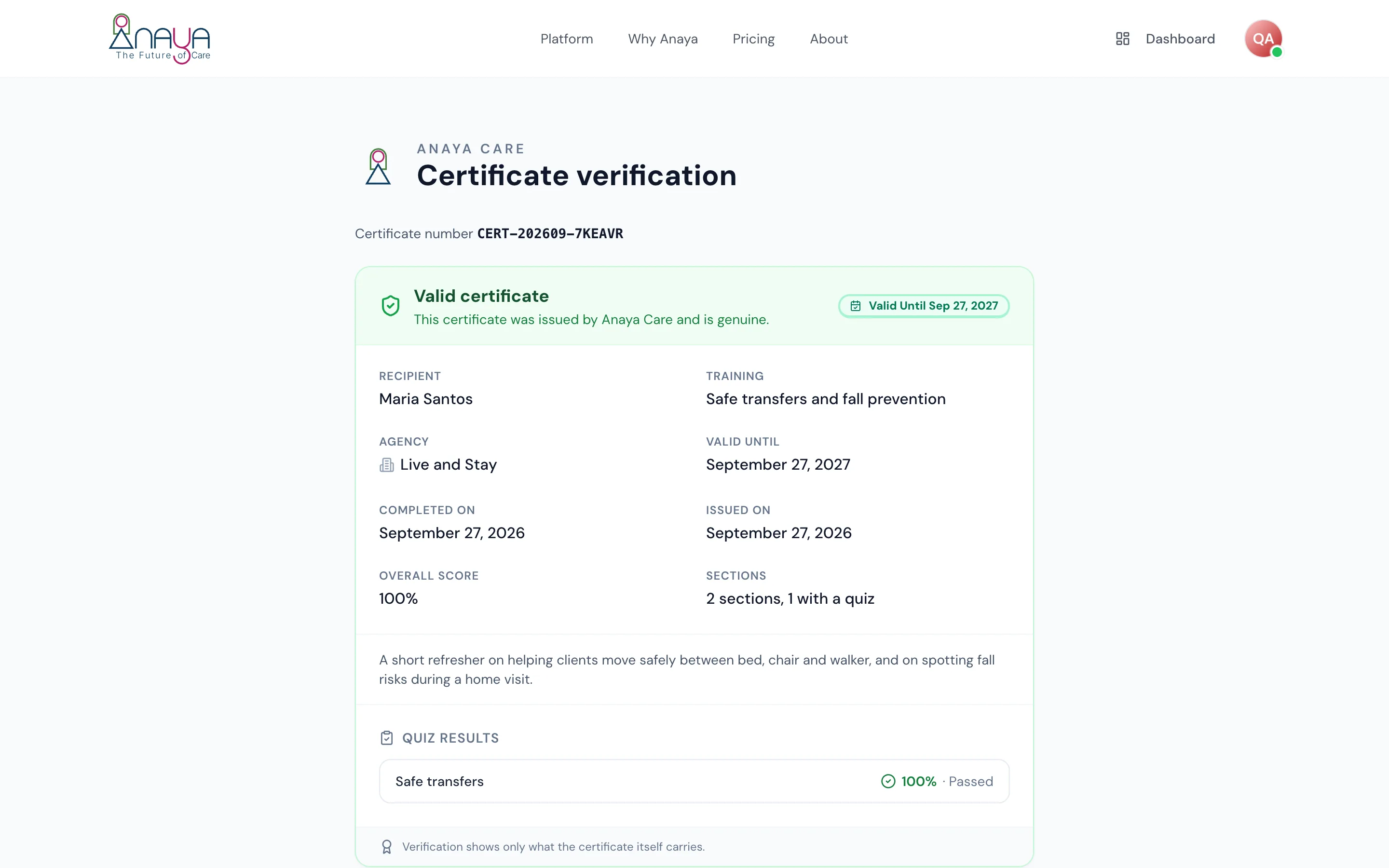
The public verification page, reached from the link and QR code on the certificate ().
A training's author can give its certificate a ; a certificate with none never expires. A certificate with one shows its expiry date wherever it appears, the verification page included. The care provider and the agency staff who assign trainings are reminded 30 days before it expires — or at a lead time the agency sets — and told on the day it lapses, and a lapsed certificate reads as lapsed everywhere (). Renewing means a fresh run through the training — progress starts over, and the earlier run is kept — or through the shorter the author named; it issues a new certificate with a new number, and the old one stays verifiable but reads as superseded. A required training whose certificate is about to lapse is assigned again on its own as a renewal, due on the expiry date ().
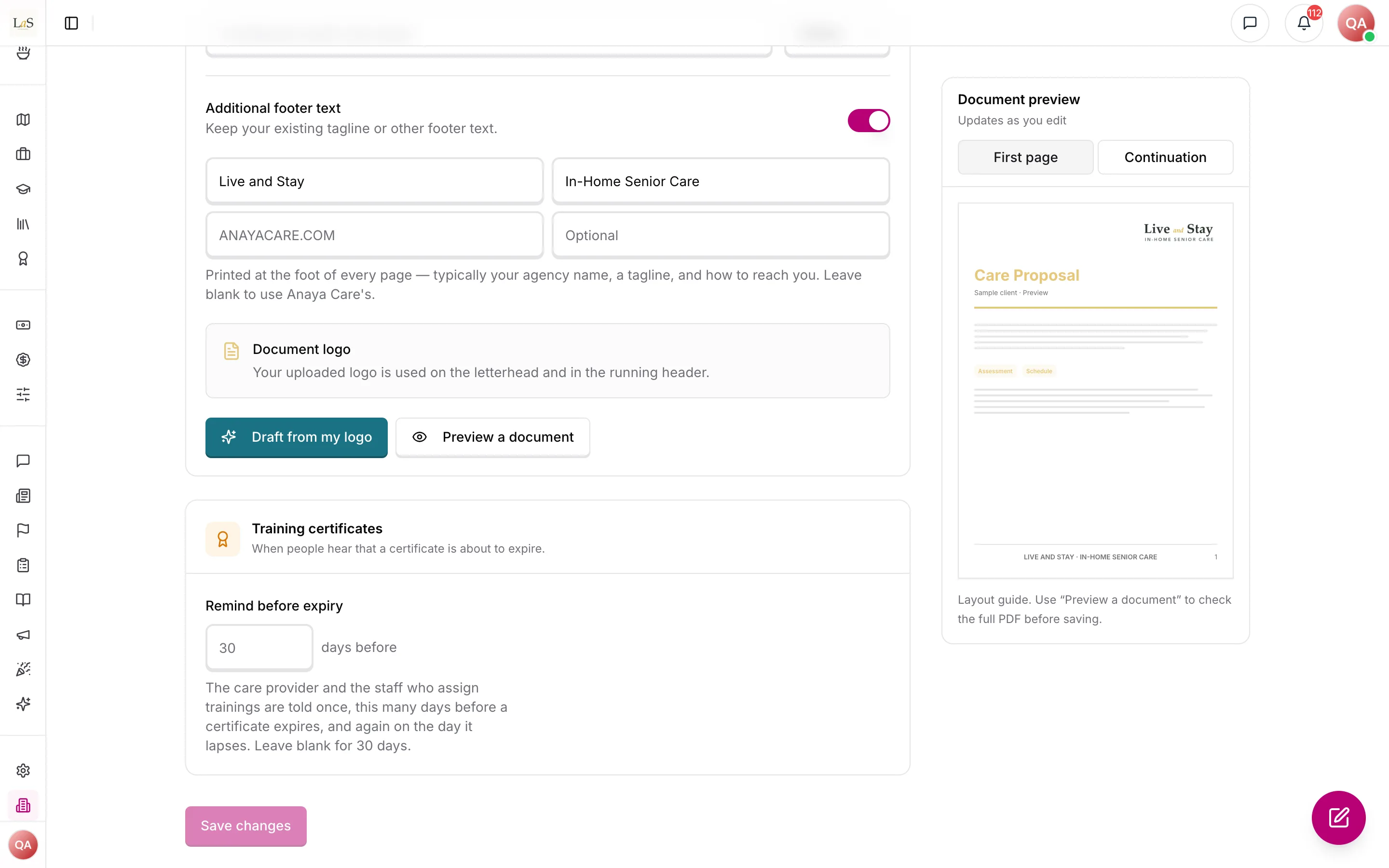
The agency's own reminder lead time, under Settings › Business ().
Standalone training subscription
Trainings are also sold as a standalone training and certification subscription that comes in two forms:
- For agencies — an add-on subscription that lets an agency assign Anaya-provided courses to its care providers, track each provider's progress and course completion, and manage certifications over time, including expiry dates and renewals.
- For individual care providers — a care provider in the ARMI Marketplace can subscribe on their own to pursue additional certifications. Completing a course issues that provider a digital certificate, which is attached to their ARMI Marketplace profile and visible to subscribing agencies browsing the marketplace.
The ARMI Values in Practice gateway course is delivered through this page and must be completed before a care provider is validated in the ARMI Marketplace.
State-required training
Any training mandated by a care provider's work-location regulations is handled exclusively through this page. The knowledge base never carries state-required training; it remains the home only for an agency's own reference material.
Rules
- TRAIN-1 — Every training is owned either by the platform or by exactly one agency. Platform trainings can only be changed by the platform team; agency trainings only by that agency's authorized staff. (✅ In code)
- TRAIN-2 — An agency training must be approved by the platform team before it is published. The platform team can reject it with a written reason, and a rejected training can be revised and resubmitted. Platform trainings publish without review. (✅ In code — publishing an agency training submits it for review; edits after publishing are governed by )
- TRAIN-3 — AI-generated trainings always arrive as drafts; a person must review and publish them. (✅ In code — since 2026-09-27 the training becomes a Draft the moment its sections are saved, whatever media was asked for; before that it stayed Generating for ever, see the changelog)
- TRAIN-4 — Learners can only see and start published trainings. A learner who has already started a training keeps access to it even if it is later unpublished. (✅ In code)
- TRAIN-5 — The catalog shows only published platform trainings reserved for the catalog. Availing one creates the agency's own independent published copy; the copy never receives later changes to the original, and availing again creates another separate copy. (✅ In code)
- TRAIN-6 — Assessments are scored by the system, never self-reported. A section with a required assessment is not complete until the assessment is passed, and attempt limits stop further tries after the allowed number of failures. (⚠️ Partial — settled by : scored on the server, every attempt counts, a pass stays a pass; the phone build in the field still shows a score it works out itself until the next build replaces it)
- TRAIN-7 — Completing every section of a training completes the training and automatically issues a certificate. (✅ In code — the certificate is issued in the background a moment after completion)
- TRAIN-8 — Each learner gets at most one current certificate per training, with a unique certificate number; a renewal () issues a new one and the previous reads as superseded. Anyone can verify a certificate by its number, without signing in. (✅ In code — one current certificate per training, a renewal superseding the earlier one (); verification by number answers through the API and the public page the certificate links to ())
- TRAIN-9 — Only published trainings can be assigned, and a learner can hold only one active assignment per training. Assignments automatically become Overdue when their due date passes — only the system marks overdue. (✅ In code — created and shown on the dashboard (, ); shown on the phone from its next build ())
- TRAIN-10 — If a training is assigned to someone who has already started or finished it, the assignment immediately reflects that existing progress — except a renewal assignment (), which starts a fresh run. (✅ In code as the rule stood; the renewal carve-out is 🚧 Spec only)
- TRAIN-11 — Training content generation can only draw on documents the requesting business owns and has explicitly selected (see Knowledge Base) — never another business's. With no documents selected, it draws on general caregiving knowledge alone and says so (). (✅ In code for the documents; the no-documents case is 🚧 Spec only)
- TRAIN-12 — Trainings are offered as a standalone training and certification subscription: an agency can take it as an add-on to assign Anaya-provided courses and manage certifications, and an individual care provider in the ARMI Marketplace can subscribe independently to pursue additional certifications. (🚧 Spec only)
- TRAIN-13 — Certification management tracks each certificate's validity over time, including its expiry date and renewal, so an agency can see which of its care providers' certifications are current, expiring, or lapsed. (⚠️ Partial — every certificate carries a status and an expiry the server keeps up to date, and the agency's Certificates list filters by them (, ); the standalone subscription around them is spec only)
- TRAIN-14 — When an individual care provider completes a course through their own subscription, a digital certificate is issued and attached to their ARMI Marketplace profile. (🚧 Spec only)
- TRAIN-15 — The ARMI Values in Practice gateway course is delivered through this page and must be completed before a care provider can be validated in the ARMI Marketplace. (🚧 Spec only)
- TRAIN-16 — State-required training is handled exclusively through this page; it is never delivered or tracked through the Knowledge Base. (🚧 Spec only)
- TRAIN-17 — Every training has an , worked out from its content — about 200 words a minute for its notes, the length of its narration and videos, and half a minute per quiz question — and shown wherever the training appears: lists, cards, the training page and each section. The author can replace the estimate with a number of their own, and a duration set by hand is never overwritten by a recalculation. (✅ In code — one shared rule computes it, the backend stores it on every save and reports it for older trainings, the author can override it in the editor's Basics step and clear the override, and the dashboard and the phone, from its next build, show it wherever a duration is shown)
- TRAIN-18 — Anaya drafts a training in two steps, and writes nothing into sections until the first is confirmed. From the brief she proposes an — a title, a description, and the sections with a one-line summary each and the document each draws on. The author can rename, reorder, add or remove sections, ask for a different outline in plain words, or accept it as it is; only then are the sections written. (✅ In code — since 2026-09-27; the write run refuses a draft that does not cover the confirmed outline exactly)
- TRAIN-19 — A training is Generating only while its sections are being written. As soon as the text is saved it becomes a Draft, opens in the editor, and can be edited and published. The cover photo, slides, narration and video, and quizzes are made afterwards, each as its own job per section with its own state — queued, working, ready or failed — and its own Retry. A failed media job never fails the training, never returns it to Generating and never blocks publishing; the publish checklist says what is missing. (✅ In code — the draft opens as soon as its text exists; each piece of media is its own job whose state shows in the editor on the cover, on each section's slides and narration and on each quiz, with Retry for a failed one, and on the training's card while any is still on the way)
- TRAIN-20 — Cancelling a generation keeps whatever was already saved: a draft with the sections written so far stays a draft, and media jobs still queued are dropped. Cancelling before any section was written removes the placeholder, so no "Generating…" card is left behind. A generation that fails is reported on the card and in the dock with a Retry that starts again from the same brief and the same outline. (✅ In code — cancelling keeps the sections written so far or removes the placeholder, and a failed run can be tried again from the same brief and outline, from the dialog or from the training's card)
- TRAIN-21 — Anaya writes only what the selected documents support. Where they do not cover a learning objective or a section's topic, the outline and the draft carry a naming the gap on that section, and the section is written from what the documents do say rather than filled in from general knowledge () — unless the author asks for exactly that on the note (). Coverage notes stay on the section, in the editor and on the publish checklist, until the author rewrites the section or dismisses the note; they never block publishing. When the brief itself is unclear, Anaya asks one clarifying question, as any generation does (). (✅ In code — the outline shows the gaps and the draft carries a coverage note on each section, which the editor shows with where the section's words came from and clears on a rewrite or a Dismiss; when the brief itself is unclear the outline run asks one clarifying question, answered in the generation dialog or the dock, and the answer reaches the write run)
- TRAIN-22 — Any section of any training, or a whole draft, can be changed by asking in plain words on the training's own screen, under the same rules as every other refinement ( – ): the request changes only what it reaches, never touches sections it does not name, and every request and its outcome stays with the training. (✅ In code — since 2026-09-27 a Draft, a Rejected training or a working copy can be refined from the Refine panel in the editor, once the editor's changes are saved; sections keep their ids, what changed is measured on save, the conversation is kept with the training, and the editor reloads the refined sections when the run settles; a platform training cannot be refined yet)
- TRAIN-23 — Training generation is a durable run like every other on AI Features: its progress shows in the generation dock and on the training's card, the author can leave the page and come back, is notified when the draft is ready or the run fails, and can cancel at any time. At most one run at a time per training. The platform team's own runs show progress the same way an agency's do. (⚠️ Partial — the run and the dock exist, the dialog can be closed and reopened from the training's card, which shows an outline waiting for the author, the writing under way, media still on the way and a failed run with Try again; the platform team's own runs get no live progress because the socket room is keyed by agency)
- TRAIN-24 — A published training is edited as a . Learners keep seeing the published version until the working copy is published in its place — for an agency training, after it passes review again (). A learner part-way through keeps their progress on every section that still exists, certificates already issued are unchanged, and a working copy can be discarded, leaving the published version as it was. (✅ In code — the server creates, publishes, approves and discards working copies; opening a published training in the dashboard's editor opens its working copy, creating one when there is none, a banner says so with the way back to the published version and a Discard, and Publish on the working copy replaces the published version or submits it for review)
- TRAIN-25 — Publishing, or submitting for review, first saves what is on screen and then checks the training is complete: a title, at least one section, notes in every section, and every quiz with at least one complete question that has a correct answer. Anything missing is named. The button says what it will do — Publish, Submit for review or Publish changes — and the confirmation says who will see the training, and when. (✅ In code — since 2026-09-27: the dashboard saves first and its button says what it does, and the server refuses an incomplete training and names what is missing)
- TRAIN-26 — A platform reviewer sees the whole training as a learner would, without starting any progress of their own, with every quiz's answers and explanations visible, and approves or sends it back from the training itself. Sending back needs a written reason. The agency is notified of either decision, and the reason is shown at the top of the editor until the training is resubmitted. (✅ In code — since 2026-09-27: the reviewer reads the whole training in a preview that starts no progress, with the answers shown, decides from the training itself, and the agency's training managers are notified either way, with the reason)
- TRAIN-27 — A catalog training can be previewed as a learner would see it before it is added, and the catalog shows which trainings the agency has already added. An added copy records which catalog training it came from. When the platform team publishes a new version of the original, the copy says so and the agency can add the new version as another copy; the old copy is unchanged (). (✅ In code — the catalog offers Preview, which opens the training as a learner would see it without starting progress, marks what the agency already added, and tells an added copy when the catalog has a newer version; a copy records the catalog training and version it came from)
- TRAIN-28 — A training can be voided from Draft, Rejected or Published — not while Generating (cancel it instead) and not while under review (withdraw it first). Voiding asks for confirmation and is reversible: a voided training can be restored to Draft. Voiding hides the training from learners who have not started it; learners who have started keep access as in , and completed progress and certificates are untouched. (✅ In code — the dashboard confirms the void, the server allows it only from Draft, Rejected or Published and says what to do instead, and a voided training's page offers Restore to draft)
- TRAIN-29 — Staff who may assign trainings do so from the training or from a team member's profile: to one or more people, to a role, or to everyone in a role, with an optional due date and note. Each learner is notified when a training is assigned to them. The assigner can move the due date, change the note, or remove an assignment that is not completed; a completed assignment is never removed. (✅ In code — from the training's page or a team member's profile, to people, to a role or to everyone in a role, with a due date and note; the server refuses to remove a completed assignment; assigning to chosen people does not yet say how many already had it, only assigning to a role does)
- TRAIN-30 — An agency can mark a published training required for a role. Everyone in that role is assigned it when the requirement is set, and anyone who later joins in that role is assigned it on joining, with a due date a set number of days after joining — 30 unless the agency chooses otherwise. Removing the requirement stops future assignments and leaves existing ones in place. (✅ In code — set and cleared from the training's analytics page; everyone in the role is assigned when the requirement is set and anyone who joins later is assigned on joining, due 30 days on unless the agency chose otherwise)
- TRAIN-31 — A learner with a due date is reminded three days before it and on the day. The day an assignment becomes overdue, the learner and the person who assigned it are told once. When a learner completes an assigned training, the assigner is told. Overdue is derived from the due date — only the system marks it — and moving the due date later clears it. (✅ In code — since 2026-09-27; each notice is sent once, and the phone opens the training from it once its next build is out)
- TRAIN-32 — A learner's Training Center, on the phone and the dashboard alike, puts what is assigned to them first — overdue at the top, then by due date — followed by trainings in progress, trainings available to start, and completed trainings with their certificates. Every card shows the estimated duration, the learner's progress, and the due date when there is one. (✅ In code — the dashboard since 2026-09-27, and the phone from its next build; the phone's Training Center shows the assigned group only once the assignments list is served with a
paginationand the training's duration, which is on the backend's list) - TRAIN-33 — A section's notes are shown open, its slides play inside the app with their narration and captions, and its video plays inside the app whether uploaded or from YouTube. A section can be marked complete only once the learner has reached the end of its content — the end of its notes and, when it has media, the last slide or the end of the video () — and reopening a training returns the learner to where they left off. (⚠️ Partial — on the phone, from its next build, the notes are open, slides play with their narration, uploaded and YouTube video play inside the app, "Mark as complete" waits for the end of the content, and the app reopens where the learner left off; the dashboard shows notes open and slides and holds the button the same way (); the phone's part reaches learners with the next build)
- TRAIN-34 — A quiz is scored only on the server; the correct answers and explanations reach the learner's device only after an attempt is submitted, and what the learner sees is the score the server recorded. Every attempt counts toward the limit, passed or failed. A section whose quiz was passed stays passed: a later attempt can raise the best score but never lowers it, never un-completes the section and never withdraws a certificate. The learner always sees how many attempts remain. (⚠️ Partial — settles ; since 2026-09-27 the server counts every attempt, keeps a pass, returns the graded attempt with the answers only after submission, and withholds the answers from any client that asks for that; the dashboard and the phone are moving to it, and the phone build in the field still receives the answers until it is replaced)
- TRAIN-35 — A learner who has used every attempt on a required quiz is told so and can ask for another attempt from that screen. The request notifies staff who may assign trainings; a manager can reset the learner's attempts from the learner's progress, with an optional note, and the reset is recorded together with the attempts it replaced. Analytics keep every attempt, including the ones reset. (✅ In code — the learner asks from the quiz screen on the dashboard and, from its next build, on the phone; the request tells the staff who assign trainings; a manager resets the learner's attempts from the analytics page or the learner's profile, the reset keeps the old attempts, and the analytics count them and mark who asked)
- TRAIN-36 — Finishing the last section shows a completion screen: the training's name, the learner's quiz results, and the certificate — ready, or "being prepared" until it arrives on the same screen without a refresh. The learner can view, download and share the certificate from there and from My certificates, on the phone and the dashboard. Agency staff who manage trainings can list every certificate issued to their members. A certificate whose document failed to render is rendered again on request. (⚠️ Partial — the phone, from its next build, shows a completion screen that waits for the certificate, with view, download and share, and a My certificates tab; the dashboard waits on the training page, has a My certificates tab and, for staff who manage trainings, a Certificates list with search, an expiry filter and download; a certificate's document can be rendered again through the API; no notification is sent when a certificate is ready)
- TRAIN-37 — Each certificate carries a public at
anayacare.com/certificates/<number>, printed on it as a link and a QR code, showing the recipient, the training, the agency, the completion date and the quiz results, without signing in; each visit is counted. Verification never reveals anything else about the person or the agency. (✅ In code — settles ; since 2026-09-27 the certificate prints the verification link and a QR code, and the public page names the learner, the training, the agency and the certificate's state; visits are counted by the API only) - TRAIN-38 — For any training, staff who manage or assign trainings can see who is assigned, in progress, completed and overdue, with each learner's quiz results and attempts; for any member of the agency, they can see every training assigned, started or completed and every certificate. (✅ In code — the training's analytics page lists who is assigned, in progress, completed and overdue with each learner's quiz results and attempts, and a member's profile lists every training assigned, started or completed and their certificates)
- TRAIN-39 — With no documents selected, Anaya drafts a training from general caregiving knowledge alone. The outline says so up front, every section carries a coverage note saying it was written from general knowledge and not the agency's documents, and the training's description says the same until an author edits it. On a grounded draft, a coverage note offers to write that one part from general knowledge, and a section written that way is marked as such. Nothing written from general knowledge is ever presented as the agency's policy. (⚠️ Partial — a brief with no documents drafts from general knowledge with every section and the description marked; the per-section "write this part from general knowledge" offer is not built)
- TRAIN-40 — The platform team drafts catalog and platform trainings from the : its own knowledge base, owned by no agency, which no agency can see or select and which never holds an agency's documents. and apply to it as they do to an agency. (🚧 Spec only — a platform user who asks Anaya to draft is told plainly to write by hand for now)
- TRAIN-41 — Every training Anaya writes is in plain words, per and – , whoever it is for. The audience in the brief changes the examples, the depth and which exact terms are named — a training for nurses names the medication and the reading — never the reading level. The brief offers a warm or a professional voice; there is no academic tone. (✅ In code — since 2026-09-27)
- TRAIN-42 — "Reached the end" means all of a section's content: the notes scrolled to their end and, when the section has media, the last slide reached or the video played to its end. Skipping ahead in a video or through slides is allowed. The training records how much of each video or narration a learner actually played, and the training's analytics show it per learner, so an agency that needs a training watched in full can see who skipped. (✅ In code — the dashboard and, from its next build, the phone hold "Mark as complete" until the notes are scrolled to their end and the video has ended or the last slide was shown, and report how much of the video was actually played; the analytics show, per learner, in how many sections with media the end was reached with less than nine tenths played. On the phone a YouTube video counts as reached once shown, since the app cannot see its end, and is not counted either way)
- TRAIN-43 — A training's author can set a for its certificate; a certificate with none never expires. A certificate with one shows its expiry date wherever it appears, the verification page included. The care provider and the agency staff who assign trainings are reminded 30 days before it expires — or at a lead time the agency sets — and told on the day it lapses. A lapsed certificate reads as lapsed everywhere, and is never deleted. (✅ In code — settles the reminder question left open under ; since 2026-09-27 the author sets the validity period in the editor's Basics step, the server sets the expiry from it, sends one notice at the agency's lead time — 30 days, or 7 to 90 under Settings › Business › Training certificates — to the care provider and the staff who assign trainings and one on the day, and marks the certificate lapsed; the expiry shows wherever a certificate appears on the dashboard, on the verification page and the printed certificate, and, from its next build, on the phone)
- TRAIN-44 — A certificate is renewed by completing the same training again, or the shorter its author has named for it. A renewal starts a fresh run through the training: progress starts over at the first section, and the earlier run, its quiz results and its certificate are kept. Renewing issues a new certificate with a new number and its own validity period; the previous certificate stays verifiable and reads as superseded (). A required training () whose certificate is 30 days from lapsing is assigned again on its own as a renewal, due on the expiry date, and that assignment does not inherit the earlier run (). (✅ In code — settles the renewal question left open under ; the author names the renewal training in the editor's Basics step, from the agency's published trainings; the server renews by the same training as a fresh run or by the named training, and re-assigns a required training on its own; the dashboard and, from its next build, the phone offer Renew on a finished training and on a lapsed or expiring certificate, and mark a renewal assignment as one)
Note: This page's rules were retired from the Content & Community page (CONTENT-21 – CONTENT-30 → – ) and the AI Features page (AI-15 → ). IDs are never reused.
Who can do what
| Action | Who |
|---|---|
| Create and edit agency trainings, by hand or with Anaya, including a certificate's validity period and renewal training | Agency staff with training management access |
| Preview a training as a learner, publish, submit for review, void or restore | Agency staff with training management access (platform team for platform trainings) |
| Approve or send back agency trainings | Platform team |
| Create platform and catalog trainings, and keep the platform library | Platform team |
| Preview and add a catalog training | Agency staff with training management access |
| Assign trainings, change or remove an assignment, mark a training required for a role | Agency staff with assignment access |
| Reset a learner's quiz attempts | Agency staff with assignment access |
| See who has done what, per training and per member | Agency staff with training management or assignment access |
| List the certificates issued to the agency's members | Agency staff with training management access |
| Take a published training, earn a certificate, download and share it | Any learner in the agency |
| Verify a certificate by its number | Anyone (public) |
| Subscribe to the training add-on and manage certifications | Owner, Admin |
| Subscribe independently for additional certifications | Care provider (ARMI Marketplace) |
| Complete the ARMI Values in Practice gateway course | Care provider (ARMI Marketplace) |
Decisions needed
None open.
Decided on 2026-09-27: voiding is reversible and limited to Draft, Rejected and Published (); learners are notified on assignment, reminded before the due date, and told once when overdue, and the assigner hears about overdue and completion (); with no documents selected Anaya drafts from general knowledge and marks every section as such, rather than refusing or pretending (); the platform team drafts from a platform library of its own (); plain words govern every training and the brief's audience shapes examples and terms, not reading level — the academic tone goes (); a section is reached to the end when its notes and its media both are, skipping ahead allowed and recorded (); certificates can carry a validity period, with reminders 30 days before expiry to the care provider and the agency and a notice on the day (); renewal is the same training or a named shorter one, issuing a new certificate, and a required training is re-assigned on its own before its certificate lapses ().
How is this page?
Last updated on