Platform Operations
Part of the Anaya Care Handbook — the source of truth for how the product must behave. When the product needs to change, change this document first, then make the system match it.
What this covers
This page governs the everyday plumbing of the platform: how files and photos are stored and shared, the document vault where sensitive client and staff documents live, the PDF reports the platform produces, the statistics and system-health dashboards, the platform activity log (including the audit trail of who viewed protected health information), and how mobile app versions and forced updates are managed. Every other part of the product relies on these capabilities, so the rules here apply platform-wide.
Key terms
- Private file — a stored file that can only be opened through a temporary, expiring link; used for anything sensitive.
- Public file — a stored file anyone with the link can view, such as a profile picture.
- Expiring link — a one-hour, single-purpose web link the platform issues each time someone is allowed to open a private file.
- Care Lock vault — the secure document library attached to a client, care provider, or staff member, organized into folder categories; for client documents it holds essential records such as advance directives, long-term care insurance, and health cards, accessible only by the responsible party by default.
- Folder category — a fixed set of vault folders per owner, e.g. medical records, doctor appointments, medications, advance directives, insurance, identification, legal documents, and personal photos for a client.
- Advance directive indicator — a flag on the client record, kept in step with the vault, that tells the platform whether the client has an advance directive on file.
- Initials avatar — an automatically generated profile image (the person's initials on a role-colored background) used when no photo has been uploaded.
- Activity log — the platform-wide record of who did what, when, and in which agency.
- PHI audit entry — a special activity-log entry recorded whenever someone views a client's protected health information.
- Parked entry — an activity-log entry that could not be written after every retry, held for an operator to inspect and re-run rather than discarded.
- Statistics dashboard — live charts of shifts, care proposals, and clients for an agency or the whole platform.
- System health dashboard — the super-admin view of whether the platform's infrastructure, partner services, background work, and real-time messaging are operating normally.
- Minimum version / latest version — the oldest app version still allowed to run, and the newest one available, set per phone platform (iPhone / Android).
- Force update — blocking an out-of-date mobile app from being used until it is updated.
How it works
Files and photos
Everything uploaded to the platform — profile photos, client photos, attachments, recordings, documents — is stored encrypted in secure cloud storage. Each file is either public (e.g. a profile picture) or private. Private files are never handed out directly; whenever an authorized person opens one, the platform issues a fresh expiring link that stops working after one hour. This keeps sensitive health documents from circulating outside the product.
The platform also offers photo conveniences: bundling a set of photos into a single PDF or a zip file for download, and generating an initials avatar for anyone who has not uploaded a profile photo.
The Care Lock vault
Care Lock is the secure document vault. Every document in it belongs to an — a client, a care provider, or a staff member — and sits in one of that owner's folder categories. For a client, Care Lock is where the essential records live: advance directives, long-term care insurance, health cards, identification, and other essential documents. Documents can carry a display name, description, and tags, and can be renamed or deleted by people with the right permission. Vault documents are always private files: every time one is viewed, a new one-hour link is issued.
For client documents, Care Lock is gated by the . By default the client's Care Lock is accessible only by the responsible party; they can grant view-only access to other authorized individuals on a per-document or per-vault basis, and revoke it at any time. This is permissioned sharing — granting access never lets the recipient change or remove documents.
The vault drives one piece of care logic directly: when an advance-directive document is added to or removed from a client's vault, the client's advance directive indicator updates automatically. That indicator determines whether care providers must acknowledge the client's advance directive before caring for them.
PDF reports
The platform produces polished PDF documents from live data: care proposals (including the signed copy), care plans, shift reports and shift summaries, health-metrics reports, period reports, family summaries, care snapshots, formal welfare reports, transition-of-care reports, and training certificates. AI-drafted documents (such as generated care plans) are converted into formatted PDFs, with support for deliberate page breaks and landscape calendar pages. Training certificates are printed from the same certificate page a user sees on the web, so the PDF always matches what is on screen.
Statistics and system health
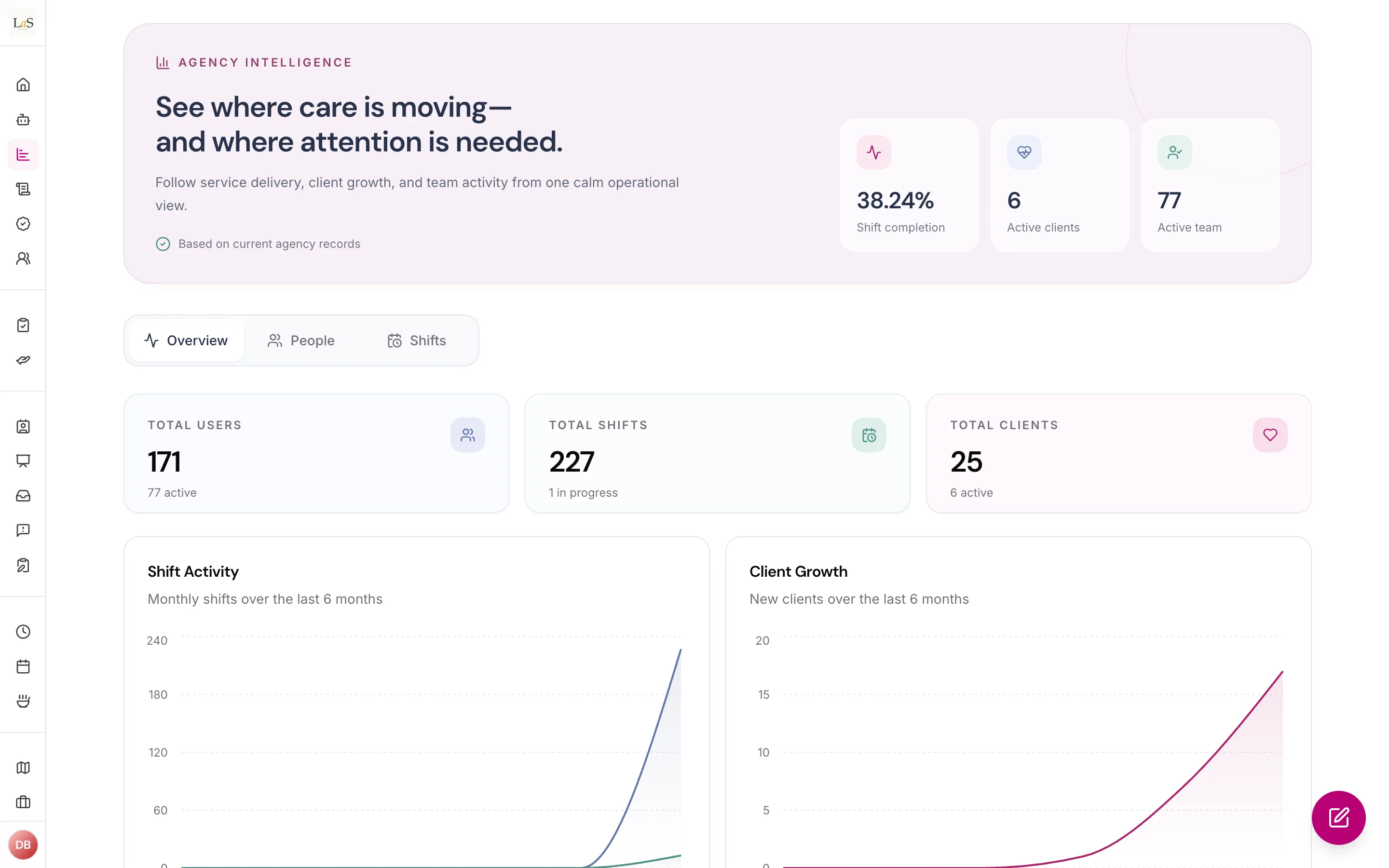
The statistics dashboard charts shifts (status mix, six-month trend, completion and assignment breakdowns), care proposals, and clients — always computed live from current data, never from stored snapshots. Agency staff see their own agency's numbers; a super admin sees the whole platform.
The system health dashboard, on the super-admin dashboard, summarizes four areas — core infrastructure, partner services (messaging, email, push notifications, AI, storage, maps), background work queues, and real-time chat/notification connections. Each area shows the worst status among its parts, and the page header shows the worst status overall. Results are cached briefly (about 30 seconds) unless the viewer forces a refresh.
Data and insights
Beyond the live operational charts, the platform offers a data and insights layer: client-overview reports, an analytics dashboard, and custom report generation filtered by client, care provider, date range, and category (now specified in full on the Report Generation & Audience Management page). It surfaces care-quality metrics — task completion, medication adherence, and incident frequency — and trend analysis with visual representation. Reports and metrics can be exported for medical professionals, representatives, and regulatory bodies. Custom report building, the authorization workflow, and audience controls are governed on the Report Generation page; this page covers only the underlying data store, retention, and export plumbing.
The activity log and PHI auditing
Every significant action across the platform — sign-ins, record changes, shift assignments, proposal status changes, and dozens more — is written to the activity log with who did it, what was affected, which agency, when, and from what network address. Logging never blocks the action: the entry is queued the instant the action completes and written by a background worker, so a slow or failing log can never fail a user's request. An entry that cannot be written is retried with increasing delays; only once every retry is exhausted is it parked for an operator to inspect and re-run — it is never silently discarded. If the queue itself is unavailable the platform writes the entry directly instead, so queuing can never make logging less reliable. Every entry records when the action happened, independently of when it was written, so the log always reads in true order even when a write was retried.
On top of ordinary activity, the platform keeps a dedicated audit trail of viewing protected health information: when someone successfully opens a client's health information, a PHI audit entry is recorded naming the viewer, the record, and the screen. Log viewers can filter by person, type of record, action, date range, and free text, and can also see a "my activity" view of their own history.
Mobile app versions and forced updates
A super admin maintains, per phone platform, the minimum allowed app version, the latest available version, the app-store links, and the controls for instant (over-the-air) updates. The mobile app checks these settings before login and regularly while in use.
Rules
- OPS-1 — Every file operation — uploading, viewing, renaming, deleting, or changing visibility — must require a signed-in user.
- OPS-2 — Uploads must respect per-type limits: photos up to 15 MB (common image formats), videos up to 100 MB, documents up to 100 MB (PDF and office formats), audio up to 50 MB. Anything outside these limits is rejected with a clear message.
- OPS-3 — Every stored file must be encrypted at rest.
- OPS-4 — A private file can only be opened through an expiring link that stops working after one hour. A fresh link is issued each time an authorized person views the file.
- OPS-5 — Only people in the agency that owns a file, with the appropriate permission, may delete it or change it between private and public.
- OPS-6 — A person or client without a profile photo always gets an automatically generated initials avatar, colored by their role.
- OPS-7 — Photo bundles (PDF or zip downloads) never alter the original files.
- OPS-8 — Every Care Lock document is stored as a private file. There is no way to make a vault document public.
- OPS-9 — Every vault document belongs to exactly one owner (a client, a care provider, or a staff member) and sits in one of that owner's folder categories.
- OPS-10 — Viewing vault documents requires the document-view permission; uploading, renaming, and deleting require the separate document-manage permission.
- OPS-11 — A user can only ever see or change vault documents belonging to their own agency, and only for clients or people they are entitled to work with.
- OPS-12 — Adding the first advance-directive document to a client turns the client's advance directive indicator on; removing the last one turns it off. The indicator must never disagree with the vault's contents.
- OPS-13 — Care providers must acknowledge a client's advance directive when the indicator is on, as governed by Clients.
- OPS-14 — Generated PDFs must always reflect the data at the moment of generation; a training certificate PDF must match the on-screen certificate page exactly.
- OPS-15 — Statistics dashboards always compute from live data; numbers are never served from stored snapshots.
- OPS-16 — Agency staff viewing statistics see only their own agency; only a super admin sees platform-wide numbers.
- OPS-17 — Viewing statistics requires the statistics permission; viewing the system health dashboard is a super-admin dashboard capability.
- OPS-18 — Each system-health area reports the worst status among its parts, and the overall status is the worst across all areas.
- OPS-19 — Every background work queue the platform runs must be visible on the operations and health dashboards, so a failure can never go unnoticed.
- OPS-20 — Every significant user and system action is recorded in the activity log with the actor, the affected record, the agency, the time, and the network address.
- OPS-21 — Activity-log entries are retained for six years, in line with health-care record-keeping obligations, and then removed automatically.
- OPS-22 — Writing an activity-log entry must never block or fail the action being logged. The entry is queued the moment the action completes and written by a background worker; a failed write is retried, and an entry that still cannot be written after every retry is parked for an operator to inspect and re-run, never discarded. If the queue is unavailable the platform falls back to writing the entry directly, so queuing can never make logging less reliable than writing it inline.
- OPS-23 — Every successful view of a client's protected health information, on every screen that shows it, must produce a PHI audit entry identifying the viewer and the specific record. Failed attempts are not logged as views.
- OPS-24 — Activity-log viewers see only their own agency's entries; a super admin sees the whole platform. Viewing requires the activity-log permission.
- OPS-25 — Only a super admin can change the platform settings for app versions, store links, and instant-update controls.
- OPS-26 — A mobile app older than the platform's minimum version must be blocked from use and directed to the app store. The check runs before login and repeatedly while the app is in use (every few minutes and whenever the app returns to the foreground).
- OPS-27 — An instant (over-the-air) update is offered when one is available, but is only forced when the super admin has explicitly marked it required.
- OPS-28 — Platform maintenance tools (fixing timezones, regenerating avatars, cleaning up orphaned data, deleting a client's shifts, and similar) are super-admin only, and any destructive tool runs in preview mode unless explicitly confirmed.
- OPS-29 — A client's Care Lock is accessible only by the responsible party by default; no other person sees a client's vault documents unless the responsible party has explicitly granted them access. (🚧 Spec only)
- OPS-30 — The responsible party can grant other authorized individuals view-only access to a client's Care Lock documents and revoke it at any time; granted access never permits renaming, deleting, or otherwise changing documents. (🚧 Spec only)
- OPS-31 — After a defined number of consecutive failed sign-in attempts, the account is locked and can only be unlocked through email verification. (🚧 Spec only)
- OPS-32 — When a session times out from inactivity, the user is redirected to login and, on return, is prompted to recover any unsaved work. (🚧 Spec only)
- OPS-33 — When two users try to edit the same care plan at once, the second user is notified and must either wait or open the care plan read-only; concurrent edits are never silently merged. (🚧 Spec only)
- OPS-34 — An attempt to access data or actions outside the user's permission level is denied and recorded in the audit trail, alongside the activity logging in and . (🚧 Spec only)
- OPS-35 — Every activity-log entry records the time the action happened, independently of when the entry was written. Log lists, filters, and exports order by that time, so a retried write never appears out of sequence. (✅ In code)
Who can do what
| Action | Who is allowed |
|---|---|
| Upload files and photos (in areas they can already use) | Any signed-in user |
| Open a private file via an expiring link | Signed-in users entitled to the underlying record |
| Delete a file or change it between private and public | Staff of the owning agency with the appropriate permission |
| View a client's Care Lock documents | The client's responsible party, plus anyone they have granted view-only access; agency roles granted the document-view permission, within their own agency |
| Upload, rename, or delete Care Lock documents | The responsible party for their own client's vault; agency roles granted the document-manage permission, within their own agency |
| Grant or revoke view-only access to a client's Care Lock | The client's responsible party |
| View the statistics dashboard | Roles granted the statistics permission (typically owner/admin); super admin sees platform-wide |
| View the system health dashboard | Super admin |
| View the activity log | Roles granted the activity-log permission, scoped to their own agency; super admin sees everything |
| View "my activity" | Any user granted the activity-log permission |
| Edit app version, store links, and instant-update settings | Super admin only |
| Run platform maintenance tools | Super admin only |
Decisions needed
- How broad should PHI-view auditing be? Today the audit trail is intended to cover every screen showing client health information, but the team has not confirmed the full list (for example, medications, assessments, daily-living records, and vault document views). Options: audit every health-information screen, or maintain a deliberate, documented short list of audited screens.
- Should the system health dashboard have its own permission? It currently rides on a permission designed for client health metrics. Options: introduce a dedicated "system health" permission, or formally accept the shared one.
Legacy branding.Resolved: the founding agency's "GCS / Geriatric Care Solution" identity has been removed from care documents and tenant-facing copy. Those documents now resolve branding from the producing business, falling back to the Anaya Care platform identity (see Report Generation ); the hardcoded-watermark route was retired rather than rebranded. This is a different "GCS" from the activity engine: worksheets are pages (care-prints.com) and keep Care Prints' lockup — they are not restyled as Anaya Care or as the producing agency (see Client Activities).- Where do the platform-wide non-functional requirements live? Security, privacy, performance, scalability, disaster recovery, and accessibility now belong on the not-yet-built Security & Compliance page, and the data ownership and retention model on Data Ownership & Retention. Options: keep those concerns wholly on the new pages and cross-reference them from here, or restate the operations-specific parts (such as activity-log retention in ) in both places.
- Are the standard error-handling behaviours specified and handled? The authentication and access edge cases are now captured as rules: account lockout with email-verification unlock (), session timeout with unsaved-work recovery (), concurrent care-plan editing (), and denied-and-logged out-of-permission access (, relating to and ). What remains open is where each is finally governed — the access-control and audit rules overlap with Security & Compliance, so confirm whether through live here, there, or are cross-referenced from both. The sync-failure-on-restore behaviour (auto-retry, notify the care manager if sync stays incomplete) is governed on Offline Mode, not here.
How is this page?
Last updated on